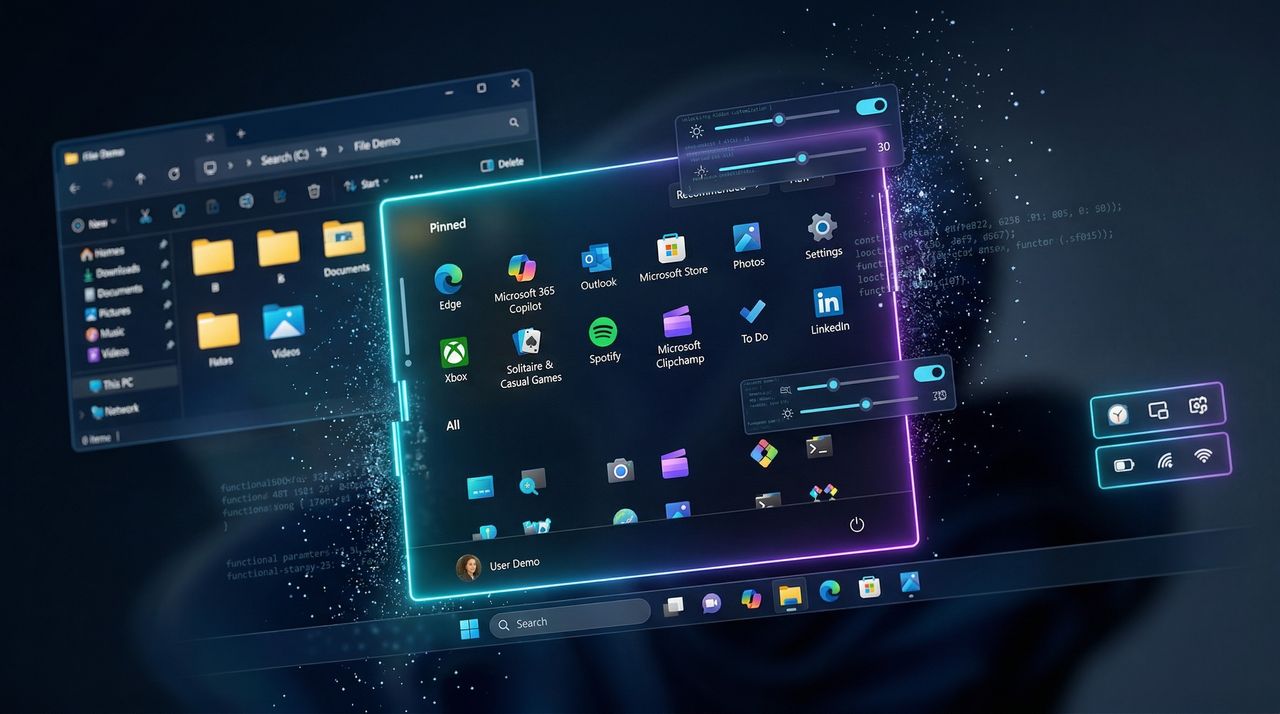
Windows 11 offers improved customization in many areas, but it still has limits. You can change the background image, switch themes, adjust accent colors, and reorganize parts of the Start menu and Taskbar. However, for bigger changes (like restoring classic features, modifying system behaviors, or reshaping the interface), native options quickly run out.
That's where Windhawk steps in. Instead of relying on traditional system tweaks or risky file modifications, Windhawk uses a modular approach that lets you apply small, targeted changes to the operating system. Choosing the right mods, you can transform the desktop's look and behavior, bring back familiar features from previous versions of Windows, and fine-tune elements the system doesn't natively expose.
In other words, while Windows 11 offers some customization options, Windhawk opens the door to a far more flexible and personalized experience, allowing you to completely transform the desktop to fit your preferences.
In this how-to guide, I'll highlight some of the best mods that can help you transform your desktop into something more unique and personal on Windows 11.
Warning: Although Windhawk is known to be a safe application, it's still a third-party app that is not supported by Microsoft. As a result, it's recommended to create a full backup before proceeding and use it at your own risk.
Install Windhawk on Windows 11
You can install the Windhawk in multiple ways, but the easiest method is to use the Windows Package Manager (winget) command. Here's how:
- Open Start.
- Search for Command Prompt (or Terminal), right-click the top result, and choose the Run as administrator option.
- Type the following command to install the Windhawk app and press Enter: winget install --id RamenSoftware.Windhawk

Once you complete the steps, you can launch the Windhawk app from the start menu and install new mods from the "Explorer" page.
Best Windhawk mods for Windows 11
These are the best mods you should try after installing Windhawk on your computer.
Windows 11 Taskbar Styler
The "Windows 11 Taskbar Styler" is one of the best mods available for Windhawk. While many tools offer simple toggles for transparency or icon alignment, this mod provides deep, granular control over the Taskbar's visual elements through XAML styling and resource overrides.
The mod offers three main levels, ranging from one-click themes to manual coding.
If you don't want to mess with code, the mod includes a "Themes" section, which includes popular community themes, including Windows XP, Vista, 7, macOS-style dock, and many more.

You can also use the "Control Styles" to target specific interface elements (using their XAML class names) and override their properties.
Finally, the "Resources Variables" let you override system-defined variables that control the skeleton of the Taskbar, such as sizes, margins, and color mode.
To get started, on the Windhawk's Home page, search for "Windows 11 Taskbar Styler" in the mod, then click the "Install" button. Once installed, in the mod's "Settings" tab, either pick a theme or start adding your own "Control Styles."

Although you can customize the Taskbar manually, my recommendation would be to only use the available themes to keep it simple.
Taskbar on top for Windows 11
If you plan to customize the Taskbar, you probably also want to use the "Taskbar on top for Windows 11" mod.
Although changes are coming, moving the Taskbar to the top was one of the most requested features for Windows 11, and the "Taskbar on top for Windows 11" mod is currently the most reliable way to do it without replacing the entire shell.
Unlike the Taskbar Styler, which I mentioned above, which focuses on the look, this mod specifically focuses on the position.

To get started, from the Windhawk's Home page, search for "Taskbar on top for Windows 11" in the mod, then click the "Install" button. After the installation, the Taskbar should immediately appear at the top of the screen. If not, click the "Enable" button in the mod's settings.

Since the Windows 11 taskbar wasn't designed to be moved, there are a few visual glitches you might notice. For example, the Start menu slides up from the bottom even though the bar is at the top.
Taskbar height and icon size
In simple terms, the "Taskbar height and icon size" mod for Windhawk is essentially the modern successor to the Registry tweak that Microsoft deprecated.
Since the operating system removed the native ability to easily toggle between small and large taskbar sizes, this mod fills that gap by allowing granular control over the bar's height and scaling without affecting your system's overall DPI scaling.
Unlike the system's built-in scaling setting, this mod only targets the Taskbar.

Also, by default, Windows 11 uses 24x24 icons (downscaled from 32x32), which can look blurry. This mod lets you set them to 32x32 for a much crisper look.
Of course, you can manually set the height in pixels and the icon size, allowing for a really compact Taskbar or a larger, touch-friendly version.
To get started, from the Home page, search for "Taskbar height and icon size" in the mod, then click the "Install" button. After installation, you can adjust the Taskbar height and icon size in the mod's "Settings" tab.

Windows 11 Start Menu Styler
Another great mod is the "Windows 11 Start Menu Styler," which lets you completely rewrite the Start menu's visual appearance using themes and custom XAML and CSS.
It's essentially a skinner for the menu that doesn't replace system files, making it much safer than older transformation packs.
As part of the features, it comes with several built-in presets that can instantly change the look, such as SunValley, Windows 10X, LiquidGlass, and Aero.

It allows advanced tweaks, such as changing corner radii, adding blur effects, and adjusting transparency levels, but you'll usually want to stick with the available themes.
To get started, from the Home page, search for "Windows 11 Start Menu Styler" in the mod, then click the "Install" button. After installation, you can choose one of the themes for the Start menu from the mod's Settings tab using the "Theme" menu.

Sometimes this mod can break the Start menu style after a particular update because it hooks directly into the StartMenuExperienceHost.exe. If this happens, turn off the mod and wait for an update to become available.
Windows 11 File Explorer Styler
The "Windows 11 File Explorer Styler" is another mod that gives you granular control over the File Explorer interface.
Since File Explorer has shifted to a WinUI 3-based architecture, traditional skinning became difficult. This mod works by injecting custom XAML styles and resource overrides directly into the explorer.exe process.
As part of the features, you can hide or resize specific elements that Microsoft doesn't allow you to touch, such as the address bar, the search box, or the command bar.

It supports community themes, with popular options often including LiquidGlass or styles that mimic the Aero style from Windows 7.
To get started, from the Home page, search for "Windows 11 File Explorer Styler" in the mod, then click the "Install" button. After installation, you can choose a theme for File Explorer in the mod's Settings tab, under the "Theme" menu, then click the "Save settings" button.

You can also use the "Translucent background effect" settings to change the type of blur applied to the window, and "Translucent background effect region" to define where the effect is visible.
Classic context menu on Windows 11
You can also pair the "Windows 11 File Explorer Styler" mod with the "Classic context menu on Windows 11" mod, which replaces the modern with the classic context menu.

To get started, from the Home page, search for "Classic context menu on Windows 11" in the mod, then click the "Install" button. After installation, the classic menu will be enabled immediately.

Windows 11 Notification Center Styler
Finally, the transformation of the desktop would not be complete without the "Windows 11 Notification Center Styler," which lets you target the system's flyout menus, specifically the Notification Center (Win+N) and the Quick Settings, to change their layouts, transparency, and overall aesthetic.
Similar to the other stylers, it uses XAML injection, meaning you can hide parts of the interface that Microsoft usually forces on you.
As part of the features, you can use presets like Unified, WindowGlass, Fluid, and Oversimplified & Accentuated. Again, since this is a styler, you can manually change parts of the Notification Center using the available settings. However, usually, the "Theme" setting should be enough for most users.

To get started, from the Home page, search for "Windows 11 Notification Center Styler" in the mod, then click the "Install" button. After installation, you can choose from the different themes from the "Settings" tab, and then click the "Save settings" button.

How Windhawk works
The core of Windhawk is dynamic code injection. Instead of modifying ".exe" or ".dll" files on the setup, it waits for a program to start and injects code directly into that process's memory.
It uses hooks to intercept function calls. For example, if a mod wants to change the Taskbar color, it can intercept the system's drawing commands and replace them with custom instructions on the fly.
Because it doesn't modify system files, it's generally safer than patching binaries, and most issues can be resolved with a reboot or by uninstalling the mod. However, because it operates inside critical processes, crashes or instability are still possible.
Final thoughts
Windows 11 gives you a decent amount of control over how your desktop looks and behaves, but Windhawk is what truly opens the door. These mods let you reshape the OS, not just tweak it. Whether it’s reclaiming Taskbar features Microsoft removed, refining the Start menu, cleaning up File Explorer, or adding small quality‑of‑life touches you didn’t realize you needed, Windhawk turns Windows 11 into something that feels personal rather than prescribed.
If you’ve ever wished Windows would “just work” the way you want, this is the toolkit that gets you there.
What’s the first mod you’re installing? Let me know in the comments.
More resources
Explore more in-depth how-to guides, troubleshooting advice, and essential tips to get the most out of Windows 11 and 10. Start browsing here:
- Windows 11 on Windows Central — All you need to know
- Windows 10 on Windows Central — All you need to know