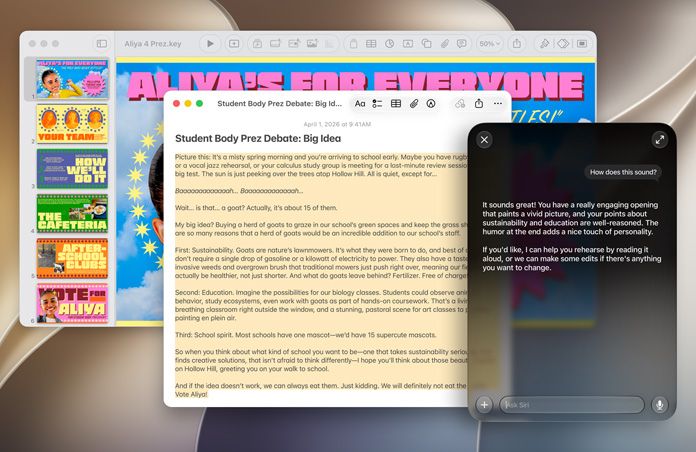
Apple announced macOS Golden Gate at WWDC 2026, which means developers are already working hard to update their apps for the upcoming operating system. The developer beta is now live, but it’s open to anyone who signs up for Apple’s Beta program and is willing to deal with potential headaches associated with in-development code.
This year, Apple has placed most of its focus on updating Apple Intelligence and Siri, which it now calls Siri AI. macOS 27 doesn’t include many new features, so the development team focused on improving performance, which should make this OS run more smoothly. Improvements have also been made to the Liquid Glass UI, making it more customizable (and readable).
A word of warning: macOS Golden Gate is unfinished, so it might be buggy and could cause issues for your Mac. If you’re willing to take the chance (most of these betas are relatively safe in my experience), then read on to find out how to download the macOS Golden Gate developer beta.
How to download the macOS Golden Gate developer beta
Downloading the macOS Golden Gate developer beta is a relatively simple process. First, enroll your Apple ID in Apple's Beta Program and make sure your Mac is compatible. Here's the full list of Macs that can install and run macOS Golden Gate:
- MacBook Neo (2026)
- MacBook Air with Apple silicon (2020 and later)
- MacBook Pro with Apple silicon (2020 and later)
- iMac with Apple silicon (2021 and later)
- Mac mini with Apple silicon (2020 and later)
- Mac Studio with Apple silicon (2022 and later)
- Mac Pro with Apple silicon (2023 and later)
1. Open System Settings
To start, open the System Settings menu on your Mac by clicking on the Apple icon in the top-left corner, then select "System Settings" from the drop-down menu. Similarly, you can also click on the gear icon in the dock.
2. Navigate to General > Software Update
After that, navigate to the Software Update section of your General settings menu. To get there, click General in the left-hand menu of the System Settings menu, then click Software Update.
3. Enable Beta Updates and select macOS Golden Gate
Then, make sure the Beta Updates setting is switched to On. If it's switched Off, turn it on by clicking the corresponding button. When the Beta Updates menu opens, select macOS Golden Gate Developer Beta from the dropdown menu. Double-check that your Apple account is enrolled in Apple’s Beta Program if you don’t see the beta listed.
4. Install the beta
Once that's done, you should see the macOS 27 Beta appear as available to download. All you have to do now is hit the Upgrade Now button to start downloading, and you're all set!
And that’s how you download the macOS Golden Gate developer beta. After the download finishes, your Mac will restart, and you’ll get your first taste of the upcoming OS. Depending on your connection speed, the download might take a few minutes, so be patient. Enjoy the new features!