
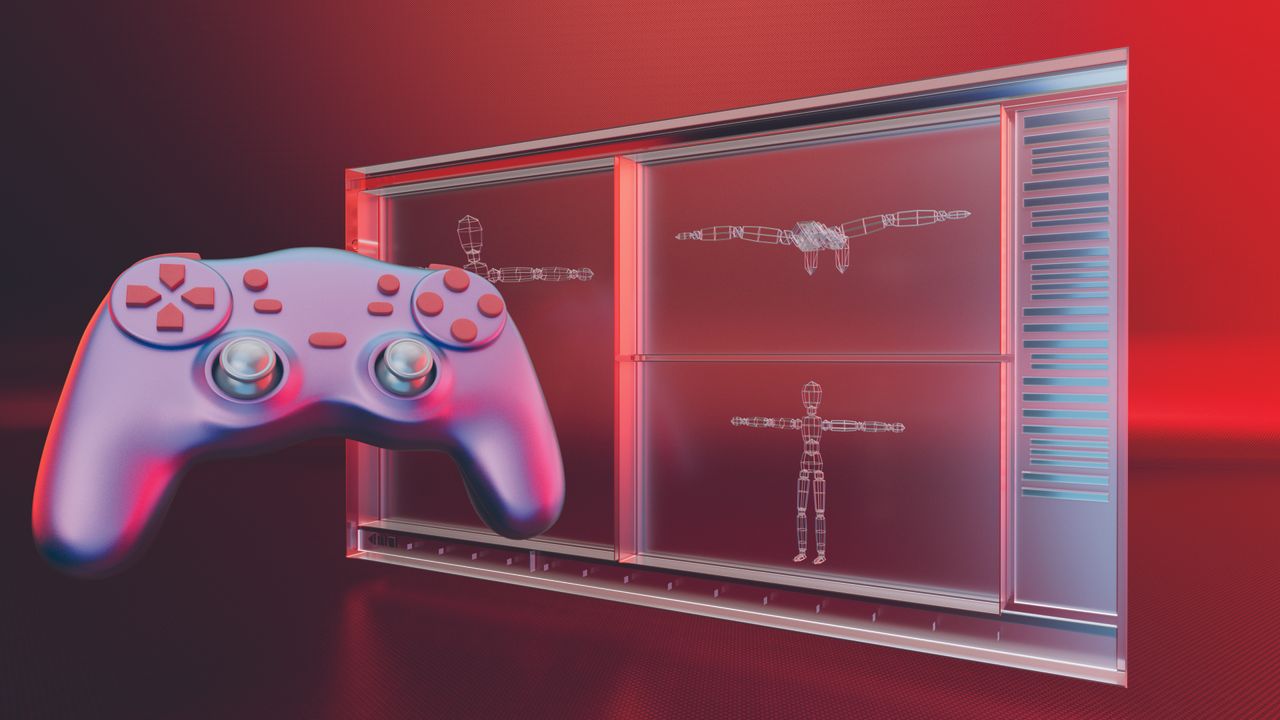
If you are used to using 2D software or traditional pen and paper to create artwork and want to learn 3D, the kicker is learning to navigate in an extra dimension. If you’ve ever opened a 3D modelling software and felt lost, you’re not alone. Unlike a 2D canvas, where up is up and left is left, a 3D viewport is a window into an empty, infinite space that you can view from any angle.
Once you’ve learned the three core moves – orbit, pan, and zoom – you’ll find that they work almost identically across every 3D application. Orbit rotates your view around a central point. Pan slides your view without changing the angle. Zoom moves you closer to or further from what you’re looking at, narrowing or widening your field of view.

These moves typically use a combination of mouse buttons and modifier keys (Alt, Shift, Ctrl, or Cmd). The logic is universal: one button orbits, add a modifier to pan, add another to zoom. Most applications also support scroll-wheel zoom.
The viewport can switch between standardized views (top, front, side) and perspective and orthographic projections. Perspective mimics how we see the real world. Orthographic flattens this depth, which is invaluable for precise alignment work. Below, I cover the basic functions of controlling a 3D application.
1. Orbit, pan and zoom

Every 3D app shares three navigation fundamentals: middle-mouse orbiting, Shift+middle-mouse panning, and scroll-wheel zooming. Cinema 4D or Maya uses Alt plus mouse buttons instead. The key is learning your app’s shortcuts until they become muscle memory – it’s usually swapping a position in a different app.
2. Switching views

Most 3D apps offer preset viewpoints: top, front, left, right, which in Blender are accessed via the multicoloured gimbal at the top, number keys, or the View menu. Switching between perspective (realistic depth) and orthographic (no depth distortion) is important – the latter is essential when lining up objects.
3. Frame your selection

Sooner or later, you’ll zoom too far or orbit into oblivion and lose sight of your object. Every 3D app has a ‘frame selection’ command that centres and zooms in on whatever’s selected – learn this early. Also worth noting is that most apps let you frame the entire scene or jump back to the origin point (0, 0, 0) with a single command.