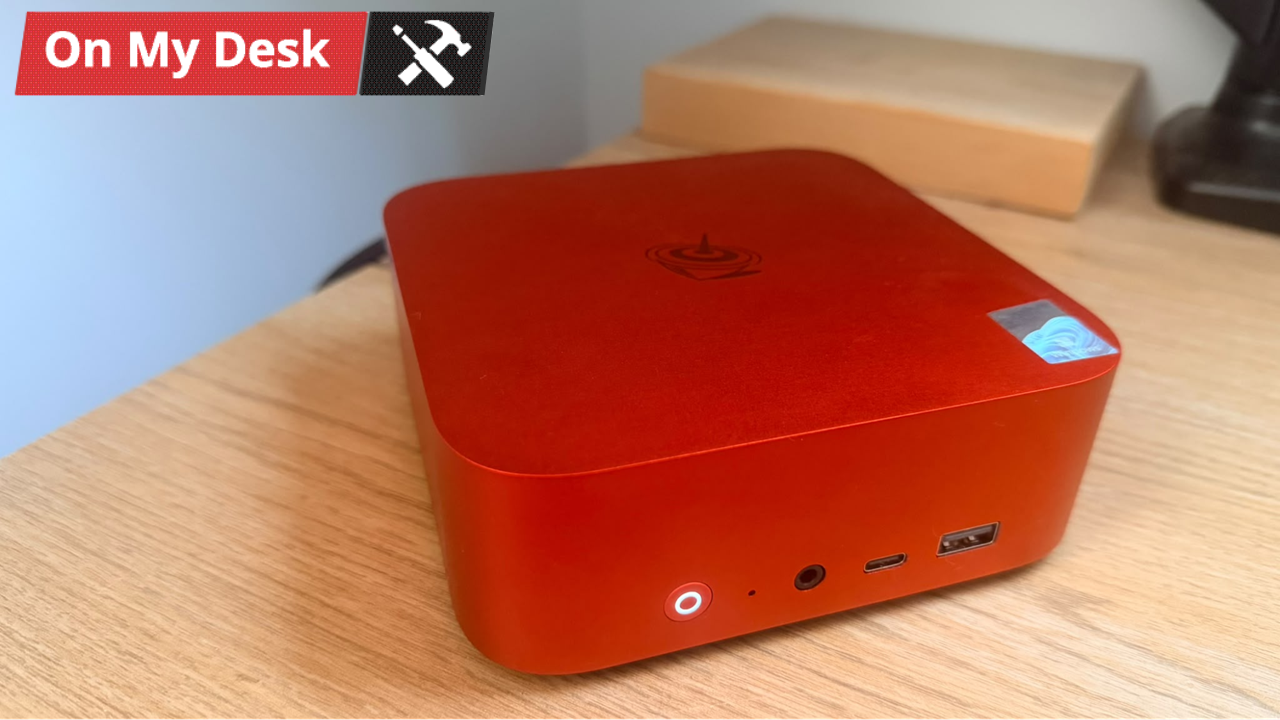
Unless you’ve been living under a rock, OpenClaw has dominated headlines, both good and bad, for much of early 2026. Developed by Peter Steinberger, the tool is an engine that spins up an AI agent that can autonomously act on your behalf, going so far as having the ability to run files, browse the web, and much more. Using a system named “Skills,” you can even teach your AI assistant to perform new tasks, with more integrations popping up daily. But how useful is it for the average person? I took it upon myself to answer that question by using the relatively humble Beelink SER10 MAX mini PC, which comes pre-installed with OpenClaw, to find out.
To kick things off, when setting up your OpenClaw installation, there’s a fairly large decision one has to make: Do you want to rely on Cloud resources and more powerful AI models, or run something locally? Beelink’s SER10 MAX ships with Qwen-3.5 9B, which is a relatively older and more outdated AI model. Since I want to keep things fairly simple, I opted for the local AI route first. To run larger models, you’ll need a lot of memory, so I first tweaked the humble Mini PC’s video memory up to 48GB, which should allow us to keep a larger, more complex model in memory. It also leaves us 16GB of system memory to play around with, which should be more than enough to run the terminal and ensure that everything else works as intended.