Get all your news in one place.
100’s of premium titles.
One app.
Start reading
Tom’s Guide
Tom’s Guide
Technology
Tom Pritchard

Samsung Galaxy’s new ‘Inactivity Restart’ locks out thieves and keeps you safe — here’s how it works

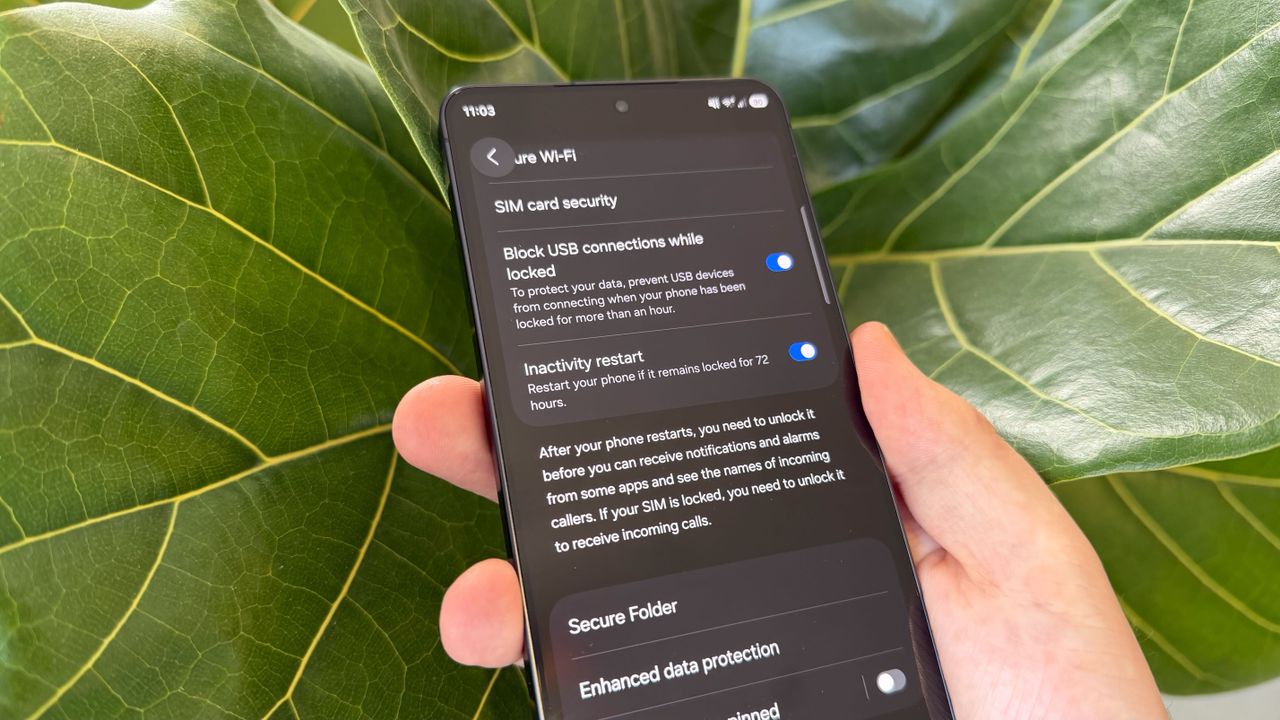
Samsung galaxy inactivity restart feature.

Samsung has just taken another step towards securing the data stored on your phone, adding a new feature called "Inactivity Restart". It's similar to a feature that's been available on both iPhones and other Android devices for some time, and the purpose is to automatically restart your phone if it sits around idle for too long — 72 hours to be exact.So how does this help, exactly? It's all to do with how your phone secures your data in different states of operation. Having a lockscreen can help safeguard your phone from casual snoops, but the fact that your phone is switched on and booted up means it's more at risk than it could be. Thieves or law enforcement could break in using specialist tools.But if your phone has just restarted, or has only just been switched on, accessing that data becomes a lot harder. Everything has been locked away in more secure storage, and your phone needs to retrieve it before anyone can access it. It's why you're asked to unlock your phone with a passcode or pattern, rather than biometrics, when you first switch on. By automatically restarting after 72 hours of non-activity, or at the very least no successful unlocks, it means that any stolen or seized phones will automatically lock up your data more securely. Even if the phone has been plugged in to keep the battery from running out.

How to set up Inactivity Restart on Galaxy phones

The feature has appeared on some Galaxy phones following a recent March security update. That includes my own Samsung Galaxy S25 running OneUI 8, with Sammy Fans also noting that it has appeared on Galaxy Z Fold 7 devices. In other words, make sure your Galaxy phone is fully up to date, then you can head into the settings to make sure Inactivity Restart is switched on.In my case, the feature was already switched on by default immediately after updating. This might not be the case for you. Here's how to find Inactivity Restart and switch it on if necessary.

Switch on Inactivity Restart

The first thing you'll need to do is head into the Settings menu, then scroll down until you find Security and privacy. From there, scroll down further until you see More security settings. The Inactivity Restart toggle will be at the top of the page, just below the "Block USB connections" option.

There you have it. Now, should you ever leave your phone lying around unused for 72 hours or more, it will automatically restart. Assuming, of course, that it has enough battery to survive three days in the first place.Considering how much data we keep on our phones, it's always worth doing everything you can to help keep it safe. And should your phone ever get stolen or seized by law enforcement, the automatic restart can go a long way to securing your information.


More from Tom's Guide

Sign up to read this article
Read news from 100’s of titles, curated specifically for you.
Already a member? Sign in here
Related Stories
Top stories on inkl right now
Our Picks
Fourteen days free
Download the app
One app. One membership.
100+ trusted global sources.