Get all your news in one place.
100’s of premium titles.
One app.
Start reading
Windows Central
Windows Central
Technology
Sean Endicott

PowerToys and Files devs teaming up might be the biggest quality‑of‑life win Windows 11 has seen in years — and macOS should pay attention

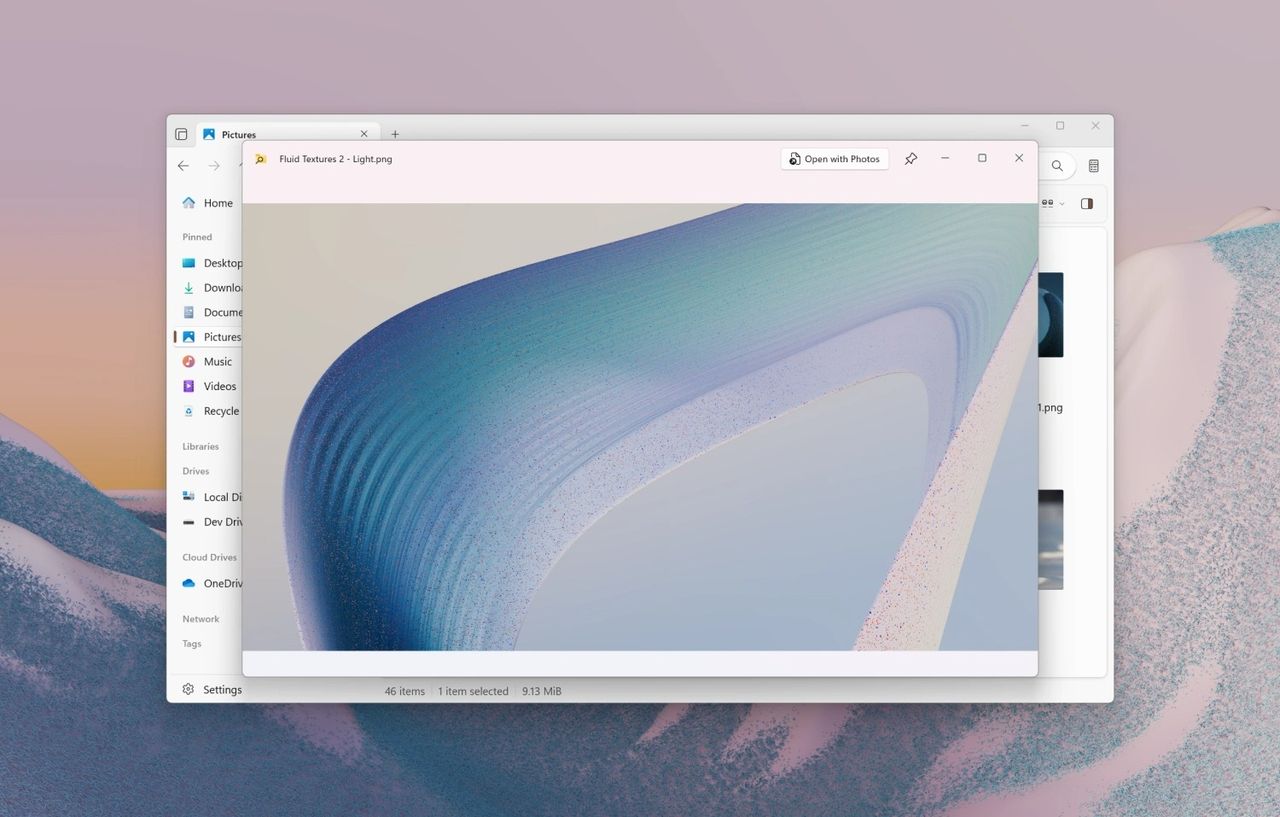
PowerToys Peek in Files app on Windows 11.

Two of my favorite Windows 11 apps now integrate to make it easier to preview files. Files, a third-party file explorer, now supports PowerToys Peek.

The addition ships with version 4.0.24 of Files, which started rolling out during the week between Christmas and New Year's.

Peek is a feature that can preview files quickly. It's similar to Quick Look on macOS. There are other third-party apps that have similar functionality, such as QuickLook and Seer.

Peek lets you preview files without having to open other apps, saving system resources for other tasks. Peek supports Office documents, videos, web pages, several image types, and more.

Engineers made the first preview of Peek for PowerToys back in 2022. Since then, the feature shipped to PowerToys and has received several updates, including one that added the ability to preview WebP files.

By integrating Peek into Files, the developers of the latter have streamlined the workflow of those who prefer the third-party file explorer application.

If you already have PowerToys installed and are on the latest version of Files, the new feature should work automatically.

Files v4.0.24 change log

PowerToys Peek

We’re excited to be adding support for PowerToys Peek, a popular tool for previewing files on Windows. If you already have PowerToys installed, there’s no need for additional setup. Just select an item in Files, and press the space key to see a preview. To learn more about PowerToys Peek, please see their documentation site https://learn.microsoft.com/en-us/windows/powertoys/peek.

Right Click Context Menu

We added copy functionality to the context menu when right clicking the sidebar and home page widgets.

Faster File & Folder Creation

When creating a new file or folder, a default name is now prefilled and automatically selected. This allows you to quickly create files without having to manually enter a name, while making it easy to replace if you prefer to set one yourself.

Omnibar

We added a shadow to the Omnibar suggestions flyout to better align with WinUI styling.

Status Center

Added text wrapping for longer folder names in the Status Center.

Tags

Added support for AND OR operators when searching for tags.

Fixes

  • Fixed a crash that would occur when resizing the window in Dual Pane mode.
  • Fixed a crash that would occur when switching git branches during a merge conflict.
  • Fixed an issue where PNG-based .ico files with black backgrounds displayed incorrectly in the sidebar.

I've used Files for a long time. I prefer its design and feature set to the native File Explorer that ships with Windows 11. I've also followed the development for years, giving me insight into app development.

While I love Files' features and design, it can run into some performance issues. I haven't experienced many issues or crashes lately, but I have a workstation laptop. You may have a different experience depending on your hardware.

You can try Files for free to see if it works well on your system. The app is available through GitHub or the Microsoft Store. If you like the app, you can sponsor the development of Files through GitHub.

Which app do you use on Windows 11 to manage your files? Let us know in the comments below!

Follow Windows Central on Google News to keep our latest news, insights, and features at the top of your feeds!

Sign up to read this article
Read news from 100’s of titles, curated specifically for you.
Already a member? Sign in here
Related Stories
Top stories on inkl right now
One subscription that gives you access to news from hundreds of sites
Already a member? Sign in here
Our Picks
Fourteen days free
Download the app
One app. One membership.
100+ trusted global sources.