Get all your news in one place.
100’s of premium titles.
One app.
Start reading
Windows Central
Windows Central
Technology
Sean Endicott

OneDrive doesn't let you transfer ownership of files and folders — Here's how to do it anyway

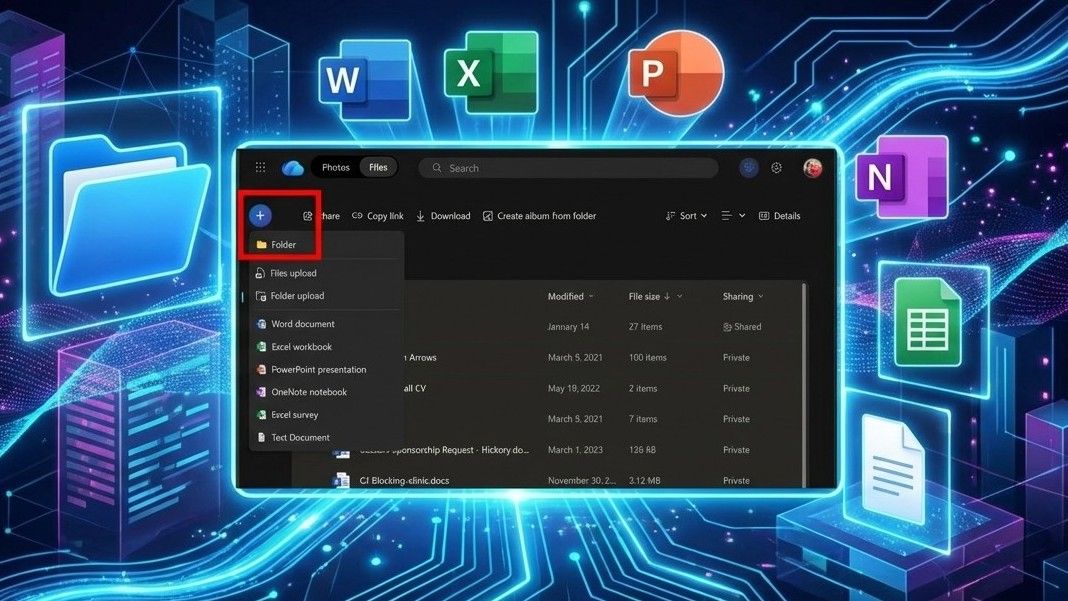
OneDrive web interface for copying files.

OneDrive lacks native support for transferring the ownership of files and folders. Additionally, some of the workarounds familiar to SharePoint users, such as giving another user full access to an item and then removing or downgrading yourself, do not work with OneDrive.

You can, however, effectively transfer the ownership of files or folders in OneDrive with a trick — though there are limits.

By making a parent folder, placing content within it, and sharing the parent folder with a user, another person can then use the Copy to feature in OneDrive to move the content somewhere else.

It's an inelegant solution that takes time and has limits. OneDrive cannot move or copy files over 100GB in size. It also lacks support for moving up to 30,000 files at once.

Perhaps most importantly, following the steps outlined below will not transfer file-sharing settings. Following these steps essentially makes a copy of the files.

I've used the steps below to transfer over 80GB of photos and videos of my daughter to her OneDrive account. I then had her OneDrive account share the folder with me so I still have access, but the files are hosted on her account (my daughter is 3 months old, so I handle her OneDrive account).

How to transfer ownership of OneDrive files or folders

To transfer the ownership of OneDrive files or folders, use these steps:

  1. Using the account that currently hosts the files you'd like to transfer, create a parent folder (a new folder that you can place the files in).
  2. Place the files you would like to share into that parent folder using the Move to feature or by dragging and dropping the content.
  3. Share the parent folder with the person you want to receive those files.
Make a new folder within OneDrive. This will act as the parent folder for the files. (Image credit: Future)
Make sure to press "Send" to share the folder with another person. (Image credit: Future)
  1. Using the account you want to receive the files, open the parent folder that was just shared.
  2. Within that parent folder, select the folder that includes the files you'd like to transfer.
  3. Use the ... menu to select Copy to.
  4. Select the location you'd like to have the copied files be located.
  5. Select Move here.
Copying files creates a new copy, so you can delete the originals or save them as a backup. (Image credit: Future)

FAQs about transferring OneDrive file and folder ownership

Can I transfer the ownership of OneDrive folders or files?

No. OneDrive does not support transferring the ownership of folders or files. You can, however, move files from one person to another using a workaround that involves sharing a parent folder and utilizing the "Copy to" feature.

If I use the "Copy to" workaround, will the original files be deleted?

No. The Copy to feature creates a duplicate of the files. You can manually delete the original files from OneDrive to free up storage.

Will my shared links and "Version History" stay active after moving files?

No. You are essentially creating a new copy of the files in a different location. Previous sharing links will stop working, and the file or folder's version history will reset.

Can I use the "Copy to" workaround to move files from a Personal account to a Work account?

The best way to move files between a Personal OneDrive account and a Work OneDrive account is to drag and drop the files using File Explorer or use another manual method. The Copy to feature may not appear when moving between different account types. OneDrive's web interface usually does not "see" two different organizations at the same time, making this process more complicated.

Does sharing a folder make someone else the owner?

No. Sharing a folder grants another user access to whatever item you shared, but it does not transfer ownership.

How do I save files from an employee who is leaving the company?

Saving files from an employee who is leaving the company requires a different process and a Microsoft 365 admin. The SharePoint Admin Center can be used to grant file access to an administrator.

More resources

Explore more in-depth how-to guides, troubleshooting advice, and essential tips to get the most out of Windows 11 and 10, start browsing here:

Follow Windows Central on Google News to keep our latest news, insights, and features at the top of your feeds!

Sign up to read this article
Read news from 100’s of titles, curated specifically for you.
Already a member? Sign in here
Related Stories
Top stories on inkl right now
One subscription that gives you access to news from hundreds of sites
Already a member? Sign in here
Our Picks
Fourteen days free
Download the app
One app. One membership.
100+ trusted global sources.