
Get all your news in one place.
100's of premium titles.
One app.
Start reading
Digital Camera World
Kim Bunermann

New firmware update fixes autofocus issues on Nikon flagship telephoto lens

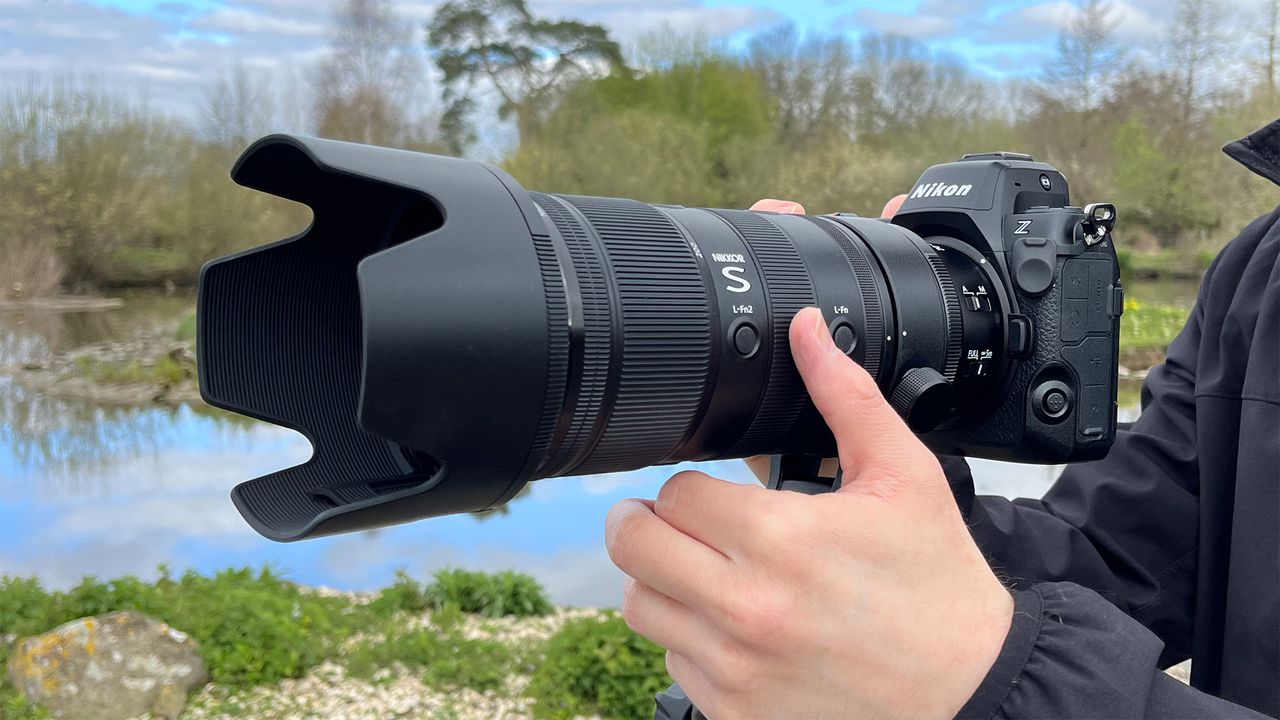
Mike Harris holding Nikon Z 70-200mm f/2.8 VR S II by a lake with vegetation and trees in the background .

The Nikon Z 70‑200mm f/2.8 VR S II is the latest generation of Nikon's professional telephoto zoom, designed for high-performance stills and video work – it's one of Nikon's most advanced telephotos to date.

While the lens is widely regarded as a strong option in its class for sports, wildlife, and event photography, photographers noticed that the autofocus (AF) response slowed down when the telephoto was used with the Nikon Z Teleconverter TC-2.0x.

The new firmware version 1.10 resolves the issue, ensuring consistent AF performance with or without a teleconverter.

Firmware update

Nikon Z 70‑200mm f/2.8 VR S II

The Nikon Z 70‑200mm f/2.8 VR S II is much lighter than its predecessor, optically superior where it counts, and boasts an all-around better design (Image credit: Future)

Firmware Ver. 1.10
Download link for Windows and Mac OS

Updates:
- Fixed an issue where autofocus was slow to respond when used with the Z teleconverter TC-2.0x

How to update this lens firmware

You can update the lens at home, or have it done at a Nikon store by an authorized service representative (Image credit: James Artaius)

1. Download the following firmware file to your computer.
Please make sure you have the downloaded firmware file on your computer.
• MLZ70_200F28VRSII_0110.bin (the lens firmware)

2. Using a card slot or card reader, copy “MLZ70_200F28VRSII_0110.bin” to a memory card that has been formatted in the camera.
Note: Be sure to copy the firmware to the root (top-most) directory of the memory card. The camera will not recognize the new firmware if it is placed in a folder under the root directory.

3. Insert the memory card into the camera and turn the camera on.

4. Select [SETUP MENU] > [Firmware version] and follow the on-screen instructions to perform the firmware update.

5. When a message is displayed stating that the update is complete, turn the camera off and remove the memory card.

6. Turn the camera on and confirm that the firmware has been updated to the new version.

Pro Advice

You can check out the episode for more insights, potential risks, and expert advice on our YouTube channel,Spotify, Apple Podcasts, and all your favorite podcast services (Image credit: Future)

If you caught Episode 4 of Bokeh Face: Digital Camera World podcast, we discussed the best time to install firmware updates, why they matter, but also what issues they can cause. It's a helpful listen if you're unsure when – or whenever – you should update.

It's smart to wait a week or two after release to see if any users hit snags. In the past, brands have had a few hiccups with major updates – for instance, introducing memory-setting bugs or minor interface glitches before being reissued.

You might like...

Browse the best 70-200mm lenses, the best telephoto lenses, and the best Nikon Z lenses.

Sign up to read this article
Read news from 100's of titles, curated specifically for you.
Already a member? Sign in here
Related Stories
Top stories on inkl right now
One subscription that gives you access to news from hundreds of sites
Already a member? Sign in here
Our Picks
Fourteen days free
Download the app
One app. One membership.
100+ trusted global sources.