Get all your news in one place.
100’s of premium titles.
One app.
Start reading
Tom’s Guide
Tom’s Guide
Technology
Amanda Caswell

My kids bought 'Extreme Fart Extension' for Alexa+ — here’s how to quickly set up parental controls and stop voice purchases

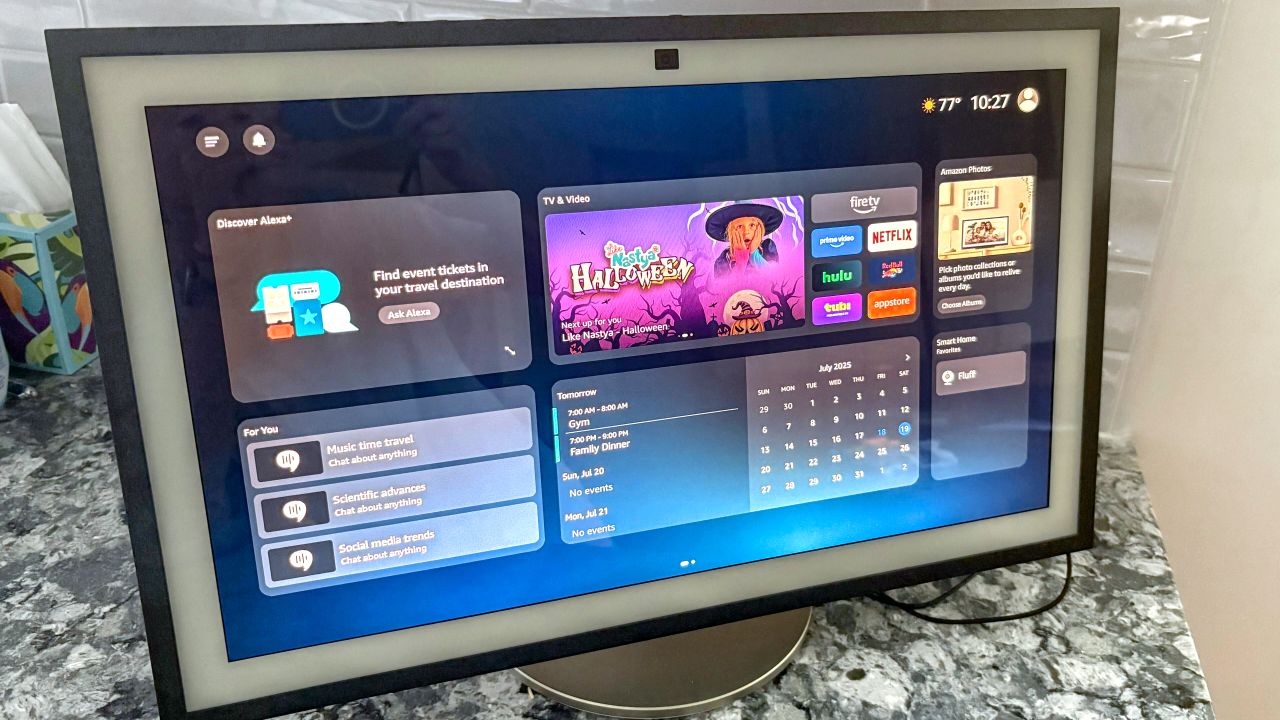
Alexa+ on Echo Show.

I wasn't expecting my young children to go shopping this Black Friday. But, when I was in my office located in the back of the house and heard Alexa+ say that the 'Extreme Fart Extension' had been ordered, I knew that it wasn't my husband who'd made the purchase. Mostly because he wasn't home.

My kids had gone from talking to Alexa+ to activating extreme flatulence in seconds. What followed can only be described as a full-blown soundboard of cartoonish gas explosions enabled instantly across every Alexa device in our home.

If you have kids, you probably already know that they’re faster at finding apps than you are at finding your Amazon login. Luckily, this is preventable. Here’s how to set up parental controls on Alexa and Amazon so your child doesn’t accidentally (or intentionally) download or buy things without your knowledge.

What is Alexa+ and how did my kids buy something?

(Image credit: Amazon/Tom's Guide)

We are an Alexa+ household and I use it to keep the chaos under control with my family of five. Alexa+ is Amazon’s upgraded AI assistant, and works with the Alexa Skills Store, where you can enable apps like games, trivia, soundboards — and, yes, fart extensions. Some of these are free, while others come with a small fee.

The problem? If voice purchasing is enabled, your Echo device will happily process a request like what my kids ordreed. They can also purchase directly off of Amazon. That is, unless you've set up safeguards.

That’s exactly what happened in my house. My kids asked for it, Alexa confirmed the purchase, and within seconds, our smart speaker was blasting explosive sound effects in nearly every room.

How to stop your kids from using Alexa to make purchases

(Image credit: Future)

If you have young kids, I would turn off voice purchasing completely. This is the simplest way to make sure no one — not your kid, not your parrot, not a rogue babysitter — can buy anything just by asking Alexa.

  • Open the Alexa app on your phone
  • Tap More > Settings > Account Settings
  • Tap Voice Purchasing
  • Toggle Voice Purchasing to OFF

Once this is off, Alexa will no longer respond to commands like “Alexa, order printer paper” or “Buy toilet paper again.” You’ll still be able to shop using your phone or browser.

You could even add a voice code for safety. This is particularly important if you want to keep voice shopping on. Just lock it down with a 4-digit pin. In this case, you'd go back to Voice Purchasing in the Alexa app, turn on Purchase Confirmation and create a Voice Code (PIN) that will be required to complete any purchase.

Set up Amazon Kids for even more control

(Image credit: Future)

If you’re handing an Echo device over to a child (say, for music, bedtime stories or timers), I suggest enabling Amazon Kids. It's fun for them, but puts you in charge.

  • Open the Alexa app
  • Tap Devices > Echo & Alexa
  • Choose your child’s device (or whatever device the family uses)
  • Tap Amazon Kids and toggle it ON

From there, you can manage content filters, time limits and disable purchases entirely. It also blocks explicit music, restricts calling/texting and gives you access to activity logs.

And if you're ever worried about missing an unexpected purchase, you can review your Alexa purchase history. To see what’s been ordered (just in case), visit voice order history, or check your Orders page on Amazon. If something slipped through, you can usually request a refund quickly.

Bottom line

Our family relies on Alexa+ to keep our schedules and lives in order, and while voice shopping can be convenient, it's not so fun when you're in a work meeting and there's 10 minutes of nonstop flatulence happening in the background.

Disabling Alexa’s voice purchasing (or locking it behind a PIN) is the best way to avoid surprise charges, chaos or a very awkward Echo announcement.

More from Tom's Guide

Follow Tom's Guide on Google News and add us as a preferred source to get our up-to-date news, analysis, and reviews in your feeds.

Sign up to read this article
Read news from 100’s of titles, curated specifically for you.
Already a member? Sign in here
Related Stories
Top stories on inkl right now
One subscription that gives you access to news from hundreds of sites
Already a member? Sign in here
Our Picks
Fourteen days free
Download the app
One app. One membership.
100+ trusted global sources.