Get all your news in one place.
100’s of premium titles.
One app.
Start reading
Digital Camera World
Wendy Evans

I used this hack in Affinity Photo to change the season and fake some summer vibes

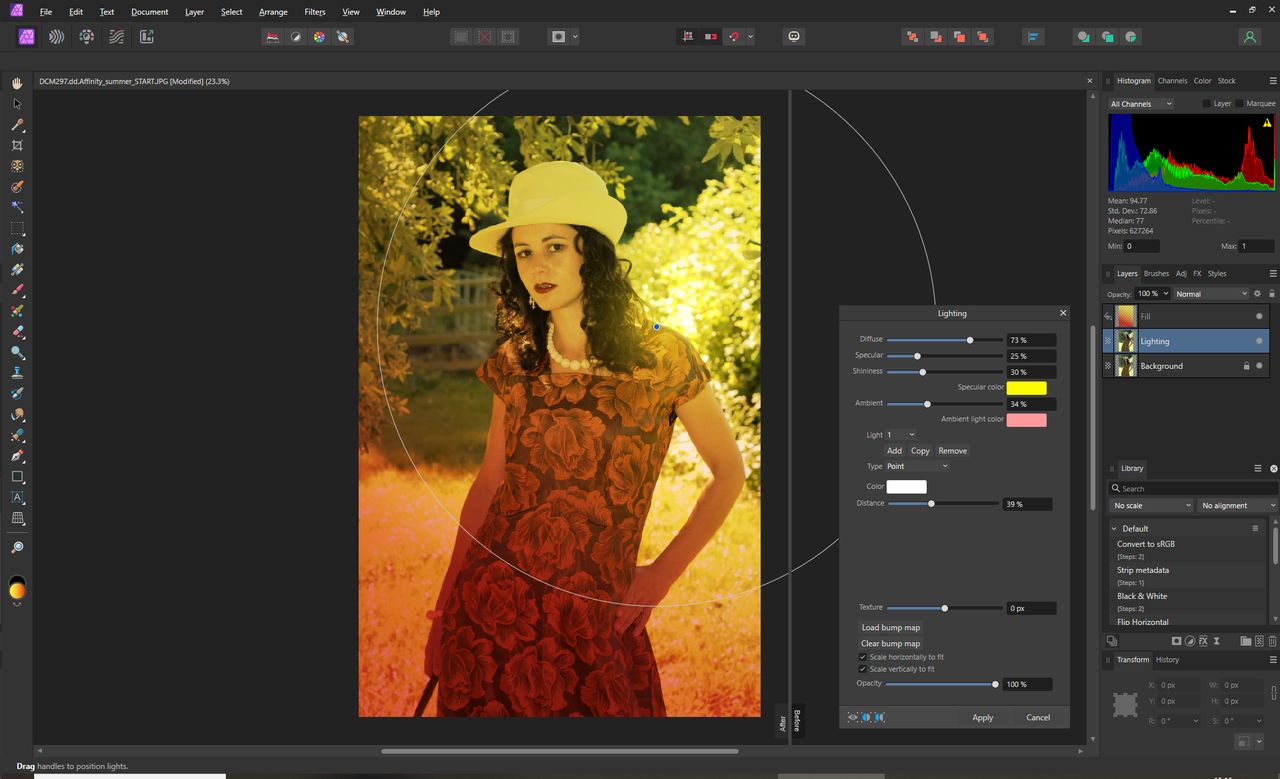
Tweak the settings for the lighting.

Summer is over, which means an end to the lovely warm weather and vibrant lighting conditions, but what if you’re working on a project that requires a summery look? Well, I’m going to show you how you can inject some mid-June vibes back into your outdoor portraits. In fact, with the right gradients in Affinity Photo, you can theme your portraits for any season you like.

One of the problems with shooting outside is that you don’t want the subject squinting in the light. You can remedy this by backlighting them, but then you have the problem of the subject looking dull. Don’t worry, though, I’ll also show you how to fix that with lighting effects to go with the color gradients.

The before image, in the shade, looking all cold and dull (Image credit: Wendy Evans)

How to use gradients in Affinity Photo to fake seasonal lighting

Add the gradient layer (Image credit: Future)

1. Make a gradient

Load the image you want to make summery and then duplicate that layer, calling the new one ‘Lighting’. Then go to Layer > New Fill Layer and click and hold in the top-left corner of the image. Drag and release near the bottom corner. You will now have a new layer called ‘Fill’ that’s a black-and-white gradient.

Add the color gradient (Image credit: Future)

2. Add some color

On the top-left are the details for the gradient. Click on the mono gradient patch and then click on the control point at the white end to select it. Then click on the Color box and select a nice yellow, which will go in the sky area. Repeat the process for the black control point and use a warm red colour.

Brighten it up with a lighting effect (Image credit: Future)

3. Blend and Lighten

Change the blend mode of the ‘Fill’ layer to Overlay and reduce the opacity to 50%-75%, depending on how much of an effect you want. Then select the ‘Lighting’ layer and go to Filters > Lighting. Change the Type to Point and place it just on the shoulder of the subject – in your images, either put it on the brightest point or on the subject.

Tweak the settings for the lighting (Image credit: Future)

4. Tweak the settings

There are a lot of parameters to play with here; the important thing is to overexpose the light. Also, add yellow as the Specular color and a reddish-pink as the Ambient light. Keep the main light color as white. Use the Distance slider to increase the coverage over most of the subject. Click Apply and reduce the layer opacity if required.

Use a green and yellow gradient for a spring feel (Image credit: Wendy Evans)

5. Finish up and try a different season

Merge your layers and save to finish. Now, as mentioned, this is fine for bringing back summer, but how about adding a green-yellow gradient for spring, or a brown-orange one for fall and a blue one for winter? Just change the gradient to give a seasonal feel to your outdoor portraits.

You might also like...

Thinking of upgrading your editing suite? Check out the best photo editing software and the best photo organizing software. If you want more portrait ideas, I broke ALL the rules to photograph this classic film noir portrait.

Sign up to read this article
Read news from 100’s of titles, curated specifically for you.
Already a member? Sign in here
Related Stories
Top stories on inkl right now
One subscription that gives you access to news from hundreds of sites
Already a member? Sign in here
Our Picks
Fourteen days free
Download the app
One app. One membership.
100+ trusted global sources.