
As a ChatGPT power user, I use the chatbot constantly, on my laptop during the day and on my phone when I’m running around. I also regularly use ChatGPT Voice mode. But for a while, I kept hitting the same annoying problem: I’d try to search for an old conversation and it just wouldn’t show up.
It happened most often after switching devices. I’d know the chat existed. I’d remember what I asked. I’d even remember the answer. But search would pull up everything except the one I needed.
The result was always the same: I’d waste time reprompting, rebuilding and rewriting things I’d already solved.
If you’re dealing with that too even when memory is enabled, here’s what actually helped me find past ChatGPT conversations faster and stop losing the good stuff.
1. Use searchable 'anchor words' inside your chats (this is the real trick)

ChatGPT search works best when your conversations include specific words that you can easily search later.
So try to avoid always starting with phrases like:
- Can you help me with this?
- Rewrite this
- Give me ideas
If you do that, your chat history becomes a pile of identical threads. Instead, try adding a few anchor words on purpose such as including the name of the essay you're working on, the purpose of your check list or even name your prompts.
When you do that, those phrases act like search tags. Later, you can type one of them into the search bar and pull up the exact chat in seconds.
Rule of thumb: Write the words your future self would actually search.
2. Make sure you’re logged into the same account on every device
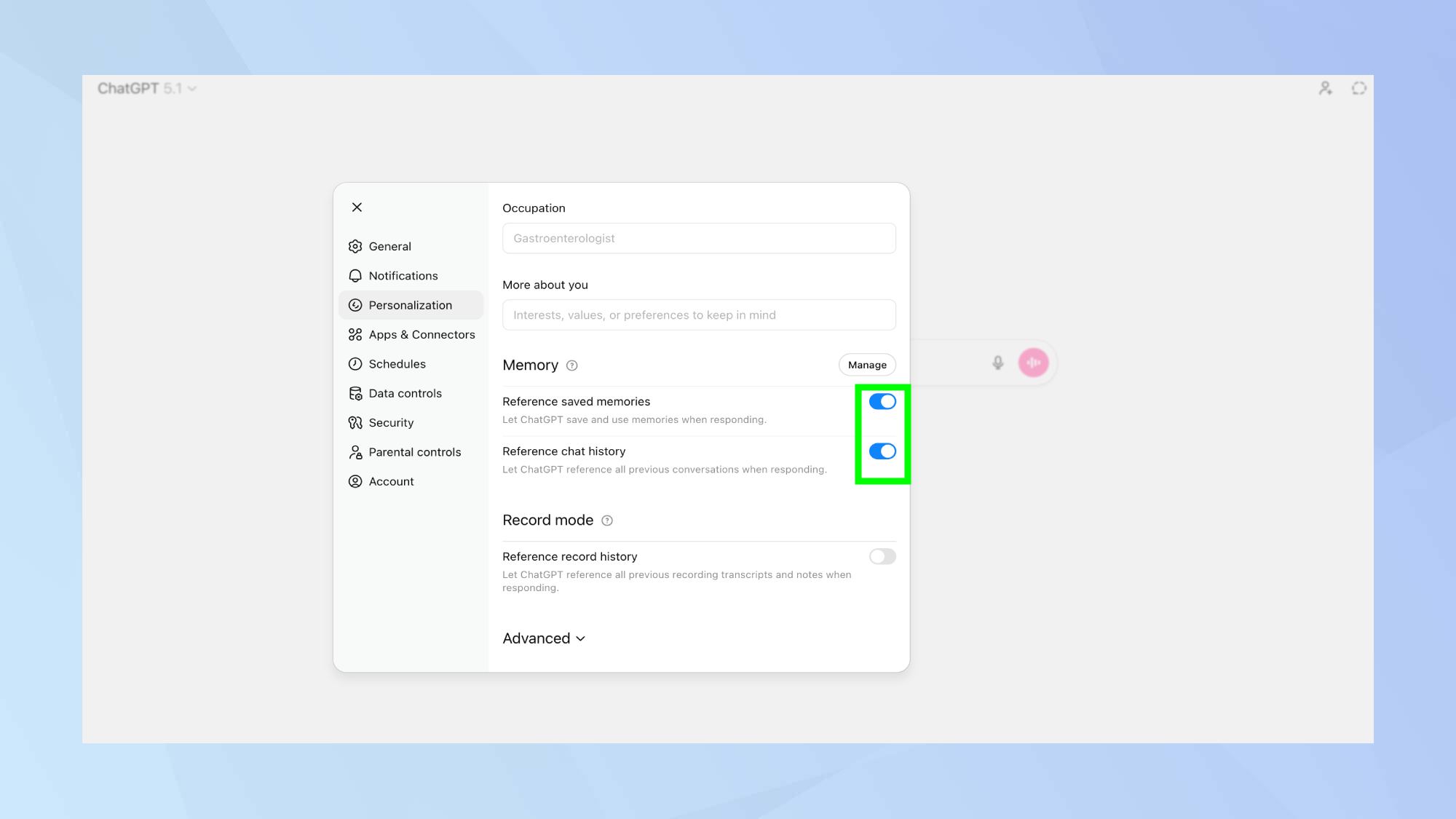
I'm guilty of just opening up my computer and prompting only to realize I'm not logged in. If you want to save your conversations, you must be logged in. It's truly the only way.
This is the simplest fix, and it’s the most common reason your chat history looks “wrong.”
If you signed into ChatGPT with Google on your desktop but used Apple login on your phone, you might be using two different accounts without realizing it. Same goes for using a work email on one device and a personal email on another.
Before you assume chats are missing, double-check the email tied to your account on both devices.
Quick win: Pick one login method and stick with it so your chat history stays consistent.
3. Rename chats so your history becomes useful again
If you don’t rename your chats, you’re making search do all the work.
When your chat list is full of vague titles, it’s harder to scan, harder to organize and way easier to lose things. I rename chats the same way I name files: short, specific and obvious.
The titles don't have to be fancy or long, just make them memorable. That way, even if search isn’t cooperating, this makes it way easier to spot what you need fast.
I often find that going from Voice ChatGPT to my desktop causes me to lose a lot of chats. If you rename your chats in Voice ChatGPT, they should show up.
4. Store and organize chats in Projects

If you're doing a lot of deep research and prompting continually while doing a specific task, consider saving everything in a Project. This way, you'll have everything buttoned up in one spot.
Projects allow you to store everything and stay organized so when you close out, you can pick up right where you left off. This is true even if you go from desktop to app or even to ChatGPT Voice.
5. Open a new chat when the topic changes

I am absolutely guilty of updating my resume in the same chat window where I asked for weeknight dinner ideas. We all get in a hurry and over-prompt in the same window. Not only could this lead to more hallucinations, it causes vital information to get lost. That lasagna recipe is somewhere between your 2019 job and your present career. See what I mean?
Starting a new chat for every topic will ensure easier searching and far less scrolling when it comes time to look back on your conversations.
Bonus tip: Ask ChatGPT

Instead of getting frustrated with the search window, sometimes I'll just ask ChatGPT. I'll say something like, "Remember that conversation outlining the pros and cons of my 11-year-old getting a gerbil?"
It almost never forgets and will start chatting about the conversation again. While this is by far the easiest way to get to the chat you're looking for, I suggest using this one infrequently as it can cause a lot of repeated information and cluttering up your search even more. But it's helpful in a pinch.
Final thoughts
If you use ChatGPT a lot, searching your history shouldn’t feel like a scavenger hunt.
Once I started using a few simple habits — logging into the same account with memory enabled, adding searchable keywords, renaming chats, saving my best prompts elsewhere and keeping “master chats” for ongoing projects — I stopped wasting time reprompting and started finding what I needed instantly.

Follow Tom's Guide on Google News and add us as a preferred source to get our up-to-date news, analysis, and reviews in your feeds.