Get all your news in one place.
100's of premium titles.
One app.
Start reading
Tom’s Guide
Tom’s Guide
Technology
Millie Fender

I synced my Philips Hue lights to the World Cup, and it's completely changed how I watch the game

Hue lights world cup.

Imagine the scene: it's down to the final minutes of a grueling World Cup match. Your team (in my case, England) steps up to take a penalty. Because with England, it's always a penalty. You're leaning so far forward you're practically pressed against the television screen, and suddenly, the ball flies past the goalkeeper and smashes into the back of the net.

Naturally, the room erupts into celebration, and with you, your Philips Hue lights start to flash red and white. Suddenly, your tense watch party has turned into a festival.

Well, I can't promise any penalty success, but if you're wondering how to set up your Hue lights to pair with the World Cup, all you need is a Bridge and a couple of minutes on your Hue app. I set it up myself, and now I'll be parked firmly in front of my smart lights for the next month.

Here's how to turn on the "Sports Live" setting on your Philips Hue app, and the one crucial step you need to follow to make your viewing party spoiler-free.

How "Sports Live" works

The Hue washer lights in the England colors (Image credit: Tom's Guide)

I first used Sports Live setting during an entertaining but goal-free viewing of Spain v Cape Verde. The more action-packed the game, the more you'll get out of this setting.

The full list of tailored responses are as follows:

  • Start of match: Lights blink for five seconds
  • Goal scored: Five second flashes in the scoring team's colors
  • Penalty: Blue flashing lights for five seconds
  • Yellow card: Yellow flashing
  • Second yellow card: Alternating red and yellow lights
  • Red card: Red flashing
  • Match resumes: Five seconds of flashing lights
  • End of match: 15 seconds of flasing in the winning team's colors

How it looks

"Sounds cool," I hear you say, "but what does it look like?"

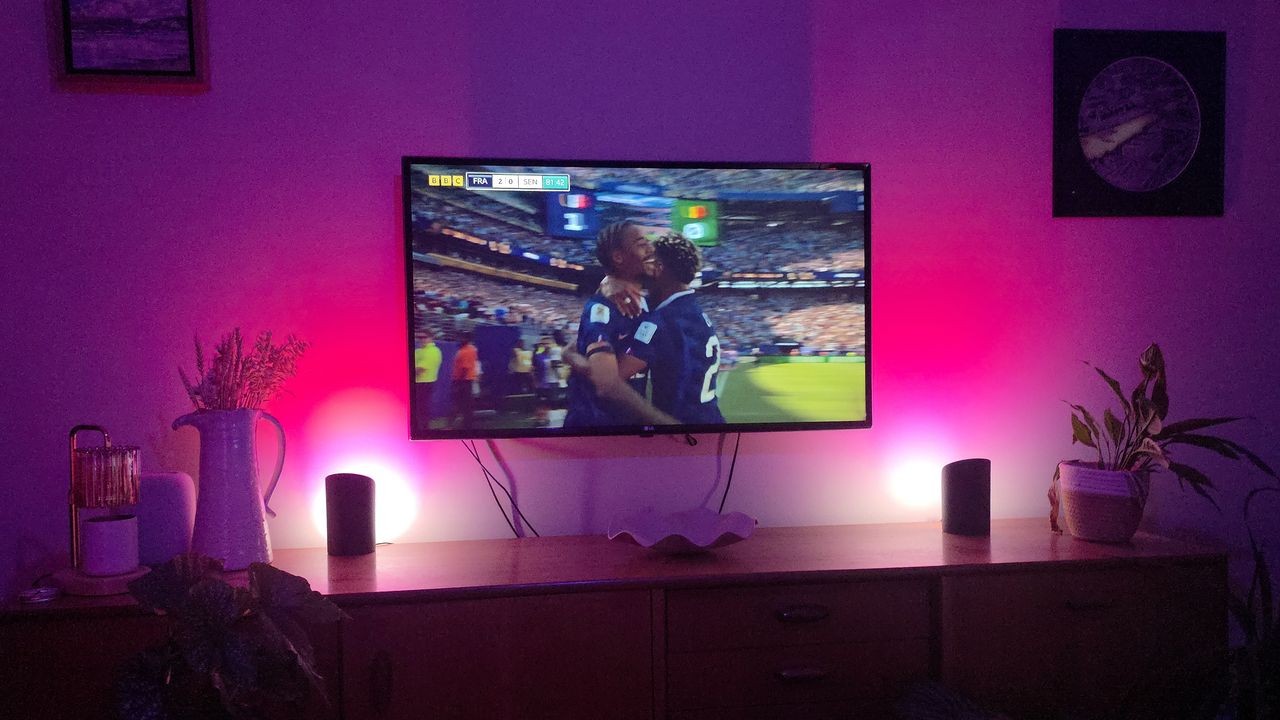
Well, I put this to the test with my Philips Hue Play Wall Washers and the Hue bulb in my ceiling lights. Both enhance the viewing experience, but if you've got a washer or a Play Lamp, which casts multi-colored lights up against your walls, it'll transform your viewing experience.

As you can see in the video above, I was streaming the match a split-second behind the live game, which resulted in some very slightly premature (but still welcome) red and white flashing lights. If you don't take the time to sync your display to the game, it could result in some major spoilers.

While I think the viewing experience is unmatched when you've got Hue wall washers, I still enjoyed the vibrant celebrations coming from my Hue bulb. Albeit slightly less, because those are the Croatian colors.

How to set it up

Setup is simple. You just need a Philips Hue Bridge or Bridge Pro, and at least one compatible light (although I have four, two of which conveniently sit either side of my TV!)

1. Sync with your Hue app

You'll want to do this in advance of the game, but it only took me minutes to set up.

Press "Sync" in the Hue app and you'll have the option to pair your lights to a range of options, from your Spotify account to your LG TV. You'll want to select the "Sports Live" section, which allows you to select your teams (for me, England) and follow the full range of matches throughout the World Cup.

The Sync tab shows a complete list of all upcoming matches. Once you've selected the matches you're planning on watching, the app will automatically switch to Sports Live 15 minutes before kickoff starts for each match.

2. Pre-set your preferences

To do this, press the "Scene" button.

I opted to have my lights in the default "Stadium" setting, which casts a mix of grass greens and deep blues around my living room. You could also choose to set the lights to the color of the team you're backing, or customize them to your own preferences.

Throughout testing, I noticed that the lights dimmed when an attempt is made, which is a great way of building suspense (in case there's not enough already!)

3. Whatever you do, make sure it's synced correctly

I cannot stress this enough: you need to make sure your lights are paired to the time that's shown on your TV. They're set to the live game by default, and even a five-second delay could completely ruin a major game moment, causing an eruption of color in your living room before the ball hits the back of the net!

To do this, simply press the delay button, which lets you toggle down to the second so you're always perfectly paired to the game, as you're seeing it.

Sign up to read this article
Read news from 100's of titles, curated specifically for you.
Already a member? Sign in here
Related Stories
Top stories on inkl right now
One subscription that gives you access to news from hundreds of sites
Already a member? Sign in here
Our Picks
Fourteen days free
Download the app
One app. One membership.
100+ trusted global sources.