
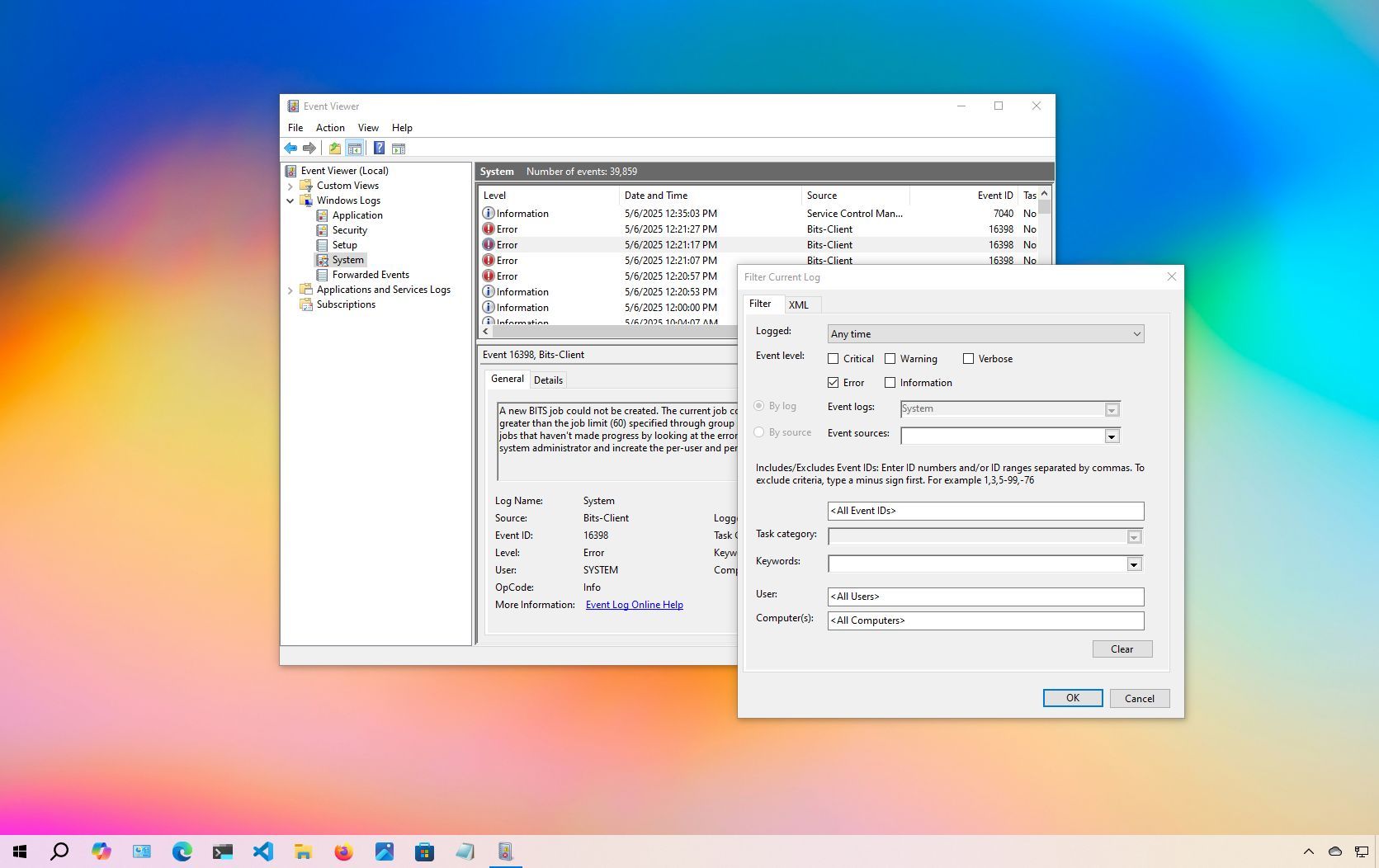
On Windows 10, Event Viewer remains one of the most underrated yet effective diagnostic tools. While it's a legacy utility, it still plays an essential role since it collects detailed logs from apps, drivers, services, and core components. Whether you're dealing with hardware failures, app crashes, driver issues, system errors, or even successful operations, Event Viewer has likely already logged the details.
If you've ever had your computer reboot without warning, freeze unexpectedly, or display a Blue Screen of Death (BSoD), the answer may already be in the logs. In my experience, Event Viewer should be one of the first places to check when something goes wrong on your computer. Even if you don't immediately understand the logs, they often contain clues (timestamps, error codes, warnings) that can help you fix, research, or explain the issue to tech support.