
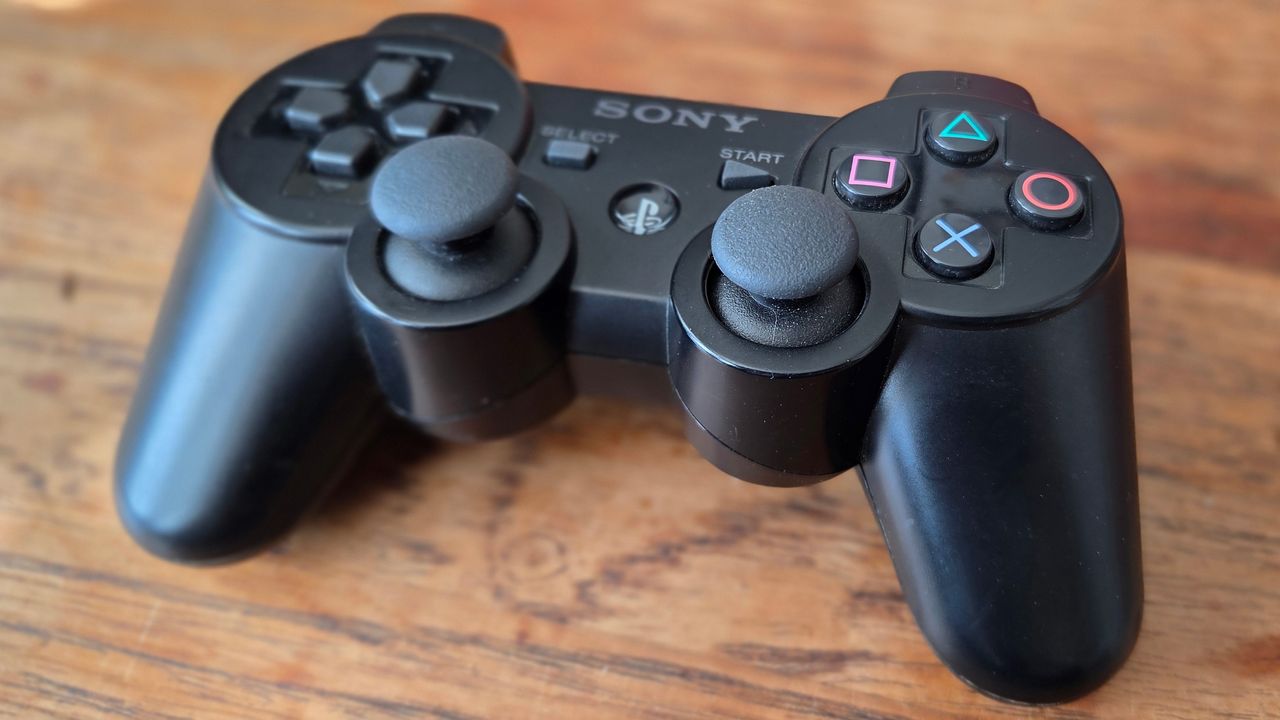
The PlayStation 3's DualShock 3 controller wasn't designed with PC connectivity in mind, but we're not letting that stop us. How else can we properly emulate our PS3 games?
The DualShock 3 isn't quite as easy to use on PC as more modern controllers, but it no longer requires the arcane community-made tools we had to use back in the 2010s. It's genuinely worth keeping one of these 20-year-old gamepads around, because even today the PS3 controller is special. You'll want one if you emulate PS2 or PS3 games on PC, as the DualShock 3 has something even the best PC controllers lack: Pressure-sensitive analog face buttons.

The DualShock 3 remains the best choice for the PCSX2 and RPCS3 emulators. The original version of Metal Gear Solid 3, for example, just doesn't play right without those analog buttons, a feature they had to modify for the Master Collection PC port.
Longtime PlayStation owners may also prefer the lighter, older controllers over the DualShock 4 or Dualsense. If you're a nostalgic but stick to modern versions of Windows (e.g. 10 or 11), there's thankfully a very convenient tool that makes the DualShock 3 way easier to connect to PC than it used to be.
One note before we get into the details of the guide: Steam Input actually has native support for the DualShock 3, meaning you can simply plug the controller in and set it up through the Controller settings menu. However, Steam does not support the DualShock 3's gyro controls or (more importantly!) its analog face buttons, which are what we're really after.
Follow this guide to get the PS3 controller working on PC with those features fully functional.
DualShock 3 on PC: Windows 10 and 11
Hardware
- DualShock 3 and mini-USB cable
- Optional: Bluetooth dongle
Software
As noted in the intro, keep in mind that Steam has built-in support for the DualShock 3 controller. If you plug the controller in with Steam running, you can then go to Settings > Controller > Desktop Configuration to customize your controls as you see fit. And if you want to play non-Steam games with the controller, you can add them to Steam with the "Games > Add a non-Steam game to my library" menu.
But presumably you're here because you want to get those analog face buttons working. For years the go-to solution was ScpToolkit, a free, open source tool that did the job but was laborious to setup. The developer of ScpToolkit sunset the project in 2016, but has since followed it up with the new DsHidMini, a DualShock 3 controller driver specifically built for Windows 10 and 11.
Here's how to set up DsHidMini.
Note: If you've previously installed ScpToolkit on your system or ever used Sony's PSNow streaming service, you may have some leftover files that will interfere with DsHidMini. Check this troubleshooting guide for help on removing those files before you begin the installation process.
DsHidMini setup guide

As you get started, do not plug your DualShock 3 in yet. We need it unplugged for the moment.
If you want Bluetooth support for your DualShock 3, first download and install the latest version of BthPS3Setup_x64.msi from the project's Github here.
Now download the latest version of DsHidMini from the project's Github. (Despite the warning that it's beta software, I recommend the much newer v3 version of DsHidMini; v2 is now out of date).
DsHidMini's walkthrough recommends having Windows User Account Control enabled for the installation process. This is the warning that pops up when you're installing new software. Normally I have this turned off on my PC, but it's easy to enable for this install process. Press the Windows key and type "UAC" to bring up the User Account Control Settings menu. Move the slider all the way up to "Always notify" and click OK.
Follow the rest of the installation instructions from DsHidMini's developer here.
There are only a few steps, so I'll bullet point them here to make sure you don't miss any:
- Extract the .zip file and open the x64 folder
- Right-click the dshidmi.inf file and hit "Install" from the context menu
- Right-click on igfilter.inf and hit "Install" from the context menu
- Connect the controller via USB
- Right-click and run DSHMC.exe as Administrator
If you run into any issues, follow the troubleshooting guide here.
How to use the DualShock 3's pressure-sensitive buttons in PCSX2 or RPCS3 emulators
Now for the most important step: getting those sweet analog buttons working.
In the DsHidMini Control software, make sure your controller is set to SDF mode (Single Device with Force Feedback). "The advantage of this mode is a 100% compatibility with all unmodified versions of PCSX2 with the LilyPad gamepad plugin (shipped by default)," writes developer Nefarius.
If you're planning to use your DualShock 3 with Steam or the RPCS3 emulator, use SXS mode.
In the emulators, select the DualShock 3 gamepad as your input and bind the buttons if necessary. In games that support pressure sensitivity, they should now work as they would on a real console.
Unfortunately it's not possible at this time to use the DualShock 3's gyro controls, but developer Nefarius is working on it as of late 2025, so that functionality may be supported eventually. I'm sure you're really looking forward to replaying Lair on RPCS3 someday.
How to use the DualShock 3 via Bluetooth

Good news: This part should be a cinch.
Once you've followed the installation instructions for DsHidMini above, your PS3 controller should be working via a wired USB connection. And pairing it via USB should automatically pair it via Bluetooth, too!
If you unplug the DualShock 3 and it doesn't work, check out the Bluetooth troubleshooting section of the walkthrough, and make sure your version of Bluetooth is supported.
Not a controller person? Here's a round-up of the best gaming keyboards, and best gaming mouse.