
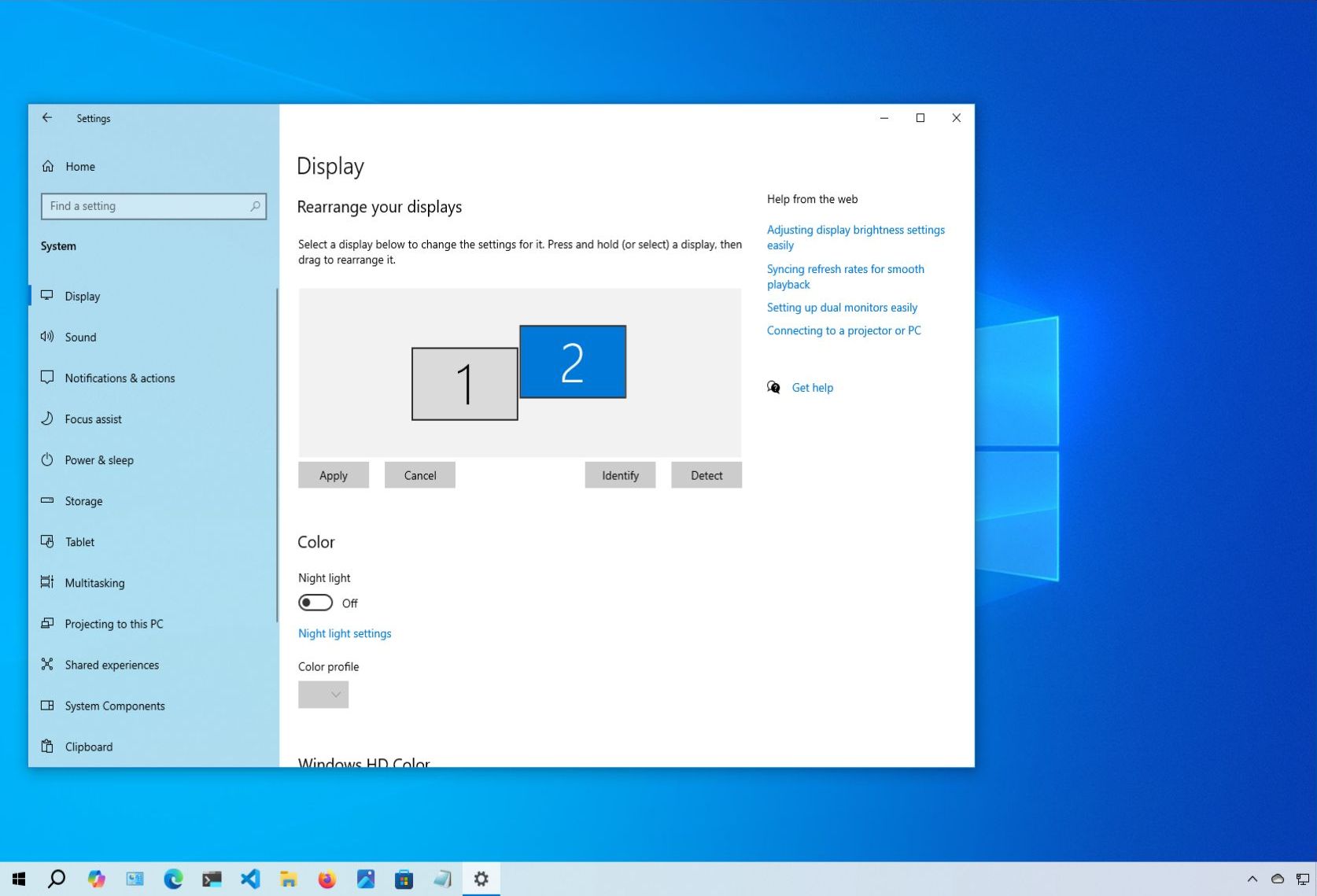
On Windows 11 (and 10), the system does a pretty good job detecting and configuring displays. However, when connecting multiple monitors, the system may not accurately understand their physical arrangement. This misalignment can cause issues, especially if the monitor setup doesn't match the order of connections to the video card, if monitors are positioned differently, or if an external monitor was recently disconnected.
Regardless of the issue, Windows 10 provides settings to correctly arrange a multi-monitor setup. By configuring the system to recognize the physical layout, you can seamlessly move the mouse pointer across displays, enhancing the overall experience. (For additional tips on setting up multiple displays in Windows 10, refer to my other comprehensive guide.)