
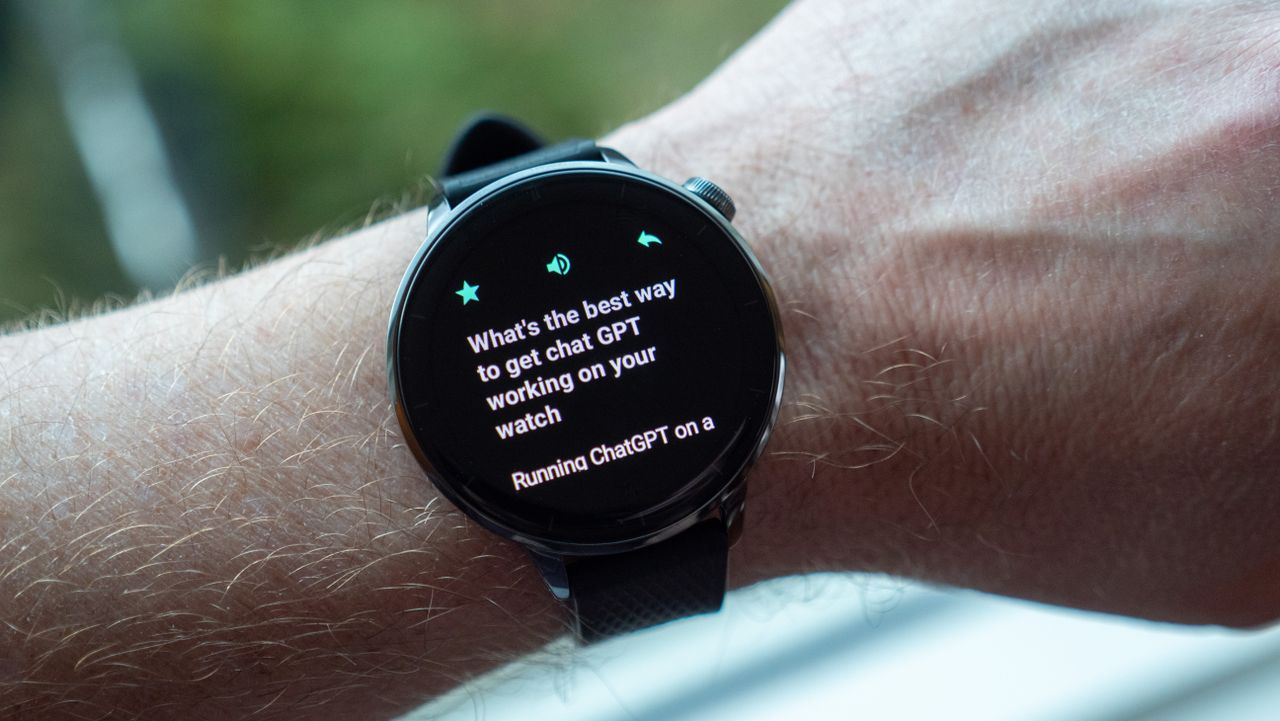
Google's Wear OS is built to get you using the company's own services as much as possible. Apps like Gmail and Gemini are just a click away, and while there are plenty of apps on the Google Play Store that make using alternatives easy, there's no built-in way to swap out Gemini with ChatGPT (or some other AI assistant) easily.
Thankfully, I've scoured the Play Store and found some great alternatives that'll get ChatGPT on your wrist and answering questions in no time flat. Whether you're asking about your next gym workout or trying to find a quick alternative for a recipe, ChatGPT's smarts on your wrist are undeniably helpful to have.

For this tutorial, you'll need a Wear OS-powered smartwatch. Almost all of the best Android watches are powered by Google's Wear OS, including the Samsung Galaxy Watches, Google Pixel Watches, OnePlus watches, and a few others.
How to put ChatGPT on Galaxy Watch, Pixel Watch, OnePlus Watch, Wear OS
The most highly rated ChatGPT option on Wear OS is WristAssist, a $3.49 app that lets you use your own API key for private, personalized responses. You can even save chats for later reference, both to keep the information consistent and to cut down on the number of tokens you use.
There are many free ChatGPT apps, but none of them offer privacy features or support personal queries. If you're not willing to manually type in a very long API key on your watch, skip this app entirely, but know that there's no alternative to this process.
1. Navigate to the WristAssist app on the Google Play Store.
2. If you're doing this from the web or your phone, tap Install on more devices and select your watch from the list.
3. If you're using the Play Store on your watch, just tap install.

Next, you'll need to sign up for a free OpenAI account to create your own API Key.
4. Head to the OpenAI platform website and create an account. Feel free to use your Google account for the fastest and easiest way to create one.
5. Once you're logged in, navigate to the API Keys section in the left-hand menu.
6. Click the create new secret key button. Give it a name and hit the create key button.
7. Copy the key given and paste it somewhere safe. You'll need to be able to see it so you can input the code on your watch.

8. Open the app drawer on your watch and tap WristAssist.
9. Input the API key when the app asks you to. This is the key you just created on the OpenAI website. Yes, it's painfully long.
Once you've got it all set up, just tap the New Chat button in the app to ask a question. I'd recommend using the voice input feature on your watch's keyboard when possible. Once you've started a chat, scroll to the bottom and tap save to keep the chat for another time. Any time you want to go back to a saved chat, you can just navigate to the Saved Chats section on the main menu of the app. Have fun!
How about a free option?

The Play Store has a few free options for alternative AI apps, but I've found the best one is an app called WristAnswers. It actually uses the latest Grok engine, is dead simple to use, costs nothing, and requires no configuration. It doesn't support any accounts, though, so I wouldn't recommend asking it anything particularly personal.
WristAnswers has two icons in your watch's app drawer that come in handy for different reasons. If you want to ask a quick question and get fast answers, tap the Mic icon. It looks like the WristAssist logo with a microphone in the bottom right. This will immediately take you to a voice prompt to ask a question and requires no further steps.
Otherwise, the main WristAssist app lets you navigate to favorite topics and adjust the response length, plus an option to buy the Pro version for more options.
The OnePlus Watch 3 43mm might just be the perfect smartwatch. It's an ideal size that doesn't get in the way, sports a brilliant dual OS and dual processor architecture, so you get the best battery life without sacrificing Wear OS features, and you also get top-level fitness tracking in an impressively affordable package.