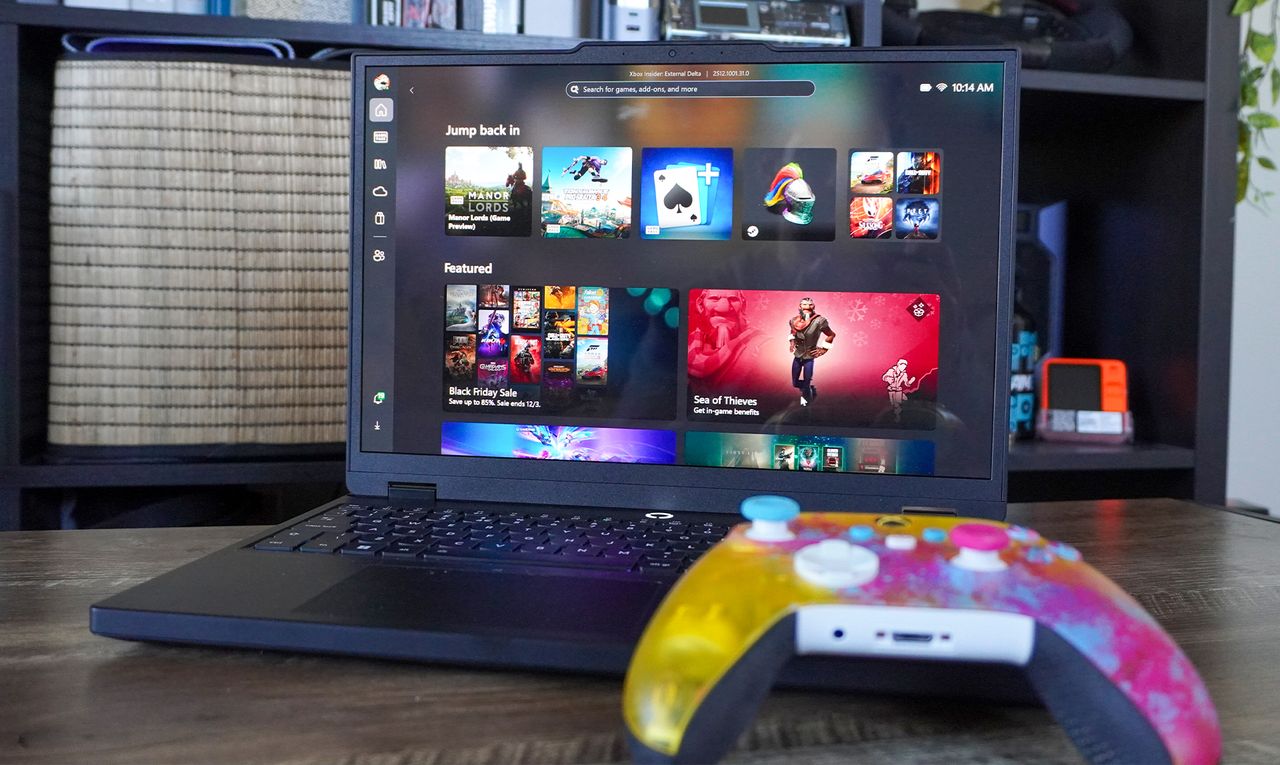
Xbox is terrified of the Steam Machine's plan to fix PC gaming, so Microsoft launched Xbox Full Screen Experience earlier than I anticipated to turn your gaming PC into more of a console. Here I was thinking it was going to be a thing just for the ROG Xbox Ally X and regular ROG Xbox Ally — giving it a unique selling point.
But timelines have shifted dramatically, and not only can you get it on any other handheld, but it’s now available to use on anything. That means you could turn your mini PC, laptop and even your full-blown gaming tower into a console-esque system.

Are there quirks? Yes. Third-party app integrations like Discord are weird and some functions require keyboard and mouse input over using the gamepad. That’s why this is only available to those on the Dev and Beta channels on Windows Insider, as part of Windows 11 version 25H2.
But if you’re keen to give this a go (I know a lot of you are like me), here’s how to get it — even if the “Full Screen Experience” toggle doesn’t show at first in settings.
How to enable Xbox Full Screen Experience on any Windows 11 PC/device
1. Make sure you’re an Insider

You need to be both an Xbox and a Windows Insider. Download and install the Xbox Insider Hub app from the Microsoft Store to join the program with your Microsoft account. Then head over to System Update in Windows 11 settings and make sure you’re either on the “Dev” or “Beta” channels of the Windows Insider program. This may require a restart.
2. Update everything and jump on the PC Gaming Preview

Once you’re up to scratch on your updates and Insider program memberships, open the Xbox Insider Hub app, head over to the previews tab and enroll in the PC Gaming Preview. Restart your PC.
3. Check to see if you have it right away

Some of you will get lucky. Head over to Settings > Gaming. From here, if you see a toggle for Xbox Full Screen Experience, turn it on, reset your PC and you’re off to the races! If you don’t see it, then we need to do a little bit more.
4. Get ViVeTool

ViVeTool is a command-line tool that directly interacts with Microsoft’s “feature flags” built into Windows 11, so you can unlock features that may be locked to certain users. Download this, extract it and copy the file path to the folder from the top bar of your explorer box.
5. Open Command Line as admin and use a cd prompt

Time to turn on the Command Line to activate ViVeTool. Open it as administrator and type in “cd” followed by the file path you copied. Press Enter, and if successful, you’ll see the file path appear again on the line below.
6. Point ViVeTool to the right feature flag

Now it’s time to use ViVeTool to raise the right feature flag. After this file path, type the following: “vivetool /enable /id:59765208” and hit Enter. Once done, you should see a success message. Reset your PC at this point.
7. Now activate it in settings

Same as those who got lucky first time round, head into Settings > Gaming, and toggle Full Screen Experience on. Reset the PC, and it’s all yours.

From here, you’ll see a relatively unassuming startup process going straight to desktop, but if you go into Task View, you’ll see an additional task window option to jump straight into the Xbox Full Screen Experience. At that point, you’ll switch straight over.
And that’s how you can get Xbox FSE on any Windows PC! I’m in the process of testing it to see whether there’s any kind of performance uplift beyond the improved ease of use, so check back in with me soon for the definitive numbers.

Follow Tom's Guide on Google News and add us as a preferred source to get our up-to-date news, analysis, and reviews in your feeds.