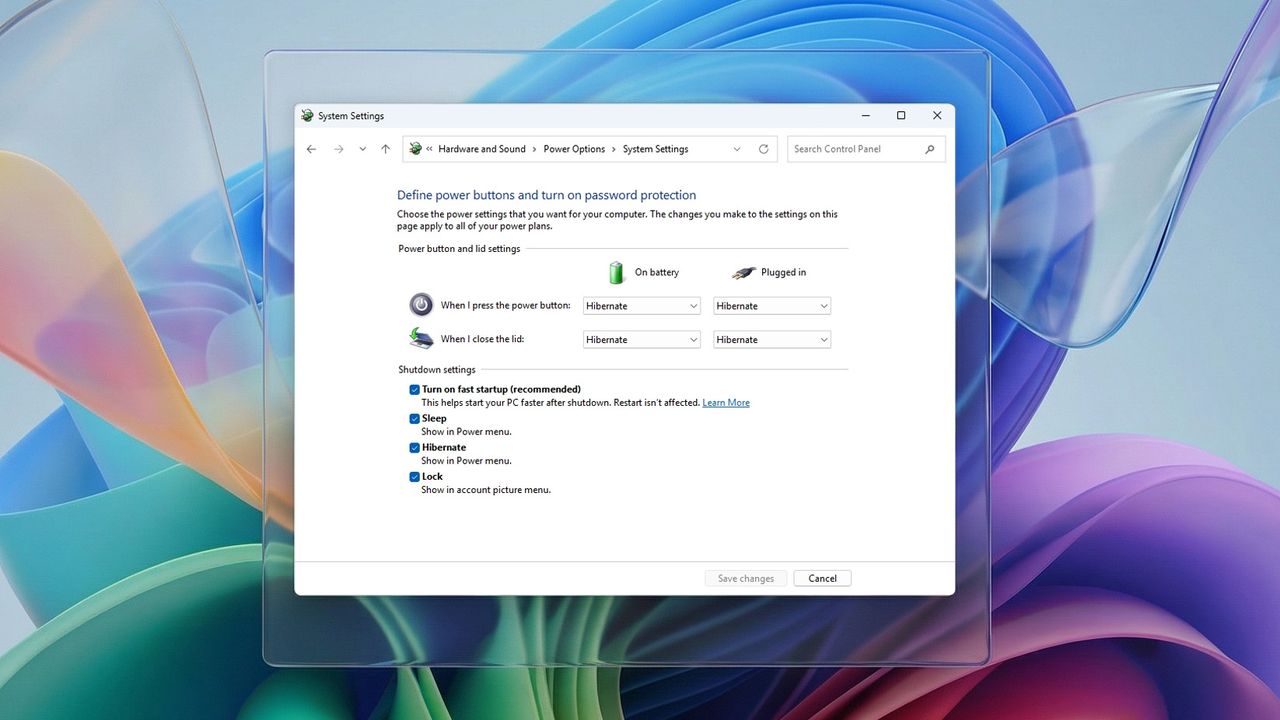
On Windows 11, Fast Startup is a power-saving feature that reduces boot times by combining elements of a traditional shutdown with hibernation. Although the feature has existed since earlier versions of the operating system, it remains enabled by default on most modern installations to help systems start faster, especially on devices using mechanical hard drives.
To understand how Fast Startup works, it helps first to understand hibernation. When hibernation is enabled, the system saves the entire session currently stored in memory to the hard drive and then powers off the device. When you turn the computer back on, Windows 11 restores that session, allowing you to resume work quickly, even after a complete power loss.
Fast Startup uses a similar concept but with an important difference. Instead of saving the full user session, Windows 11 signs out all user accounts and then saves only the system kernel and loaded drivers to the hard drive. During the next startup, the operating system reloads this system state rather than initializing everything from scratch. Because many core services and drivers are restored instead of restarted, the operating system can reach the sign-in screen significantly faster.
This feature is typically enabled automatically on clean installations of Windows 11. However, in some scenarios, such as dual-boot setups, driver compatibility issues, firmware updates, or unexplained boot problems, the feature can cause unexpected behavior. In those cases, disabling and re-enabling Fast Startup can help troubleshoot startup issues, and in certain environments, permanently disabling it may be the better option.
In this how-to guide, I'll walk you through the steps to enable (or disable) fast startup on Windows 11.
How to enable fast startup on Windows 11
To enable fast startup on Windows 11, use these steps:
- Open Control Panel.
- Click on Hardware and Sound.
- Click on Power Options.
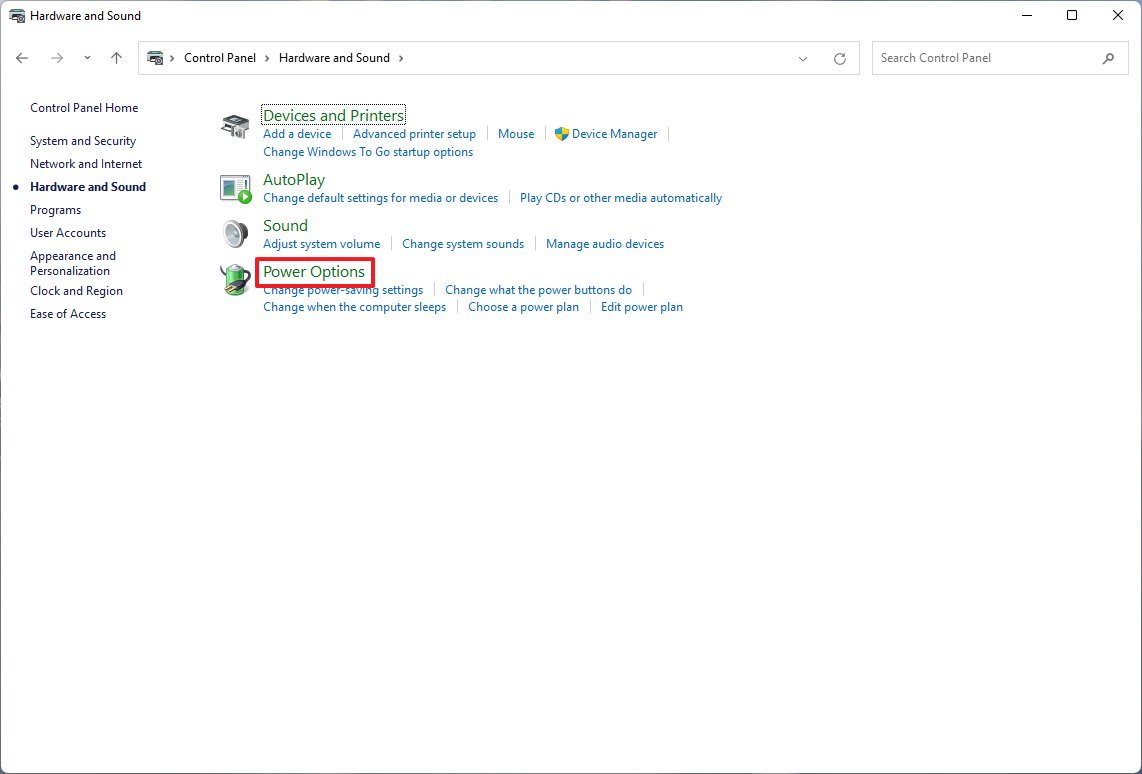
- Click the "Choose what the power button does" option.
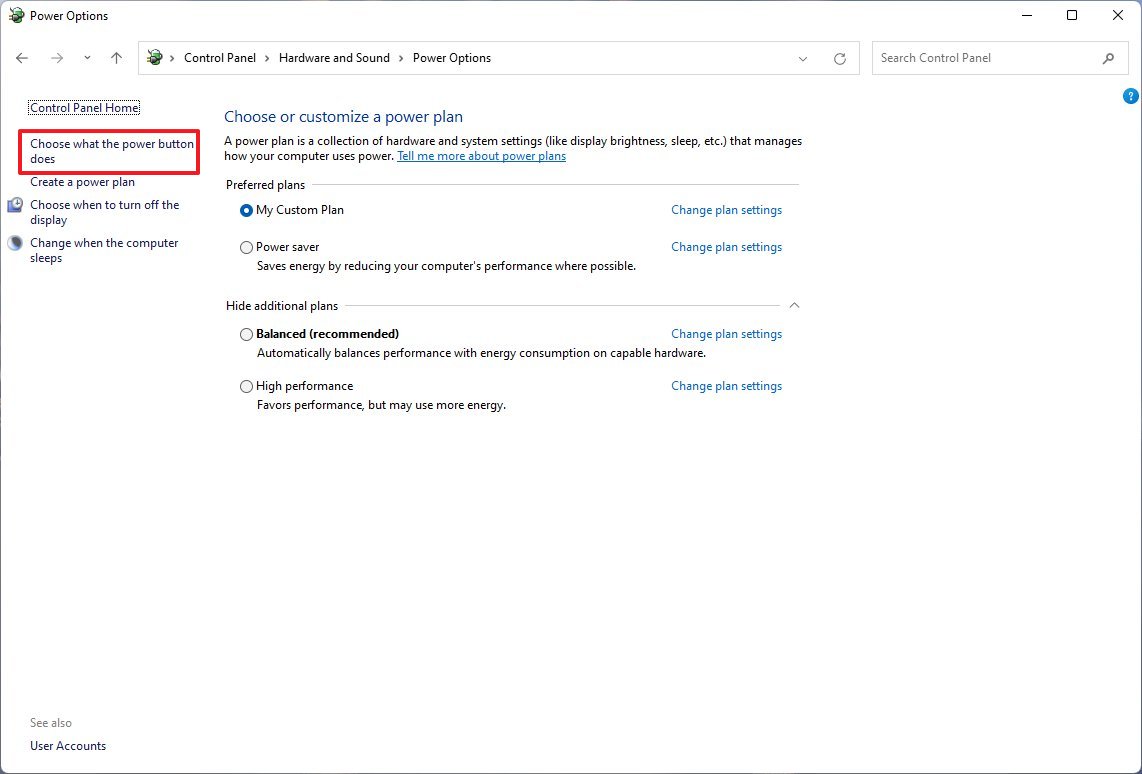
- Click the "Change settings that are currently unavailable" option.
- Check the "Turn on fast startup" option under the "Shutdown settings" section.
- Click the Save changes button.
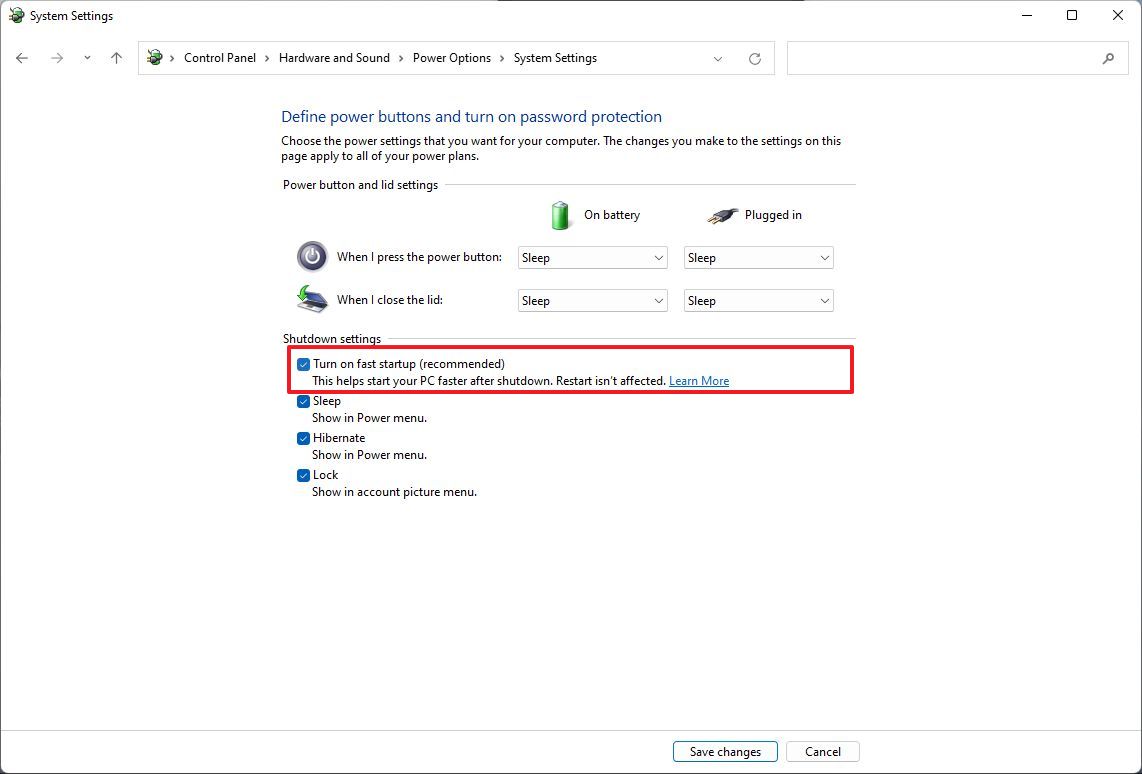
Once you complete the steps, the device should start faster during the boot.
Fix fast startup option missing
If the option to enable fast startup is missing in Control Panel, it's likely because hibernation is disabled. You can enable "Hibernate" with these steps:
- Open Start.
- Search for Command Prompt.
- Right-click the top result and select the Run as administrator option.
- Type the following command to view the power states supported on your computer and press Enter: powercfg /availablesleepstates
- Confirm that "Fast Startup" is listed in the output.
- Quick note: If the option is still missing, the computer may not support the Advanced Configuration and Power Interface (ACPI) state of "S4".
- Type the following command to enable hibernation, which makes fast startup available in Control Panel, and press Enter: powercfg /hibernate on
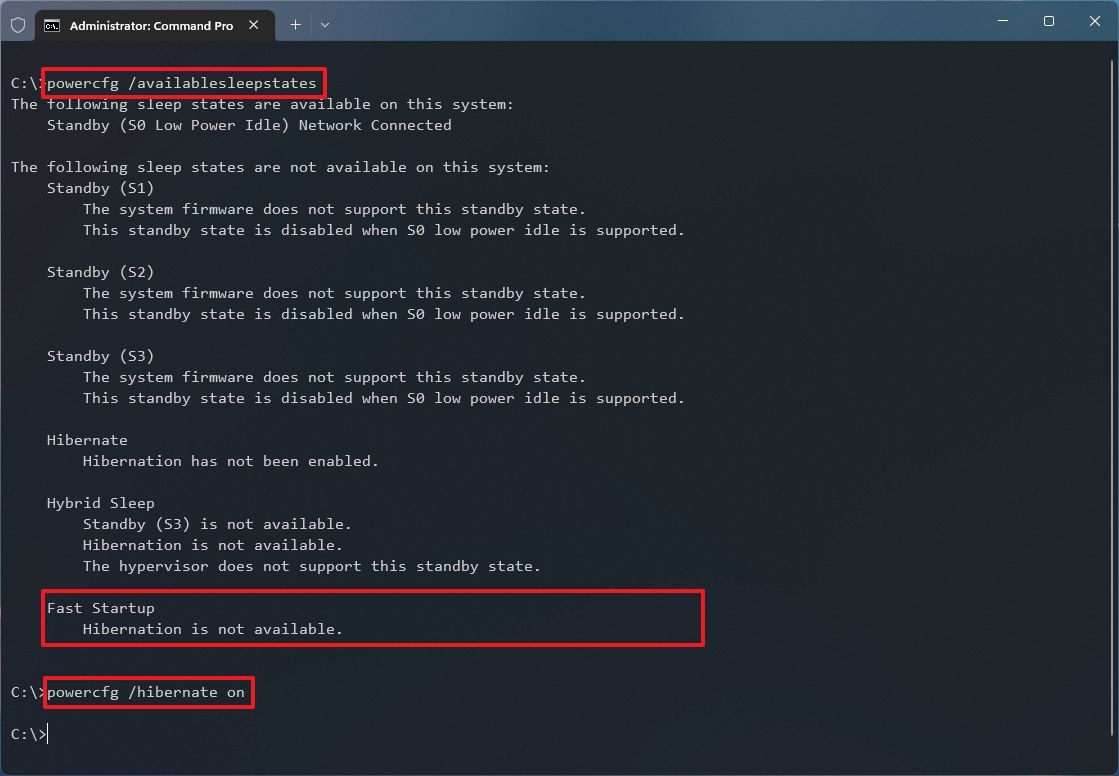
After you complete the steps, the fast startup option will be available in the Power Options settings.
How to disable fast startup on Windows 11
On Windows 11, the Fast Startup feature can speed up the boot process, but it doesn't mean every system needs it. Depending on the hardware configuration, it may cause problems.
For instance, the feature shouldn't be enabled on devices with limited storage, as it can be a root cause of many boot problems. Furthermore, if you have a dual-boot setup with a secondary partition, files you try to save from another version of Windows or another operating system won't commit to the drive, causing data loss because the Fast Startup feature protects the original file structure from modification.
To disable Fast Startup on Windows 11, use these steps:
- Open Control Panel.
- Click on Hardware and Sound.
- Click on Power Options.
- Click the "Choose what the power button does" option.
- Click the "Change settings that are currently unavailable" option.
- Under the "Shutdown settings" section, check the "Turn on fast startup" option.
- Click the Save changes button.
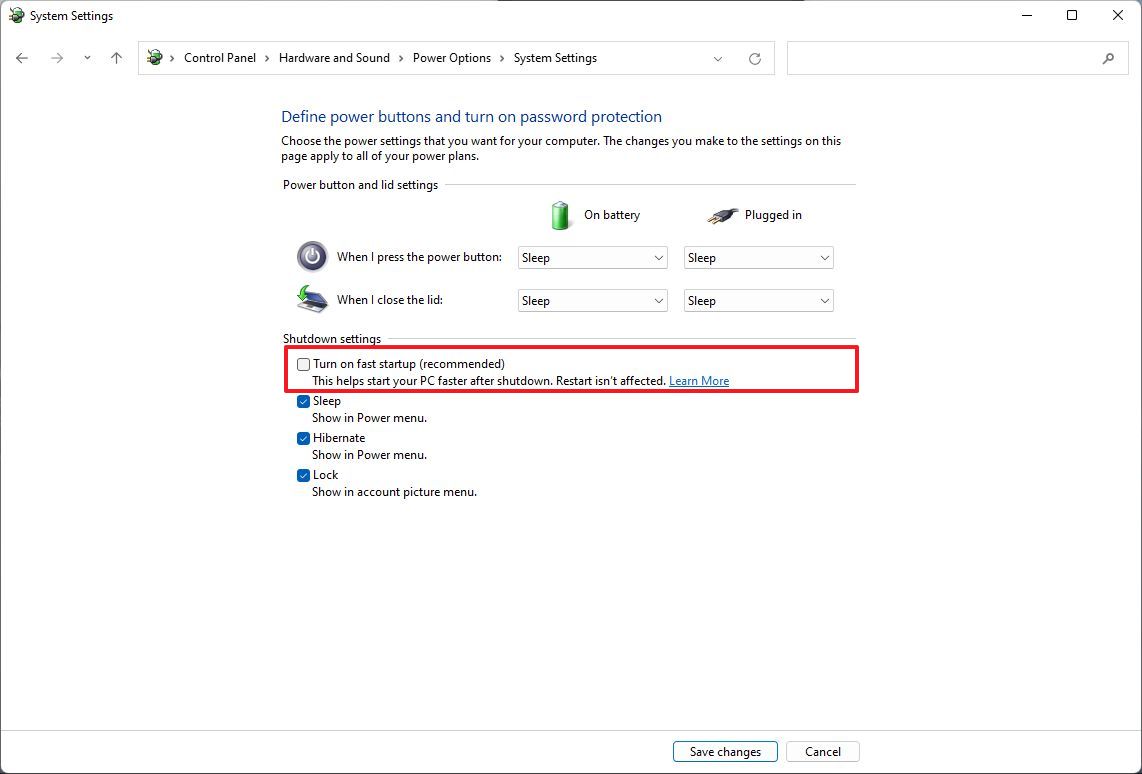
Once you complete the steps, the fast startup feature will no longer be available. Although it will cause a boot delay, it'll prevent many problems, depending on the situation.
FAQs about using Fast Startup on Windows 11
These are common questions regarding Fast Startup on Windows 11.
What is Fast Startup on Windows 11?
Fast Startup is a power feature that helps Windows 11 boot faster by saving the system kernel and loaded drivers to the local storage during shutdown and restoring them on the next startup. It combines elements of a traditional shutdown and hibernation to reduce initialization time.
Is Fast Startup enabled by default on Windows 11?
Yes. Fast Startup is enabled automatically on most clean installations of Windows 11, provided that hibernation is supported and enabled on the device.
Does Fast Startup improve performance on SSDs?
The performance benefit of Fast Startup is minimal on systems with NVMe or SATA SSDs. It is most noticeable on older devices using mechanical hard drives, where boot times are significantly longer without it.
Why is the Fast Startup option missing in Power Options?
If the Fast Startup option is missing, hibernation is likely disabled. Since Fast Startup depends on the hibernation feature, the option will not appear unless hibernation is enabled using the powercfg /hibernate on command. In some cases, the system may not support the required ACPI S4 power state.
Should I disable Fast Startup on Windows 11?
Disabling Fast Startup is recommended if you experience boot issues, incomplete shutdowns, problems applying updates, or driver and firmware inconsistencies. It is also strongly recommended for dual-boot configurations.
Can Fast Startup cause boot or update problems?
Yes. Fast Startup can interfere with driver initialization, firmware updates, BitLocker behavior, and system updates that require a full shutdown. In these scenarios, disabling the feature often resolves the issue.
Does Fast Startup affect file changes made from another operating system?
Yes. If another operating system modifies files in the operating system partition while Fast Startup is enabled, those changes may be discarded or reverted when Windows 11 resumes, as the feature protects the previous file system state from modification.
Does disabling Fast Startup slow down Windows 11?
Disabling Fast Startup may slightly increase boot time, but the difference is negligible on modern hardware. In exchange, the system performs a full shutdown and clean startup, which improves reliability and compatibility.
Does Fast Startup use storage space?
Yes. Fast Startup relies on the hibernation file, which can consume several gigabytes of storage. On devices with limited disk space, disabling the feature can help reclaim storage.
More resources
For more helpful articles, coverage, and answers to common questions about Windows 10 and Windows 11, visit the following resources: