
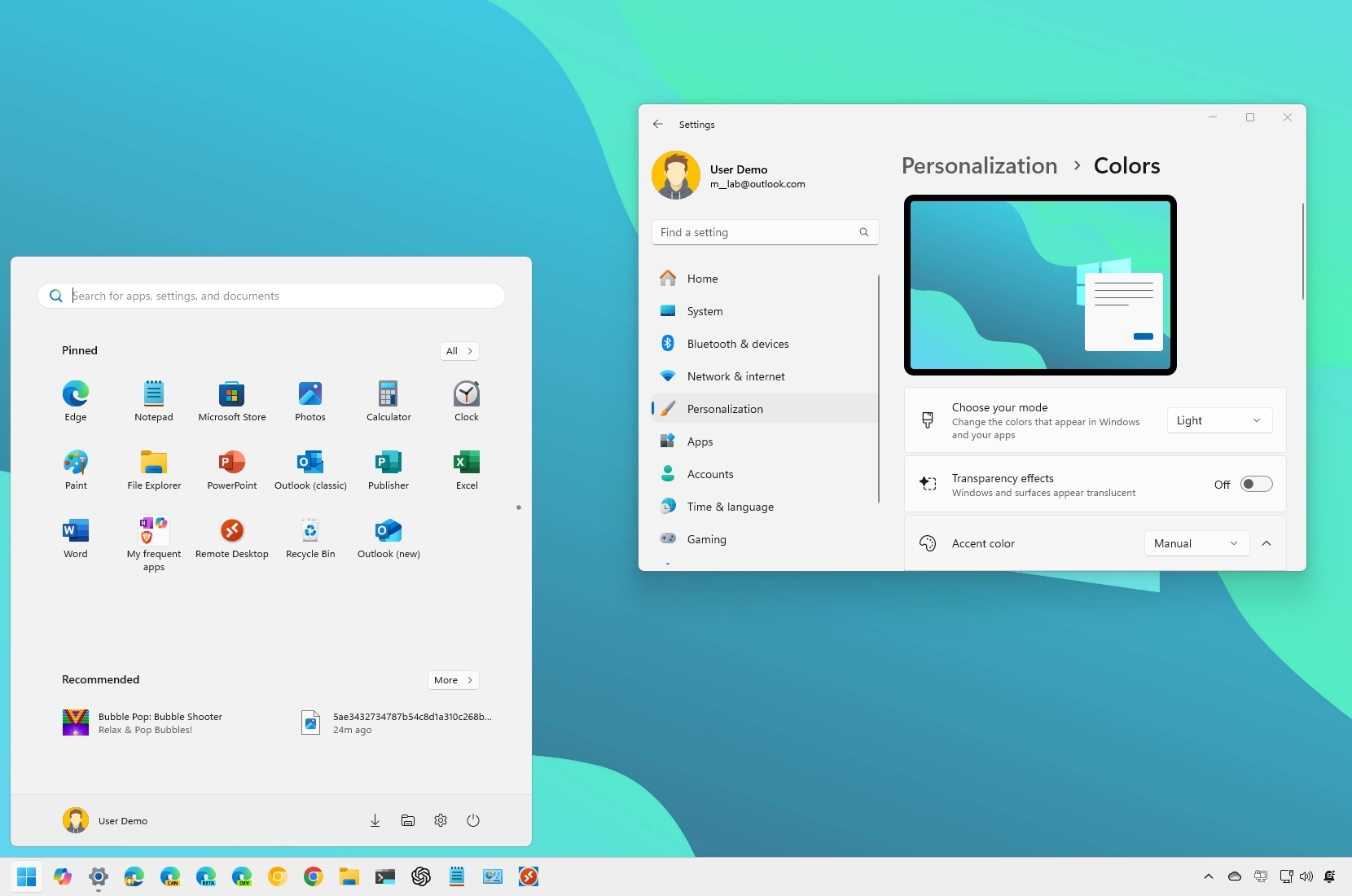
On Windows 11, desktop elements like the Taskbar, Start menu, and certain apps, such as the Settings app, use a new transparent base layer featuring the Mica material from the Microsoft Fluent Design system. This material creates a modern, fresh look by letting the background subtly shine through with a blur effect. Of course, it achieves this without (significantly) impacting performance or battery life. When an app is out of focus, the material automatically switches to a solid color.
While this transparency enhances the visual appeal of Windows 11, it may not suit everyone’s preferences. If you’d rather use a solid background color, you can disable the effect. Thankfully, there are at least three ways to turn off this feature using the Settings app or the Registry.