
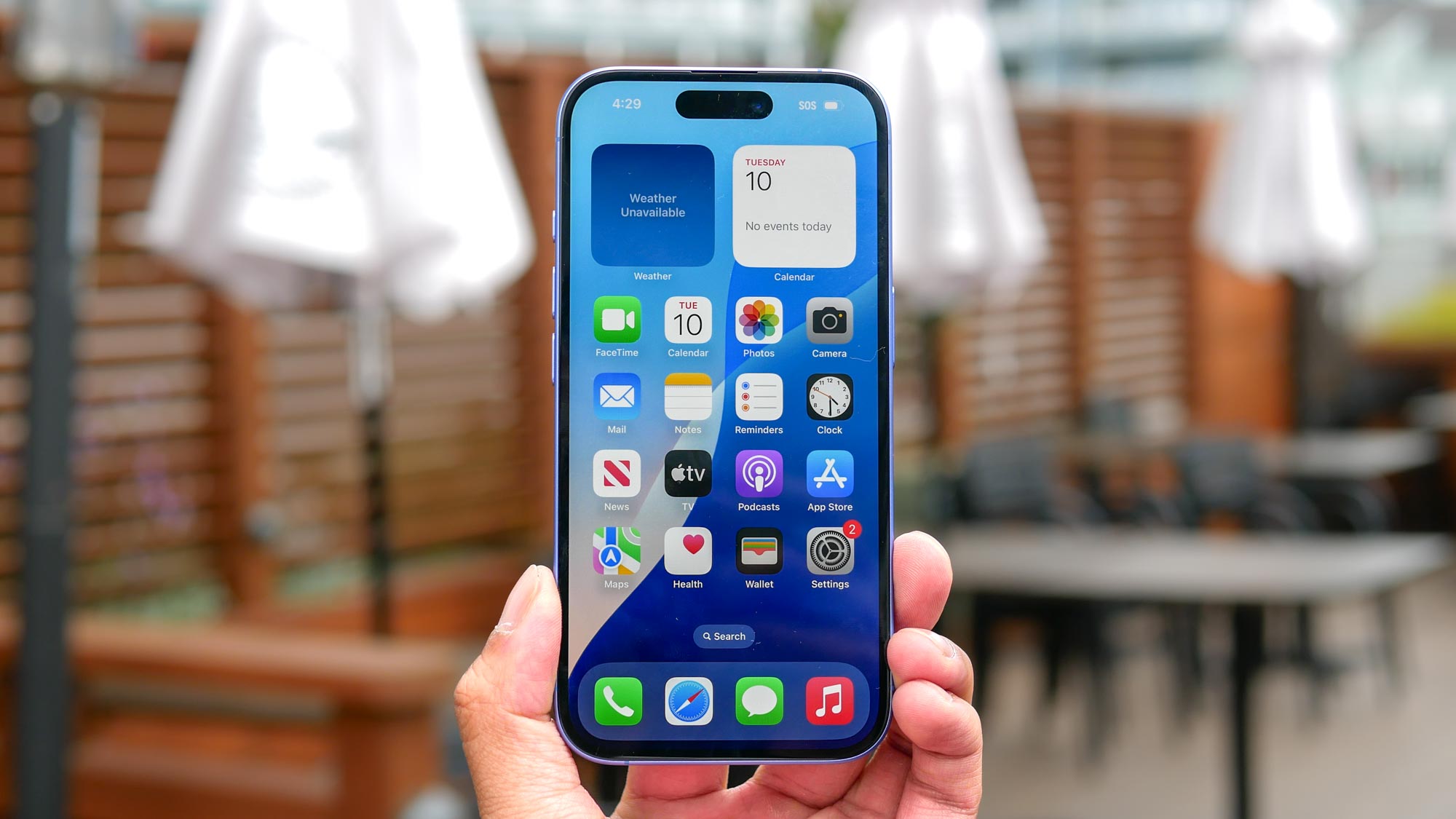
Over time, apps can pile up on your iPhone, cluttering your Home Screen and eating up valuable storage space. Whether it’s a game you no longer play, an app you don’t use, or something you’ve replaced with a better option, deleting unwanted apps is a quick and easy way to keep your device organized and running smoothly.
Like other basic tips includling switching to vibrate, taking a screenshot, or blocking a number, knowing how to manage the apps on your handset can help you get the most out of your iPhone. Fortunately, iPhones offer two simple methods for removing apps — directly from the Home Screen or through the App Library.