Get all your news in one place.
100’s of premium titles.
One app.
Start reading
Tom’s Guide
Tom’s Guide
Technology
Tammy Rogers

How to connect AirPods to Apple TV

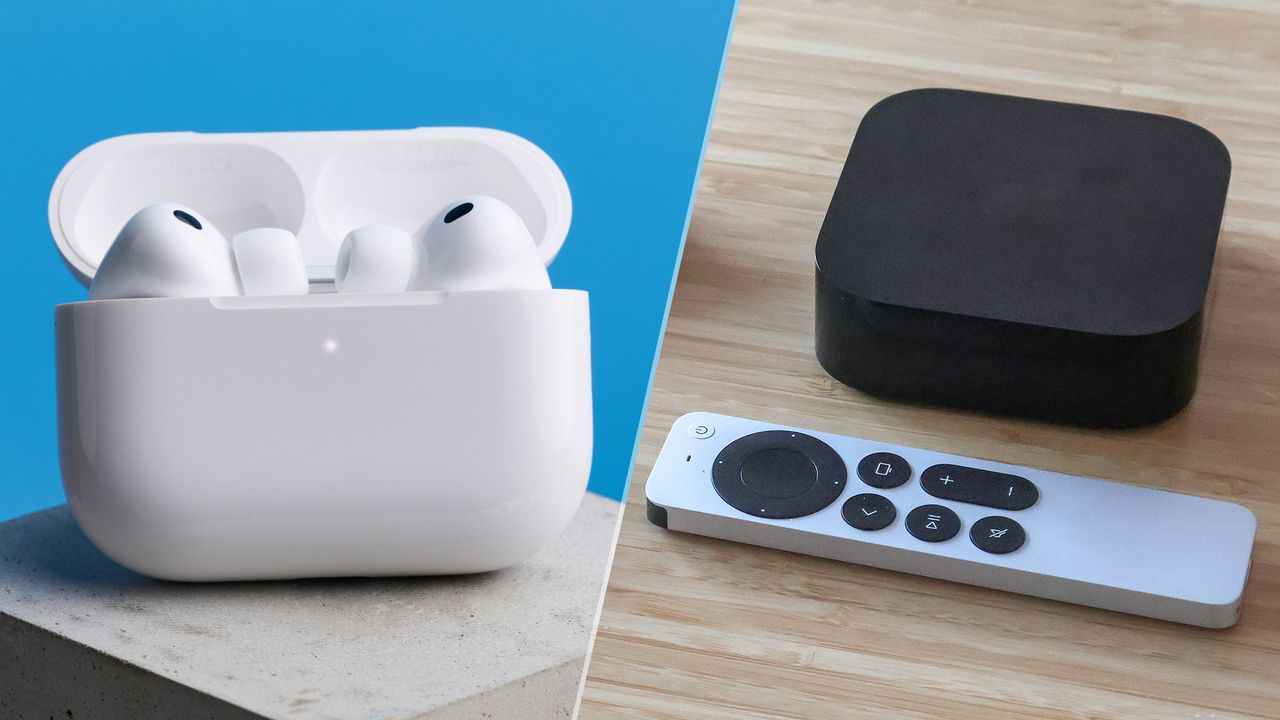
Airpods pro 3 Apple TV.

One of my favorite ways of watching movies and TV shows with my Apple TV is with a pair of AirPods. I still get all the surround benefits of Spatial Audio, but I don't disturb the rest of the house with elevated volume levels.

It's super easy to connect your AirPods to your Apple TV, as well. It's even simpler if you've got other Apple devices — you'll almost certainly be able to use them straight away. Here's how to connect your AirPods to your Apple TV.

Models this will work with

  • AirPods
  • AirPods 2
  • AirPods 3
  • AirPods 4
  • AirPods Pro
  • Airpods Pro 2
  • AirPods Pro 3
  • AirPods Max

The easy way

(Image credit: Henry T. Casey / Tom's Guide)

If you use other Apple devices with your AirPods, like an iPhone or an iPad, your AirPods are likely already connected to your Apple TV without you even realizing. It's all down to that magic Apple device connection — they're linked with your Apple ID.

To check that they're connected to your Apple TV, boot up the TV device and then open your buds. Then put them in your ears, and you should see a connection notification on screen.

Go and play something on your favorite streaming service and check that the audio is coming through. Job done!

(Image credit: Tom's Guide)

If they don't immediately play the audio, you need to choose them as an audio output. Hit the power button on the top right of your remote, select the "audio" section, and choose your AirPods from the list.

If they're not there, then you'll have to connect them manually. Have no fear, it's actually super easy.

The harder way

(Image credit: Tom's Guide)

First, navigate to the settings menu on your Apple TV. From there, find the Remotes & Devices tab. Now, you'll need to find the Bluetooth tab.

Now we need to get the AirPods into pairing mode. This will depend on your AirPods.

For the AirPods 1, 2 and 3, and the AirPods Pro 1 and Pro 2, open the case and find the pairing button on the back. Hold down the button until the status light on the front flashes white.

AirPods 4 (both models) and AirPods Pro 3 have a touch panel instead. Open the case, and then double-tap the front of the case near the Apple TV.

Finally, for the AirPods Max, hold down the ANC button until the status light flashes white.

(Image credit: Future)

With your AirPods now in pairing mode, you can find them in the Bluetooth connections menu of the Apple TV. Select your AirPods in the list, and you're away!

Back out of the settings menu, and then double-check that the AirPods are connected properly. Using the power button on the remote control, find the AirPods in the audio devices section.

This is also where you can configure the Spatial Audio settings (if applicable). And with that, your AirPods are connected to your Apple TV — go forth and watch some movies and TV!

Follow Tom's Guide on Google News and add us as a preferred source to get our up-to-date news, analysis, and reviews in your feeds.

More from Tom's Guide

Sign up to read this article
Read news from 100’s of titles, curated specifically for you.
Already a member? Sign in here
Related Stories
Top stories on inkl right now
One subscription that gives you access to news from hundreds of sites
Already a member? Sign in here
Our Picks
Fourteen days free
Download the app
One app. One membership.
100+ trusted global sources.