
Get all your news in one place.
100’s of premium titles.
One app.
Start reading
T3
T3
Technology
Chris Hall

How to backup WhatsApp: Keep your chats secure with these simple steps

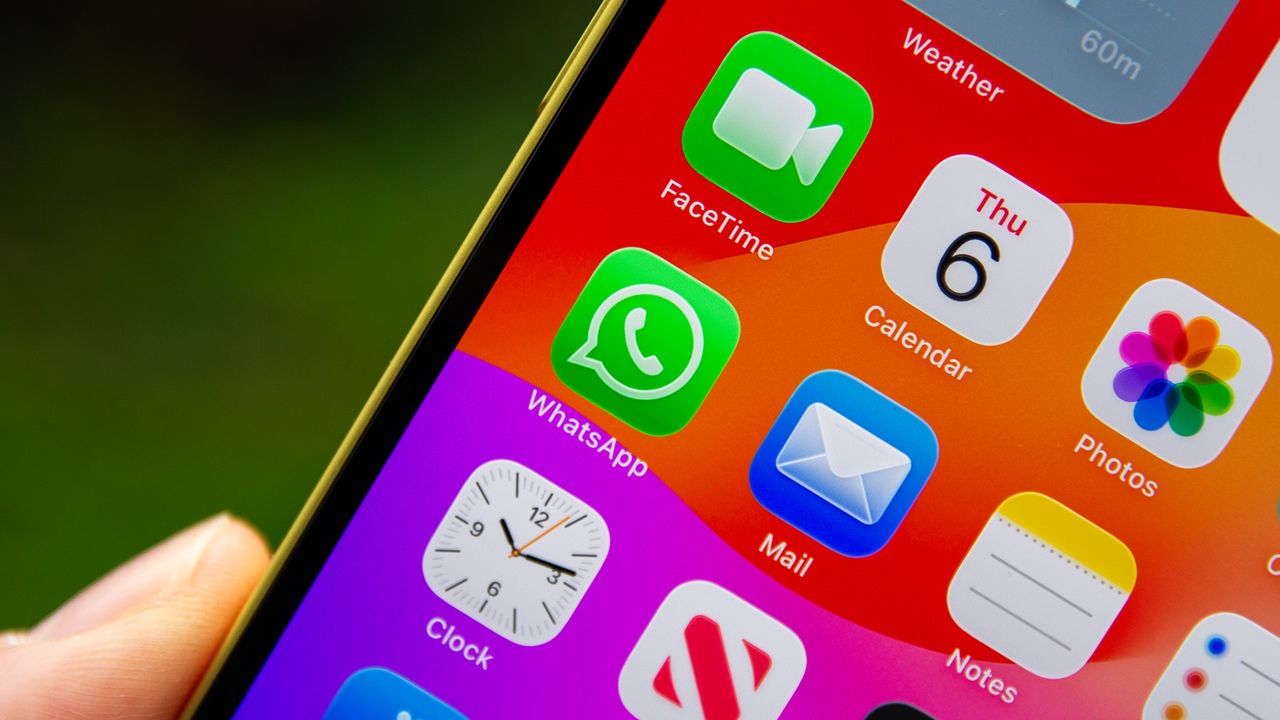
WhatsApp app icon on iPhone.

WhatsApp is the world's largest messaging platform, with 3 billion monthly global users (according to Statista). It has become an essential part of daily communication, from arranging meets with friends, those groups for school or holidays, and no end of family chat.

How would you cope if you lost all of it? WhatsApp exists in your phone – and if it's not backed up and you lose your phone, then you lose all of your messages. Backup isn't on by default, so here's how to fix that.

There are backup options for WhatsApp, not only for peace of mind, but also for those who want to secure their messages before they move phones. Here's how to backup your WhatsApp messages on iPhone and Android.

How to backup WhatsApp on iPhone

(Image credit: Future / Britta O'Boyle)

The best way to ensure that your WhatsApp messages are secure on your iPhone is to setup the in-app backup option, which will save your messages to iCloud. It isn't turned on by default, so to secure those messages, follow these steps:

  1. Head into Settings > Chats > Chat backup
  2. Tap Back up now for manual backup

There's the option for auto backup on a schedule of your choosing, if you prefer something more regular – daily, weekly, monthly – that doesn't require your intervention.

There's also the option to include or exclude video, which might already be backed up through Photos and could add to the size of the backup file.

You also have the option to create an end-to-end encrypted backup for extra security. This will need a password or 64-digit key that you'll have to remember (or risk losing access to your backup in future).

How to backup WhatsApp on Android

(Image credit: Future / Chris Hall)

To find the backup options for WhatsApp on your Android phone, head into Settings by tapping on the menu in the top right-hand corner. Then go Settings > Chats > Chat Backup. WhatsApp will backup to your Google Account.

Backup isn't turned on by default, so you'll need to go through this process to backup your messages:

  1. Head to Settings > Chats > Chat Backup
  2. Choose the Google account you want to backup to by tapping "Google Account"
  3. Once selected, tap "Back up" and the process will start

Beyond that, there are options. Firstly, you can choose to include video or not. You might have video saved to your Google Photos already and backed up there, or you might not – but it could add to the size of the backup file significantly.

There's the option to backup using cellular too. This could have big data costs, so again, it needs careful consideration, but it's a toggle switch on or off.

You also get the option for end-to-end encryption. This uses a separate password or 64-digit encryption key that you'll need to record, or risk losing access to your backup.

Once you have a backup, you can opt to backup WhatsApp daily, weekly, monthly or manually when you tap "Back up". As long as your WhatsApp messages are backed up, you'll be able to restore those on your phone or a new device whenever you want.

Transferring to a new device?

Many people want to use a backup because they are moving to a new device. This used to be the default method for message transfer, but WhatsApp has had a "transfer chats" option for a couple of years now that will let you move from phone to phone.

Using the in-app function, it's fairly easy to move from iPhone to iPhone or from Android to Android using the step-by-step process.

Sign up to read this article
Read news from 100’s of titles, curated specifically for you.
Already a member? Sign in here
Related Stories
Top stories on inkl right now
One subscription that gives you access to news from hundreds of sites
Already a member? Sign in here
Our Picks
Fourteen days free
Download the app
One app. One membership.
100+ trusted global sources.