Get all your news in one place.
100’s of premium titles.
One app.
Start reading
Tom’s Guide
Tom’s Guide
Technology
Richard Priday

Hate the new sliders for switching off alarms and timers in iOS 26.1? Here's how to bring back the buttons

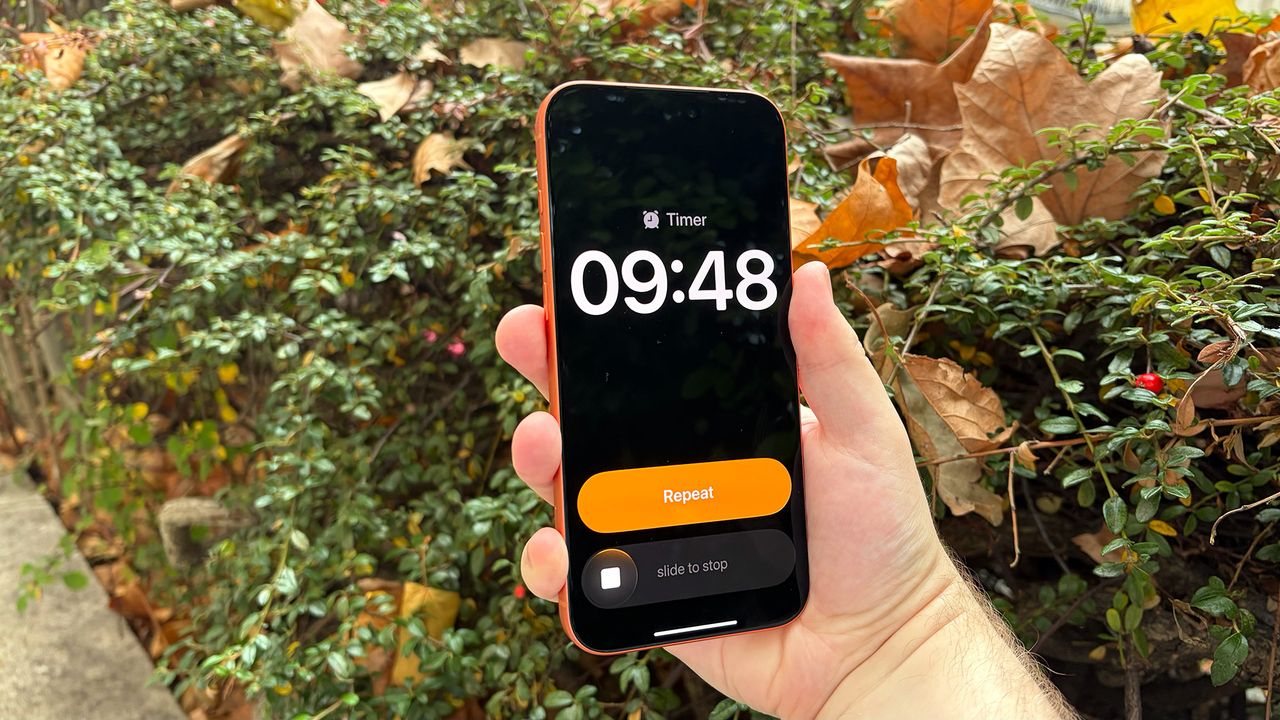
IOS 26.1 timer with a slider to dismiss.

iOS 26 swapped the previous buttons of older iPhone software with much larger versions, which made alarms much easier to dismiss or snooze and timers quicker to stop or reset. But Apple seems to have rethought this approach, as stopping alarms and timers now uses a slider as of iOS 26.1.

Sliders require more intention to use, so you're less likely to switch off an alarm by mistake or too quickly. Plus, it's a little dose of nostalgia for users who owned an earlier "swipe to unlock" iPhone.

But, as is often the case with changes to basic phone functions, not everyone wants it — not even the tech-loving staff of TG. Fortunately, Apple seems to have thought about this and offers an option to transform the slider back into a button.

But this setting isn't particularly easy to find unless you know where to look. But we're here to help you find the setting you need to switch the iOS alarm slider back to its former button-shaped self.

How to swap alarm and timer sliders for buttons in iOS 26.1

1. Settings, open up Accessibility

Scroll a little ways down from the top of the Settings app to find this section.

2. Here, select the Touch options

There are all kinds of settings to check out in this section, but the ones we want are under the top option of the "Physical and Motor" section.

3. Toggle "Prefer Single-Touch Actions" to on

As the tooltip explains, this swaps sliders for taps - exactly what we want! This could change other elements of the iPhone's interface, but we have yet to see anything else altered. We'll update you if that changes.

And with that, the slider-to-button transformation is complete. Here's how a timer looks before and after enabling "Prefer Single-Touch Actions."

(Image credit: Tom's Guide)

If you want to know more about the latest iPhone software, you can read our iOS 26 review here, as well as our guide to the other changes in the latest version, iOS 26.1.

Follow Tom's Guide on Google News and add us as a preferred source to get our up-to-date news, analysis, and reviews in your feeds.

More from Tom's Guide

Sign up to read this article
Read news from 100’s of titles, curated specifically for you.
Already a member? Sign in here
Related Stories
Top stories on inkl right now
One subscription that gives you access to news from hundreds of sites
Already a member? Sign in here
Our Picks
Fourteen days free
Download the app
One app. One membership.
100+ trusted global sources.