
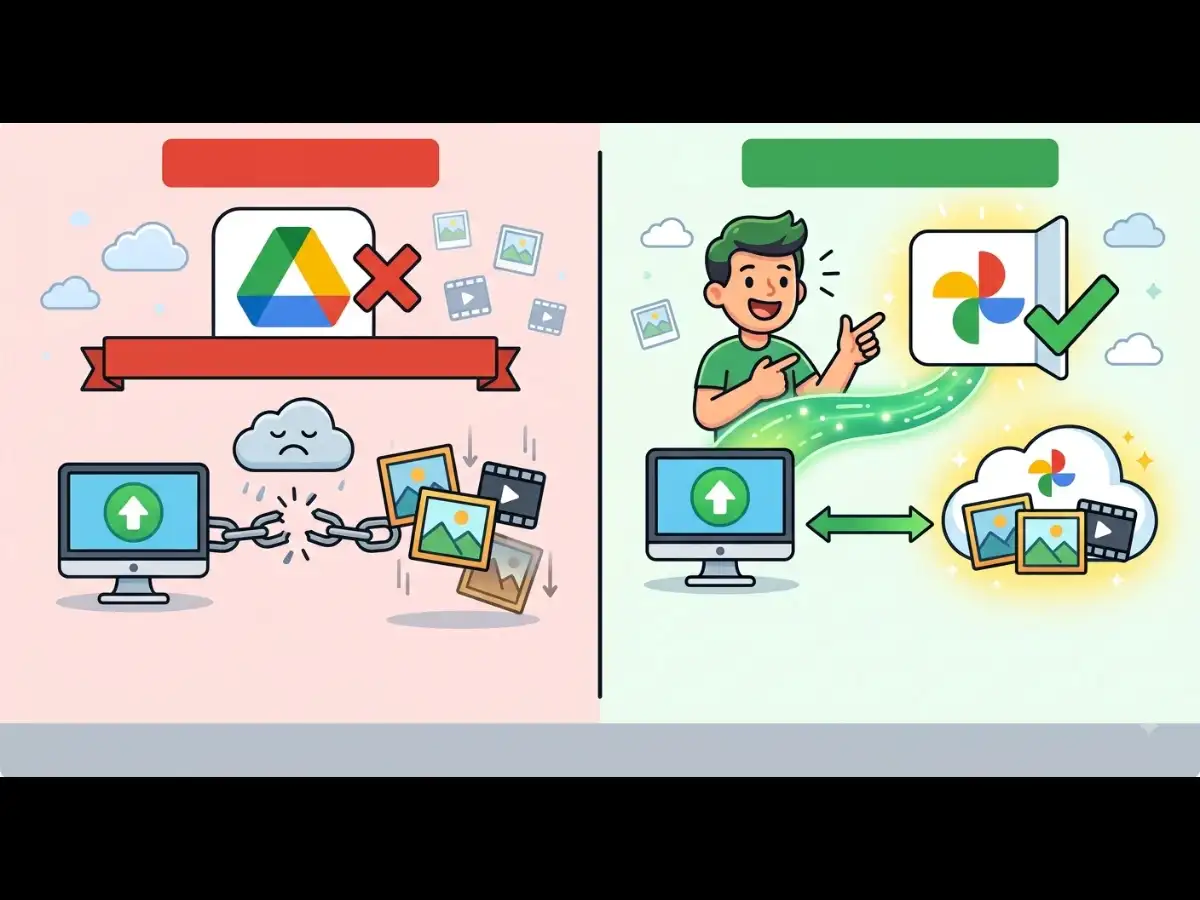
Google Drive's desktop app has officially stopped supporting Google Photos backups as of August 10, 2026. This means now you will no longer have the luxury of backing up your favourite photos and videos in the Google Drive for Desktop feature. But, there's still a hack that you can use to save your memories.
ALSO READ: Google Drive is ending Google Photos backups on August 10

Google Photos Backup For Desktop: How to keep your photos backed up after Google’s Drive change
If you rely on your computer to protect your photos, the Google Photos Backup For Desktop workflow is changing, and that could mean an extra step whenever you want to back up new pictures. Google recommends using Google Photos to back up selected photo folders going forward. The catch is that Google Photos does not offer a desktop backup app in the same way Google Drive does, so desktop users have to manage the process through the Google Photos website.
That makes the Google Photos Backup For Desktop process slightly less seamless than simply dropping files into a synced Drive folder.
How Google Photos Backup For Desktop works
Users can set up Google Photos Backup For Desktop by opening Google Photos on their computer and selecting Create > Add photos > Back up folders. From there, choose the folders containing the photos you want to protect and check that the backup status shows the files are being uploaded.
Once the folders are selected, users can continue using Google Photos Backup For Desktop to protect photos stored on their computer. However, the Google Photos website needs to remain open for the backup process to continue. For anyone with a large photo collection, it is worth checking that the upload has completed before closing the browser.
Here’s a practical way to save your memories
If you want a straightforward Google Photos Backup For Desktop setup, there are a few options worth considering.
Use Google Photos with a separate local backup
The most practical setup is Google Photos folder backup plus a separate local or NAS backup. This gives you a cloud copy while keeping another copy outside Google's ecosystem.
Consider another cloud service
You can also use Microsoft storage or another reputable cloud backup provider as an additional destination for important photos.
Keep another copy on a separate device
For particularly valuable photos, you can copy them to another computer, external storage device or other secure location before backing them up to the cloud.
The goal is simple: don't keep the only copy of irreplaceable memories in one place.
Use mail id
Use your mail id backup to send photos to another device and then back up in that device.
Google Photos Backup For Desktop: What users should do now
If you regularly save photos on your computer, the safest approach is to set up Google Photos Backup For Desktop now rather than assuming your existing Drive workflow will continue working as before.
Open Google Photos, select Create > Add photos > Back up folders, choose the folders you want protected and verify that the upload is progressing.
And if your photos are especially important, don't stop there. Google Photos Backup For Desktop can provide cloud protection, but a second backup on local storage or another cloud service gives you an extra layer of protection.