
Get all your news in one place.
100's of premium titles.
One app.
Start reading
Tom’s Guide
Tom’s Guide
Technology
Tom Pritchard

Forget Chrome — Safari just got 3 massive Al upgrades in iOS 27

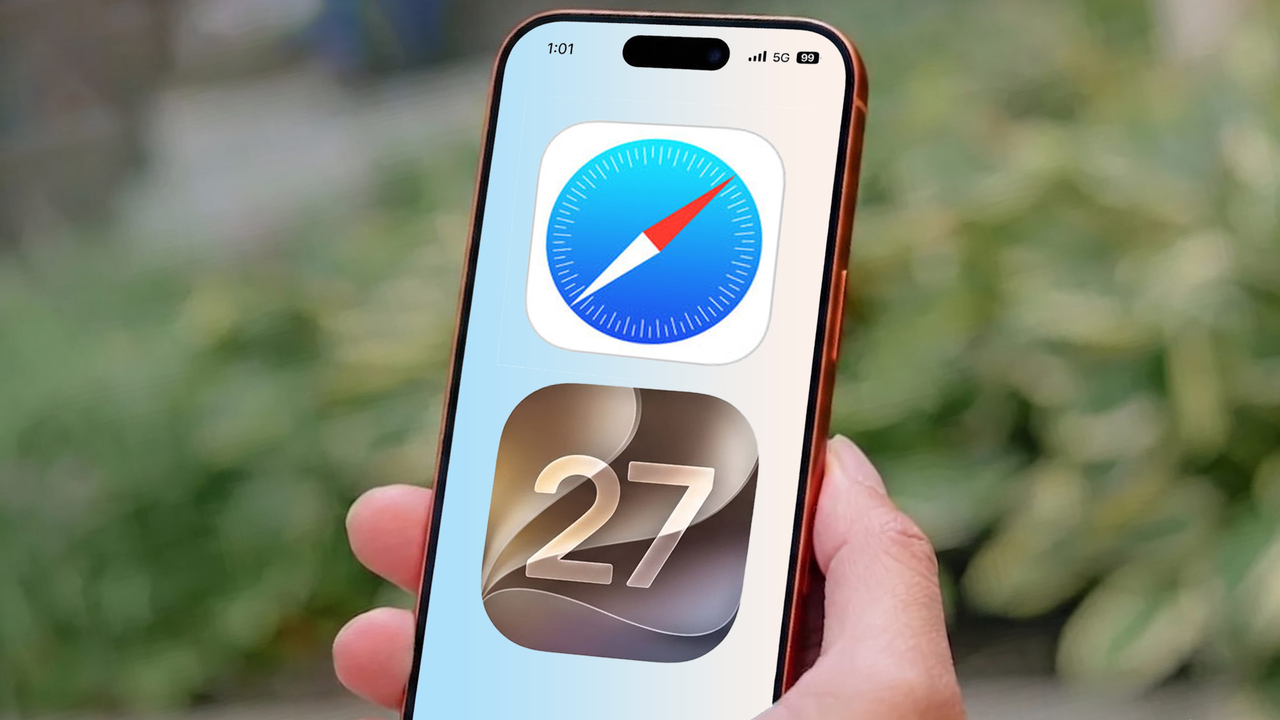
An image of an iPhone screen showing the Safari app icon in the center and the iOS 27 logo.

There are a lot of changes that have come as part of iOS 27, which is currently only available in beta. Some of those changes are big and important, like Siri AI, while others are pretty minor and aren't worth making much fuss about — including a redesigned to-do list icon.

However, there are some great features that are flying under the radar, such as the changes that have been made to Safari. Browser features may not be the most exciting thing Apple could have revealed at WWDC 2026, but these sound like the kind of features that will prove invaluable once you've gotten used to them.

They're also the kind of features that make Chrome seem fairly quaint in comparison.

AI tab organization

(Image credit: Future)

We've all been there, spending hours browsing the web on our phones, only to find we have a ridiculous number of tabs open and have no idea which one is which. Apple Intelligence on iOS 27 features an organizational feature that groups similar tabs together, and makes it much easier to search through them all.

Personally I haven't really seen much of this in action, but I'm also the kind of person that is fairly conservative with the number of tabs I have open. Then again, the new ability to have my tabs automatically organized by category means I may not be quite so callous to them in the future. There might not be such a need to smite stray tabs so quickly if I know that they are less likely to get lost in a sea of other tabs

Setting this feature up is really easy too. All you need to do is head to Safari's tab menu, tap the three line button in the top left, followed by Organize Tabs and Automatically Create Topics.

If you have enough tabs open, this will group them together based on similar topics. This way you at least have a starting place for that stray window you were looking at last week, but can't quite remember which website you were looking at.

Notify Me

(Image credit: Future)

Some of the big vacations I've done in recent years involved waking up at an ungodly hour and staring at multiple screens for extended periods of time. This inevitably means I end up sitting in a virtual queue, and wait for my turn to buy tickets to some sort of event or attraction that's too popular for me to risk waiting until a reasonable time of day to purchase.

Safari on iOS 27 can't magically stop people from trying to buy tickets the second they land, nor can it prevent bots from buying up the entire supply within a few seconds. But what it can do is monitor a website, and notify you when something changes.

That way you can relax a little bit, safe in the knowledge that Safari will warn you if the website suddenly changes, and means you won't waste a huge chunk of your grace period because you went to make coffee or rested your eyes for a little bit too long.

This feature is available on every website, and all you need to do is tap the Three line icon next to the URL bar at the bottom of your screen, then tap the Notify Me option. Safari will ask you to describe the changes, and the frequency at which it should check the page.

At the moment Safari will only check the page hourly, daily, weekly or monthly. So it's not going to be useful for sitting in virtual queues, or furiously trying to pre-order a box of new Pokémon cards before the scalpers buy them all. But it should still prove useful for keeping tabs on periodic changes, such as prices or general web page updates.

Custom Extensions

(Image credit: Future)

The one thing I like about web browsing on my laptop, compared to using Chrome on a phone or tablet, is the availability of extensions and browser apps. Those have never really been available on mobile, which always frustrated me. Safari on iOS has offered extensions for a while now, which famously includes the ability to install ad-blockers, password managers and more.

iOS 27 takes it a step further, by letting you create your own custom extensions that are created based on your custom prompts. This feature will either point you towards existing extensions on the App Store, or let you create your own unique extensions. All you need to do is tap the three line icon next to the URL bar, then select the Describe Extension option.

(Image credit: Future)

Apple will give you a list of use cases to aid you in figuring out your new extension, or you can simply type whatever you like into the prompt box. It can't do everything, and iOS 27 will not be able to vibe code you an ad-blocker simply because you asked for one. Still it offers a lot more freedom to mess with Safari, either for fun or for your own personal needs.

I did try and turn everything into both Comic Sans and Wingdings, just to see what would happen. Sadly, while Safari was able to change its own default font, the actual result was neither of those options. So clearly the AI needs some work, and hopefully things will be a little different once iOS 27 leaves beta later this year.

More from Tom's Guide

Sign up to read this article
Read news from 100's of titles, curated specifically for you.
Already a member? Sign in here
Related Stories
Top stories on inkl right now
One subscription that gives you access to news from hundreds of sites
Already a member? Sign in here
Our Picks
Fourteen days free
Download the app
One app. One membership.
100+ trusted global sources.