Get all your news in one place.
100's of premium titles.
One app.
Start reading
Tom’s Guide
Tom’s Guide
Technology
Tom Pritchard

Even more Android phones now support file-sharing to Apple AirDrop — here's a full list

Quick Share on Android.

Last year, Google announced something many of us here at Tom's Guide thought was unthinkable. Quick Share, Android's Bluetooth file transfer tool, would start working with Apple's AirDrop on select phones — starting with the Google Pixel 10.

Other Android phones have added AirDrop support in the months since that announcement, including big names like Samsung and OnePlus. Google even announced that, as part of the June Android ecosystem update, AirDrop support would be coming to a bunch more (unnamed) devices. Sadly, despite that rapid growth, AirDrop support is only available on a relatively small number of Android devices.

Here's a full list of every Android phone that has the ability to share files to iPhone via AirDrop, and vice versa.

Compatible phones

Google

Samsung

  • Samsung Galaxy S26, S26 Plus and S26 Ultra
  • Samsung Galaxy S25, S25 Plus, S25 Ultra andS25 Edge
  • Galaxy S24, S24 Plus and S24 Ultra
  • Samsung Galaxy Z Fold 7
  • Samsung Galaxy Z Flip 7
  • Samsung Galaxy Z Fold 6 and Z Fold 6 Special Edition
  • Samsung Galaxy Z Flip 6
  • Samsung Galaxy Z TriFold

Xiaomi

  • Xiaomi 17T Pro

OnePlus

  • OnePlus 15

Oppo

  • Oppo Find X9, X9 Pro, X9 Ultra and X9s
  • Oppo Find N6

Vivo

  • Vivo X300, X300 Pro, X300 Ultra

Honor

  • Honor Magic V6

Coming Soon

  • Motorola Razr Fold (2026)
  • Oppo Find X8 series
  • Honor Magic8 Pro
  • Devices running Xiaomi's HyperOS 3

What to do if your phone doesn't support AirDrop

(Image credit: Future)

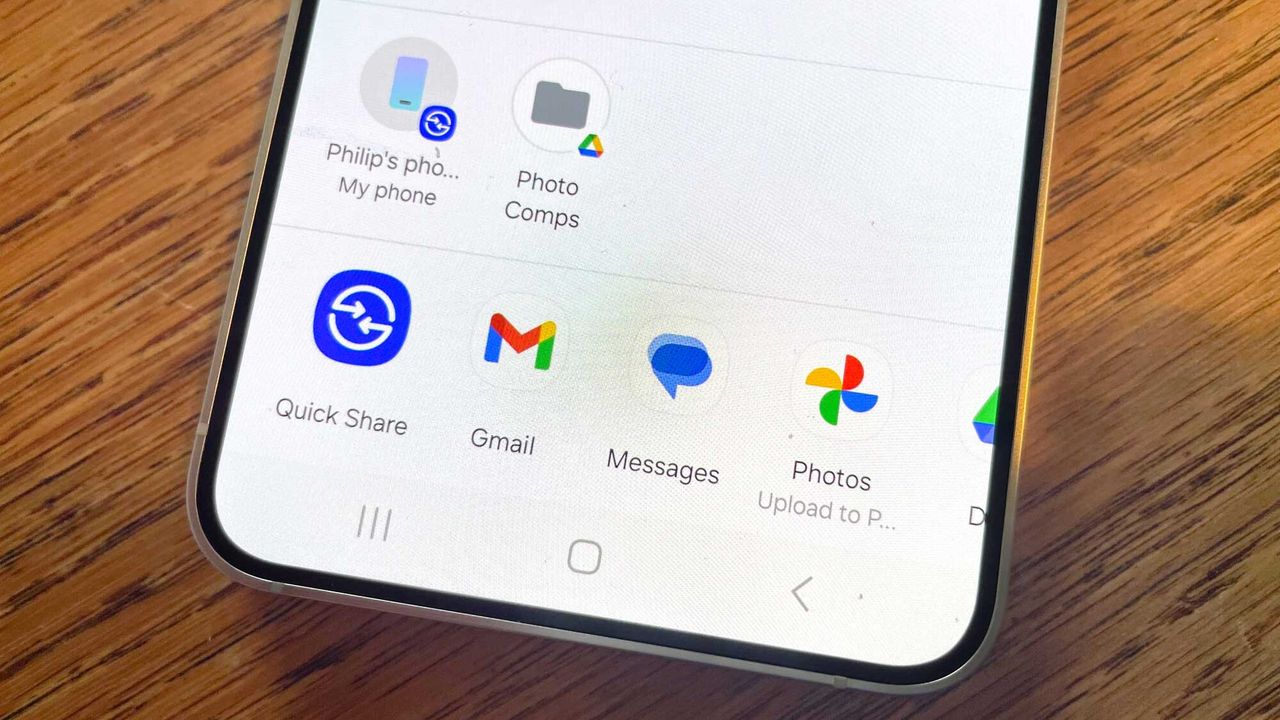
Using Quick Share to send files to iPhone is actually really easy, and functionally no different to sending files to other Android devices. The only real difference is branding, and all you need is to make sure you have a compatible device.

Simply select the file (or files) you want to share, tap the Share button, then select the Quick Share option. If the destination iPhone has been set to receive files via AirDrop, it will appear in a list of destinations on your phone screen. Tap it, follow the on-screen instructions and you're good to go.

(Image credit: Future)

But what if your phone doesn't support AirDrop sharing yet? Thankfully, Google has developed a workaround, which transfers files to iPhones using cloud storage and a QR code. This update was announced at Google I/O in May, and the transfer process is just as simple as using Quick Share itself.

You go through the same sharing process, but instead select the Use QR code option, instead of directly connecting to another device. Scan that QR code with your iPhone, and the connection will initialize automatically. It's not quite as fast and secure as a direct Bluetooth connection, but it's still the most convenient way to transfer files between Android and iPhone when AirDrop support isn't available.

More From Tom's Guide

Sign up to read this article
Read news from 100's of titles, curated specifically for you.
Already a member? Sign in here
Related Stories
Top stories on inkl right now
One subscription that gives you access to news from hundreds of sites
Already a member? Sign in here
Our Picks
Fourteen days free
Download the app
One app. One membership.
100+ trusted global sources.