
The first moments spent with a product is often a make-or-break. You'll either end up happy as a lark or screaming in frustration. So, as part of the review process for the best web hosting providers, I'll see what it's like signing up and getting a site online in under and hour. While this isn't a reflection of the overall quality of a host, it gives a pretty good indication on how easy a host is to use.
I tested DreamHost earlier in the year and my experience wasn't great. I still think they're the best for what I recommend them for but it didn't paint the best picture. Since then, DreamHost has a new server location in Europe and have updated the website building process. So, we revisited it.
Start the clock 0:00
Signing up
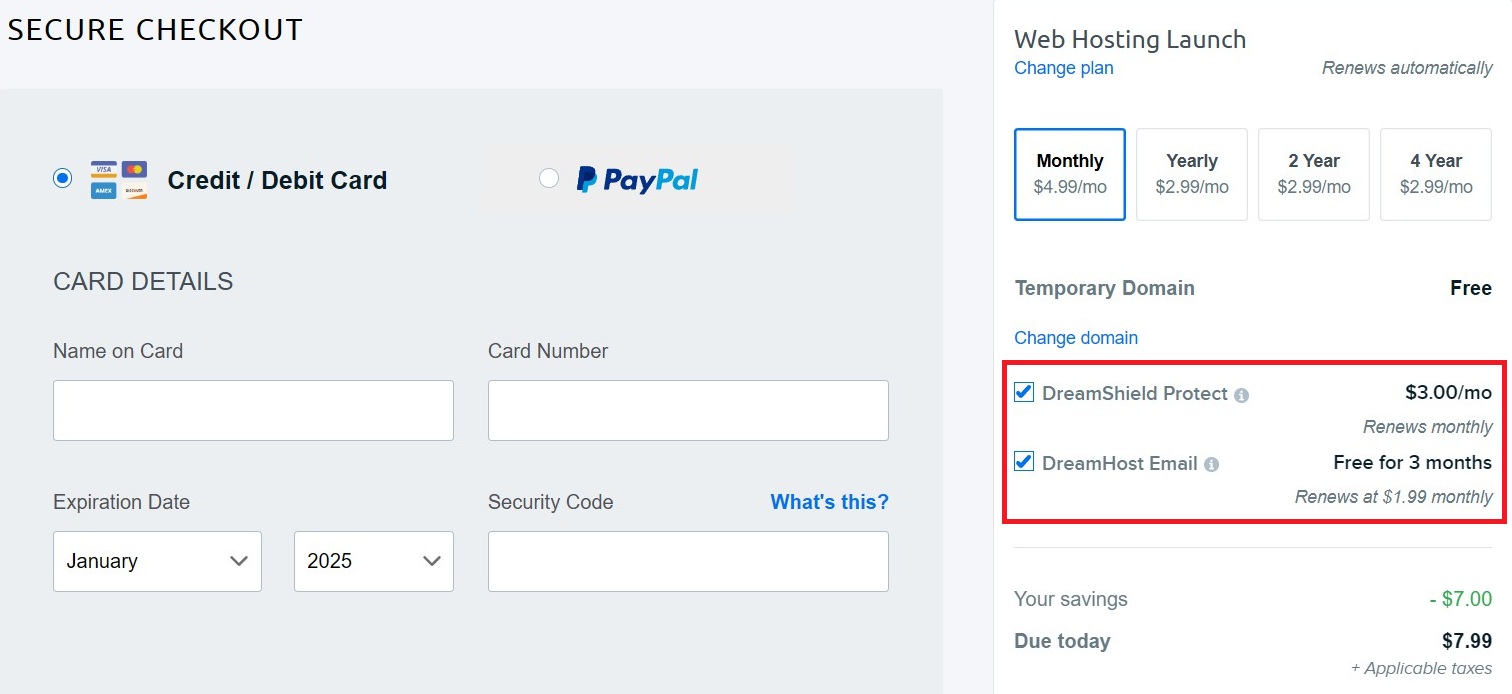
The first thing I noticed during the signup process was that DreamHost tried to tack on several upsells. There's nothing wrong with this, and many others do the same. However, I dislike having the options pre-selected for me by default.
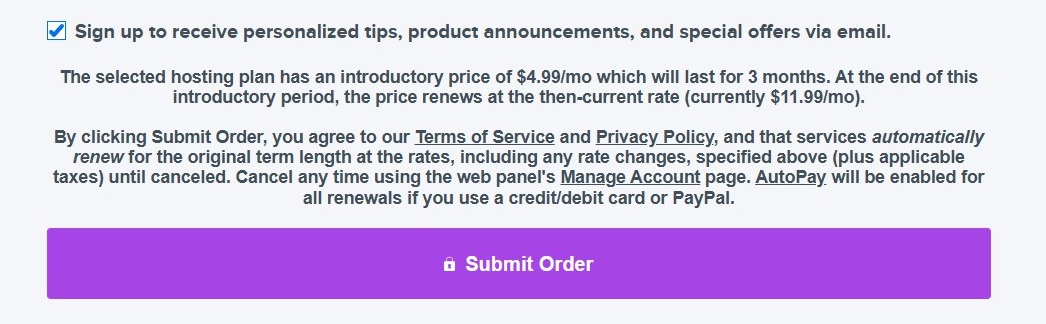
Once I confirmed my order, DreamHost tried to sneak in an option to add me to their marketing list. No thank you.
01:15
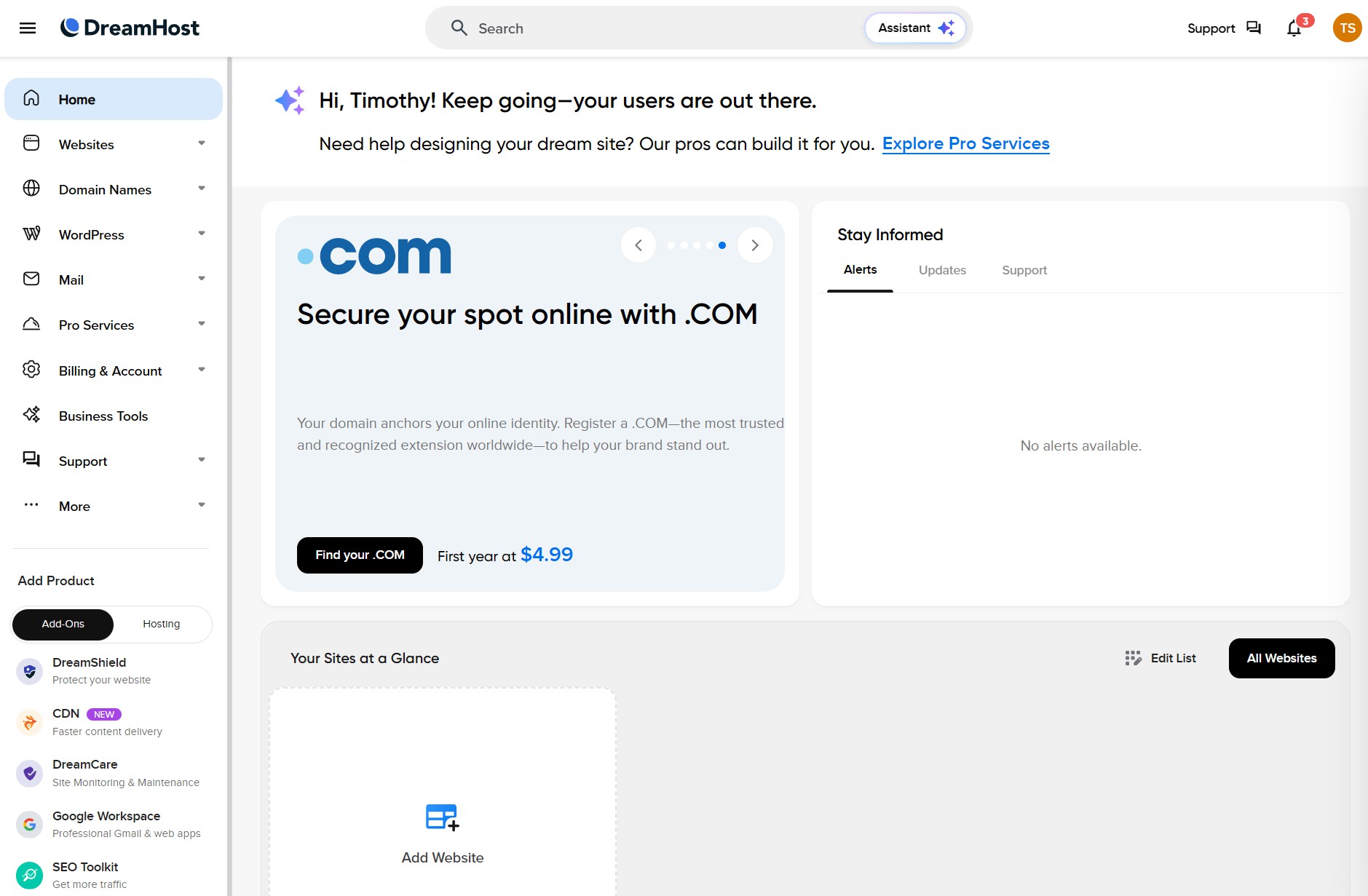
In less than two minutes, I'd cleared payment, received my "Welcome to DreamHost" emails, and gotten access to my client dashboard. This was to be my home base, from where I could choose from various options to manage my entire customer account - website, subscriptions, tools, and more.
One thing to note about this dashboard, however, is that it includes a ton of options. Some of these are more upsell attempts. For example, you can sign up for customized email inboxes and many Pro services, such as hacked site recovery, site management, and website rebuilding.
If you're a new user, skip many of these, as they can balloon your web hosting bill. There's no harm in coming back to them if necessary, once you've been running your website for a while.
I decided to skip browsing around and dive directly into building something. To create a website with DreamHost, you have three main options: Install WordPress, migrate your old website, or use LiftOff, their AI website builder.

My first option was to try Liftoff, but then I read the fine print. This option was for a small, custom-built site using LiftOff that would take DreamHost between 24 hours and a week to produce. (Options not clear - that there is liftoff you can use and the option of DreamHost using Liftoff to build for you.
Since I had only 60 minutes, I decided to go for a standard WordPress installation. My objective was to build a WordPress-based business website as quickly as possible. I didn't want to spend a lot of time creating content or customizing designs for now.
09:02
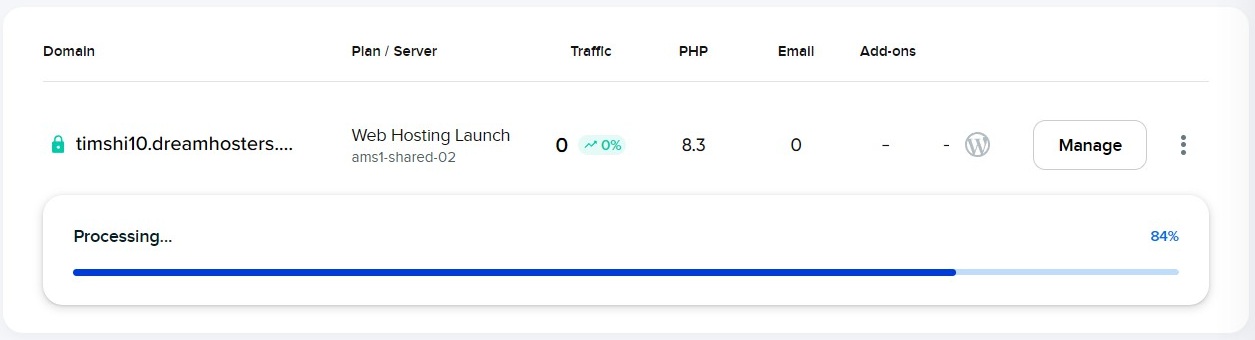
Installing WordPress was a slightly confusing experience. At around the four-minute mark, I received an email informing me that my site was ready. However, on the dashboard, the installation was still running.
It was only after another 10 minutes that the progress bar stopped and everything seemed complete. I was now over 20 minutes into my time, and not a very happy camper.
This had to be one of the slowest WordPress installations I'd ever done, especially since it was a fresh installation. I wasn't migrating any files to DreamHost so it should technically have taken less than five minutes.
24:46
With my WordPress site now in place, I had two options. The first was the more traditional route: I could simply dive into WordPress and start building pages and content. However, this would neither showcase DreamHost's capabilities nor help many new users.
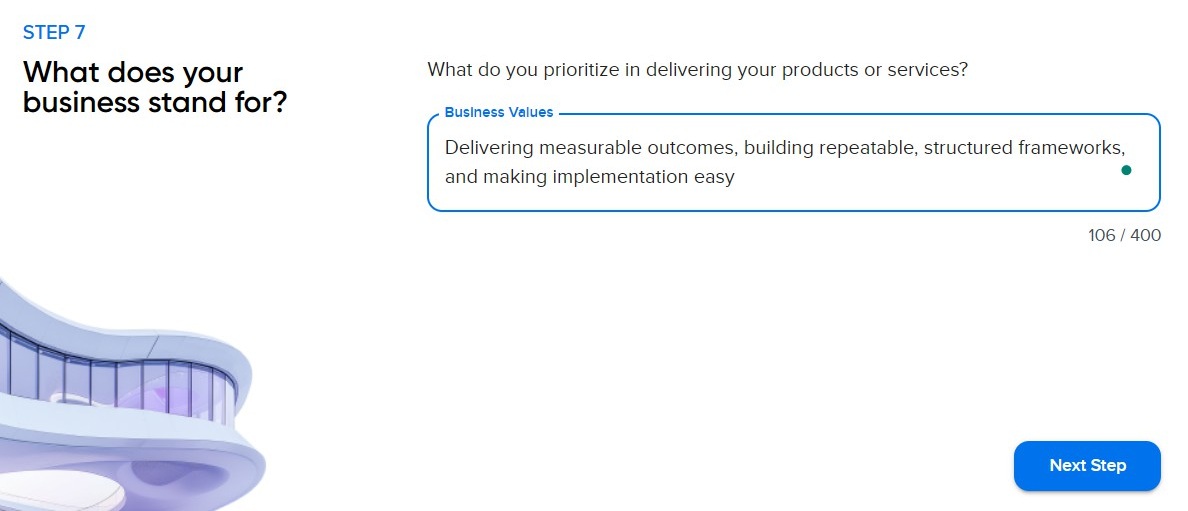
Instead, I opted for a guided WordPress installation. This process allows DreamHost to ask you a series of questions (nine, in total) that ask you for information about your website. For example, your business name, objectives, key selling points, and so on.
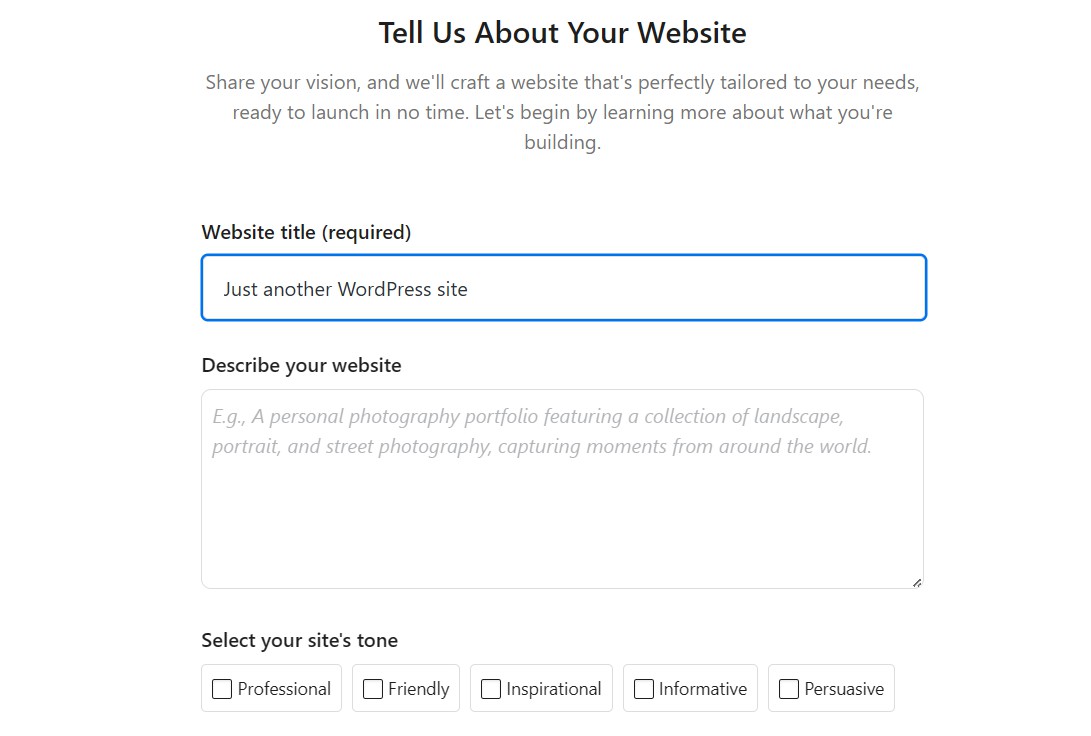
After yet another 10 minutes spent answering those questions, I was finally near the holy grail - the last step before getting into my WordPress website.
When I finally cleared that hurdle, I was thrown into what seemed to me a standard WordPress dashboard. Oh yeah, default theme and all. It was an underwhelming experience after spending so much time answering questions.
As I wandered around the all-too-familiar landscape, I wondered what I could do to get things moving in the right direction. I didn't want to dive in and start page-building, so I tried to see if there was anything I was missing on the dashboard.
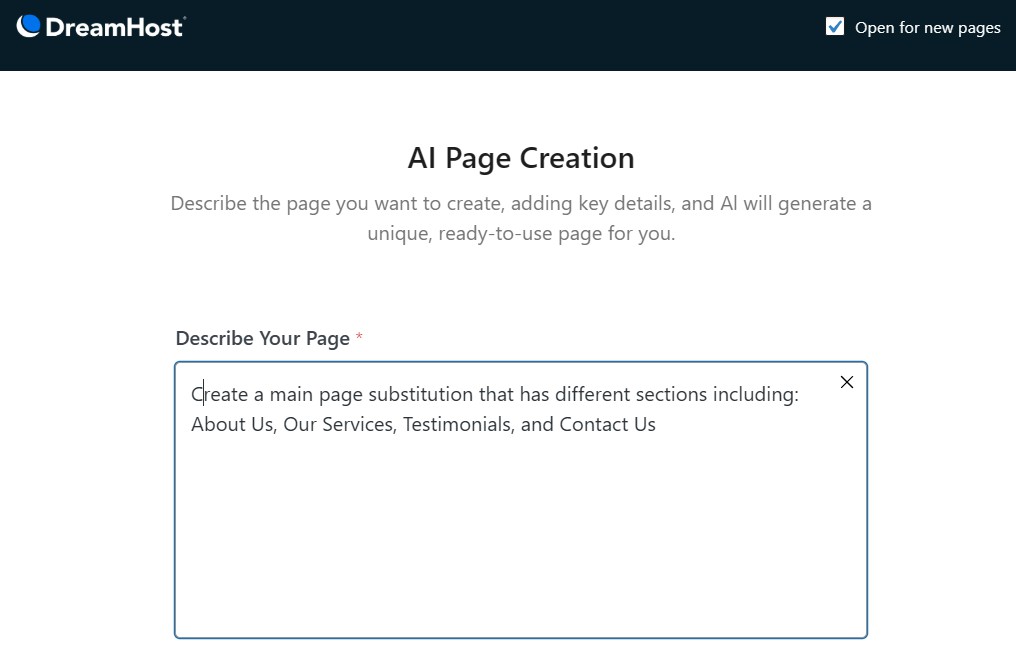
At this point, I noticed some minor but seemingly essential details. One that stood out was the AI Page Creation tool. This sounded promising, since it only required me to describe what I wanted, and DreamHost would build it for me.
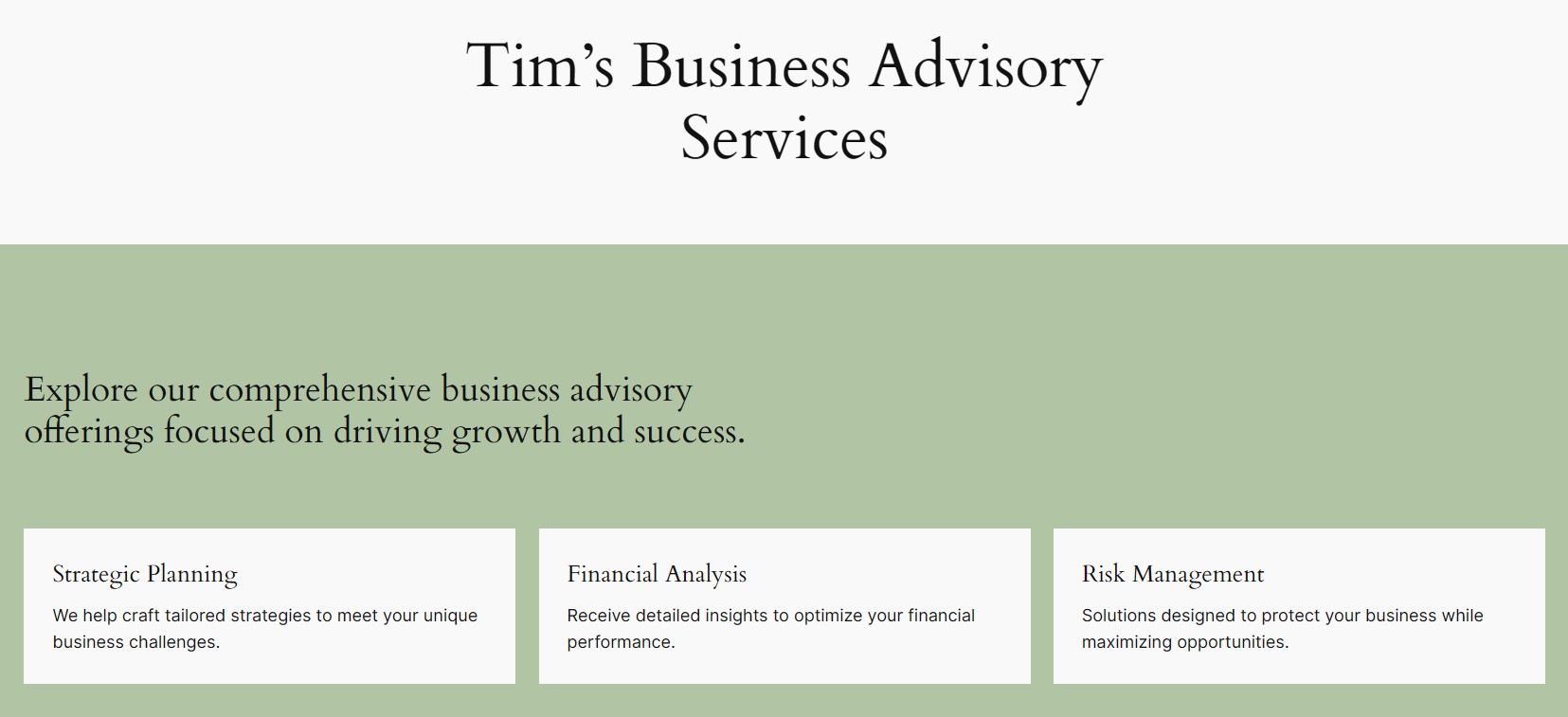
Unfortunately, what came out was extremely basic—something which I could have done myself in a couple of minutes. As I sat there scratching my head, I decided to explore what else I could use from DreamHost's toolset to save the day.
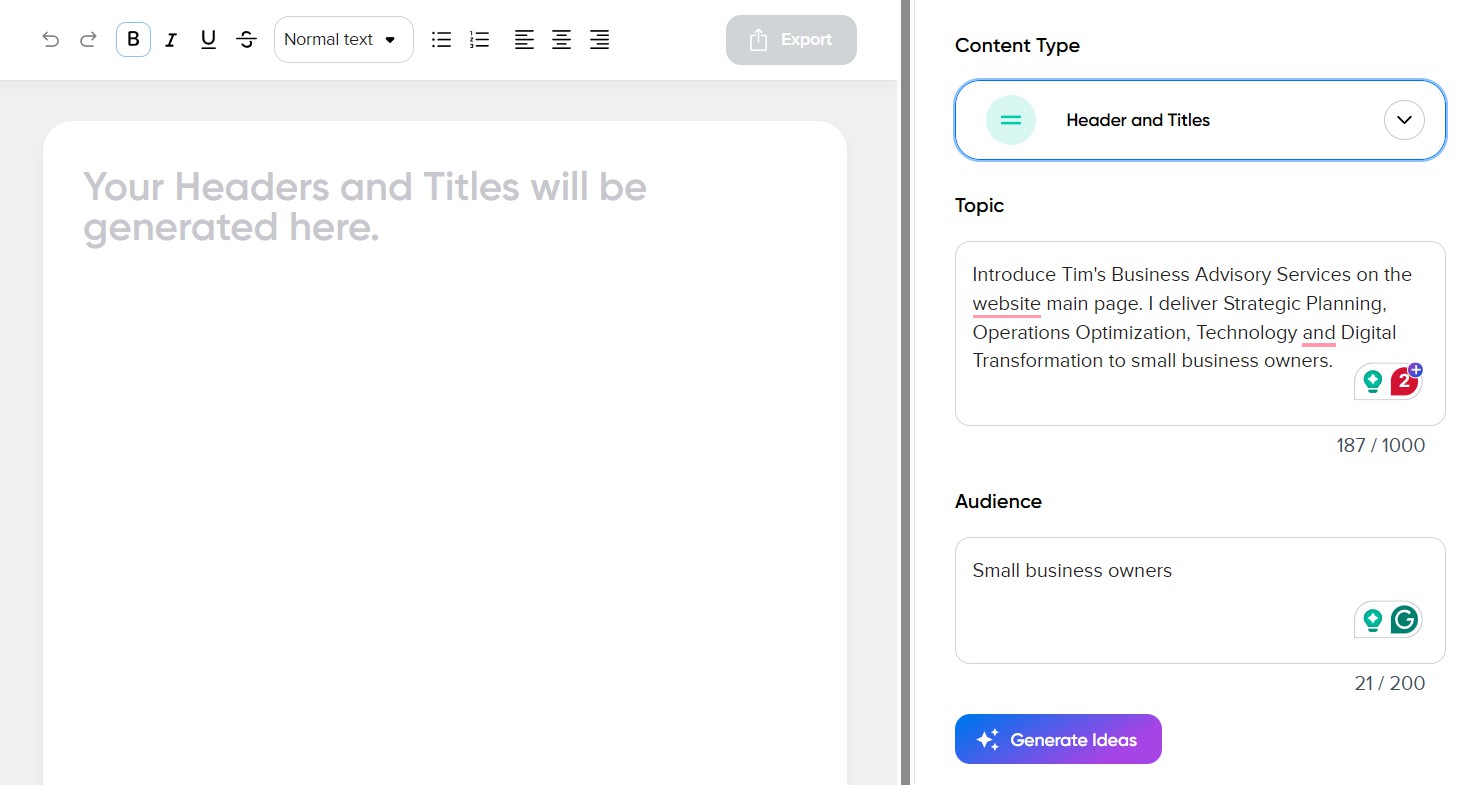
Up came the AI content creator, which I fiddled with for a couple of minutes. This tool isn't perfect, but it can help you easily create basic website content. The problem is that I felt it was inferior to even the free version of ChatGPT or other AI writing tools, so I leave the final choice up to you.
Also, while interesting, it wouldn't help me build a nicer website quickly. It was at this point that I recalled the option to create a custom website with LiftOff manually.
So I decided to make a U-turn.
39:22
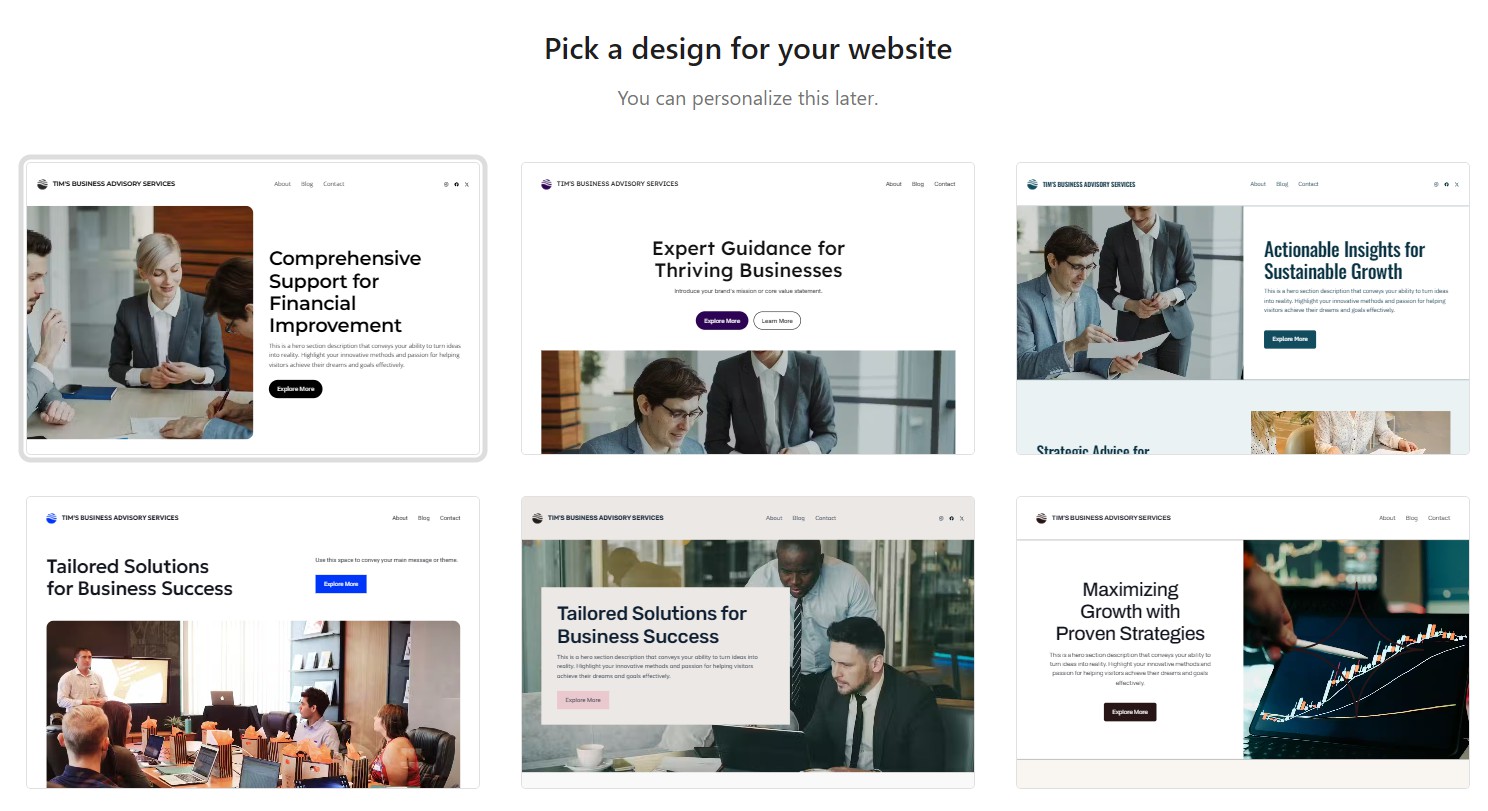
After deleting the WordPress site that had taken me nearly 40 minutes to create, I quickly ran the LiftOff option, had a new installation running, and was selecting a site template within 10 minutes.
Their template library has a ton of very businessy-looking designs to choose from. Many of them scream "corporate," but I feel that changing a couple of images here and there will go a long way toward giving your website a unique look. After all, it's the overall structure that's essential.

It was here that I felt the slight sense of awe I had been expecting from the beginning. It was a picture-perfect website, complete with snippets of the information I'd provided when running the tool.
The freshly created website included sections for a main call to action, a quick overview of my business services, unique selling points, and a contact form!
The downside was that it looked exactly like what it was: a corporate template website. However, given that this could be created, content and all, within ten minutes, I felt many would love the outcome.
49:01
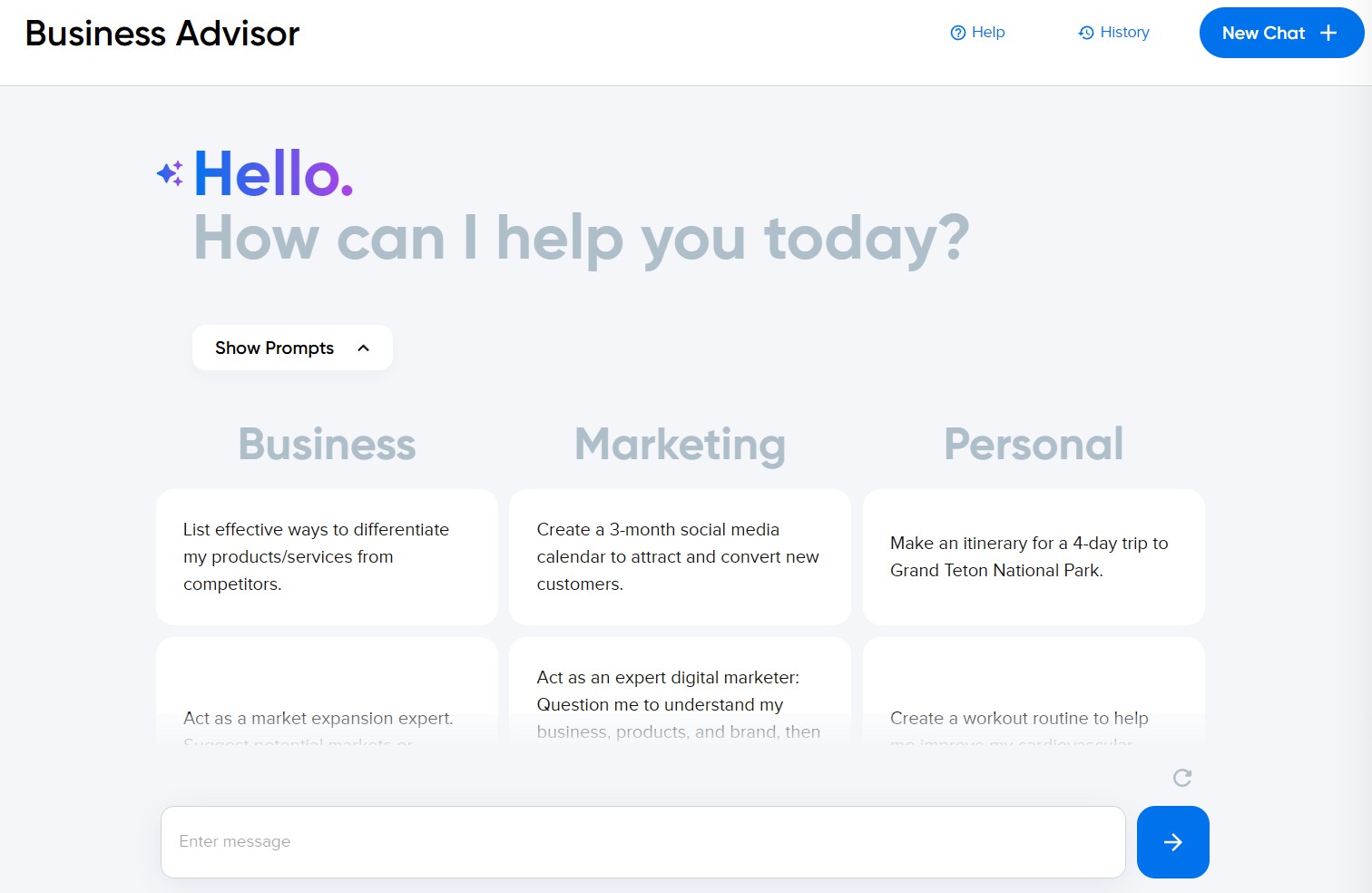
One of the first that I tested was their Business Advisor. At first glance, it was impressive, but I quickly realized that it was like working with any other AI-guided tool, such as Gemini.
The key difference is that DreamHost has customized the experience to focus on business advisory services, complete with associated prompts.

Another tool that I found more interesting was the DreamHost Business Planner. It struck me as unique because, despite the massive number of new websites being created, I felt that not many potential owners would have an ace business plan up their sleeves.
It was also here that I discovered not all my time spent answering questions was in vain. Apparently, the Business Planner tool had recorded all my answers and compiled them into a, well, real business plan.
To give you a better idea, the plan included market analysis, unique selling points, business goals, and more.
Sure, you could also achieve this with ChatGPT (or something similar), but this was ready-made, well-structured, and, most importantly, offered by DreamHost directly from your customer dashboard.
60:00
Overall impressions
Much of my experience with DreamHost was driven by my initial misguided choices. I spent a lot of time waiting for a default WordPress installation when I could have gotten a quick boost from using LiftOff on my own. I don't think DreamHost make this clear enough.
That said, I give them tons of credit for building a system that's rock steady, offers many supporting tools, and sports a beautiful customer dashboard. Overall, this experience gives me confidence that recommending DreamHost as one of our best web hosts for beginners is the right decision.
- I've also rounded up the best WordPress hosting providers
Start the clock 0:00
Signing up
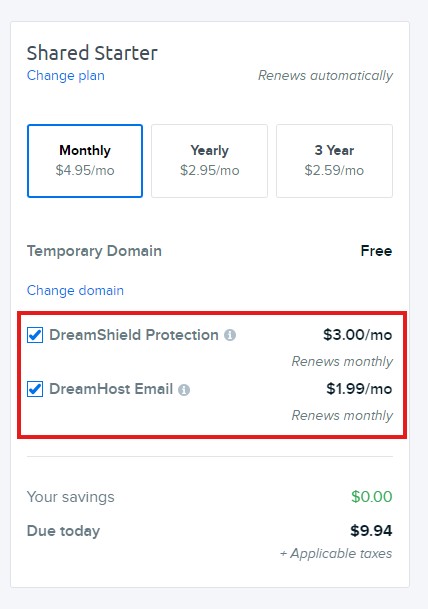
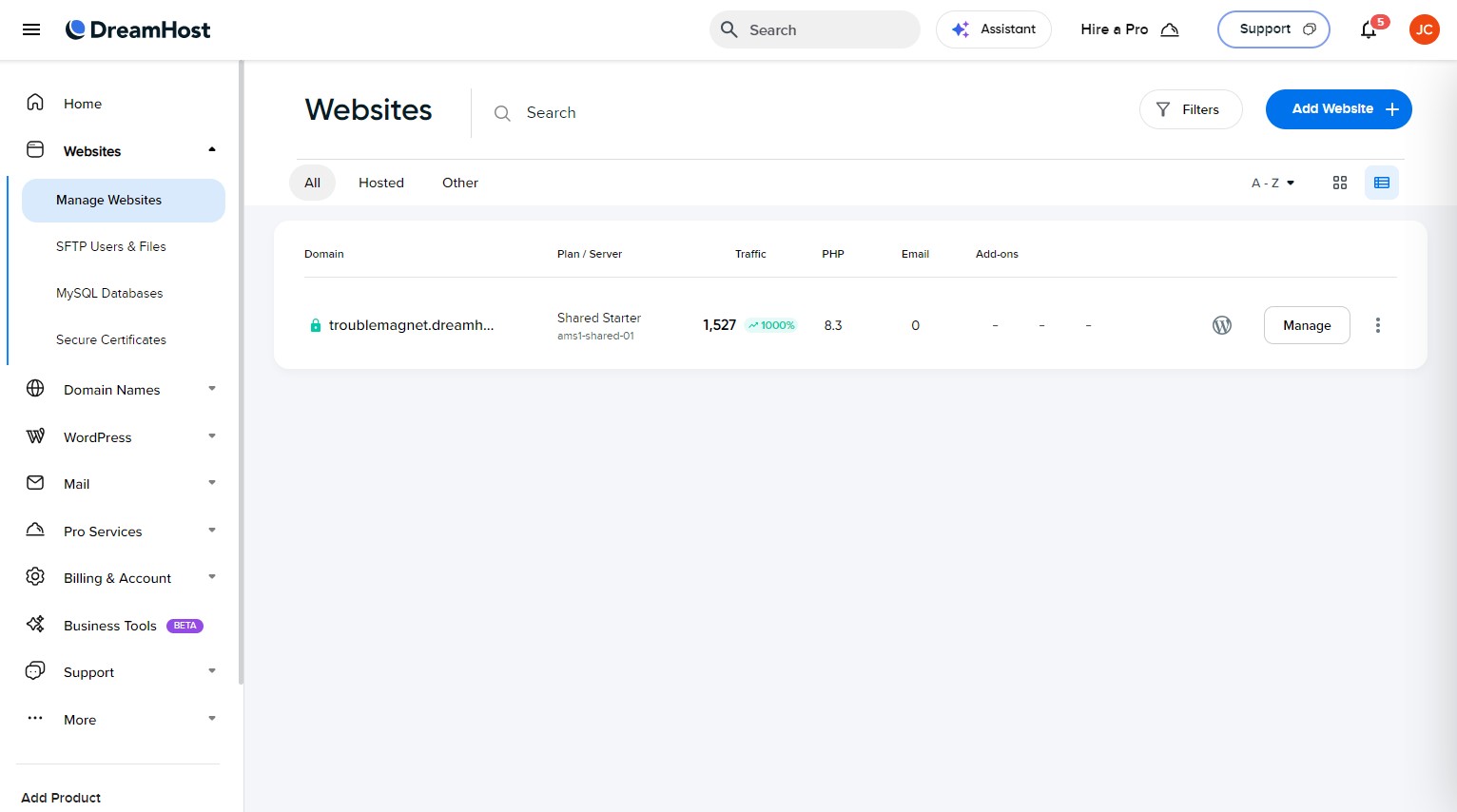
After a short bit of upselling for email and DreamShield Protection I'm directed to the main dashboard. No one likes upselling, and pushing security features at checkout is extra unlikeable in my opinion - hosting should come secure (and usually does) as standard.
Sure, there is an argument for; if you don't know what you're doing it's best to have the security features and before there is a problem is the best time to ask if you want it. But, to me, any time security features are upsold at checkout, it feels too pushy.
DreamHost's plans are some of the cheapest but after these two optional add-ons, the plans are no longer that afforable, now sitting in the same pool as other lower-level hosting plans - and when compared side by side on price and performance (like in our Hostinger vs DreamHost feature) DreamHost comes up short.
OK, that's a lot of negatives but there are positives. DreamHost is still cheap if you don't buy additional features and while it is less powerful you do get a lot of business and ecommerce features included that you don't get with other hosts.
01:23
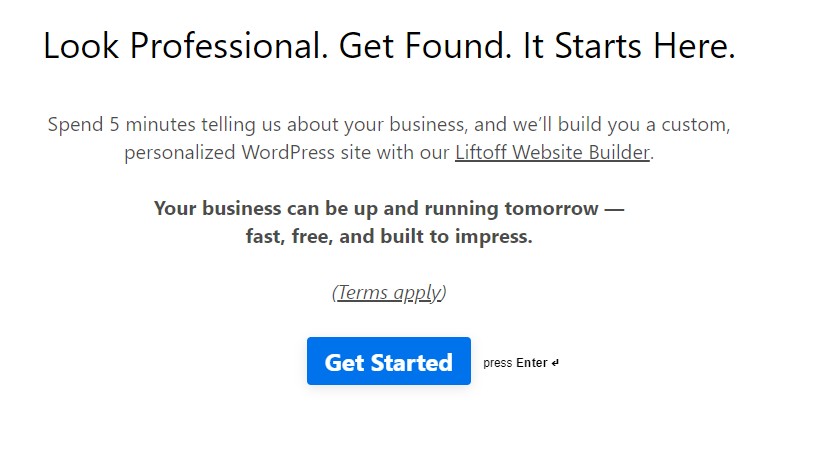
I didn't want to spend time making a website so I decided to use DreamHost's offer to build me a personalized website.
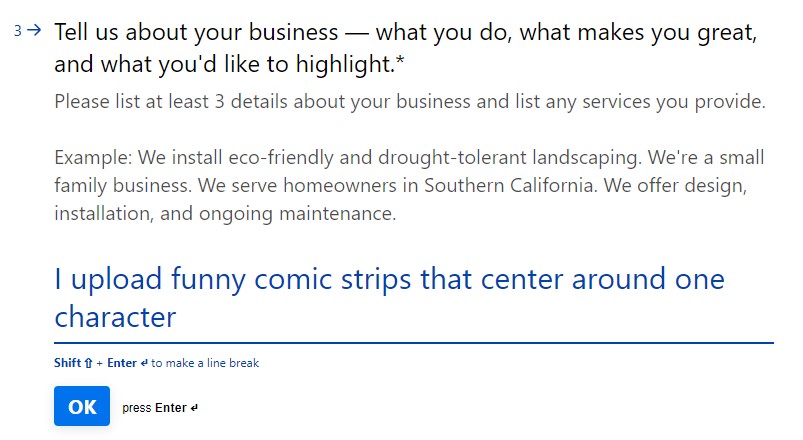
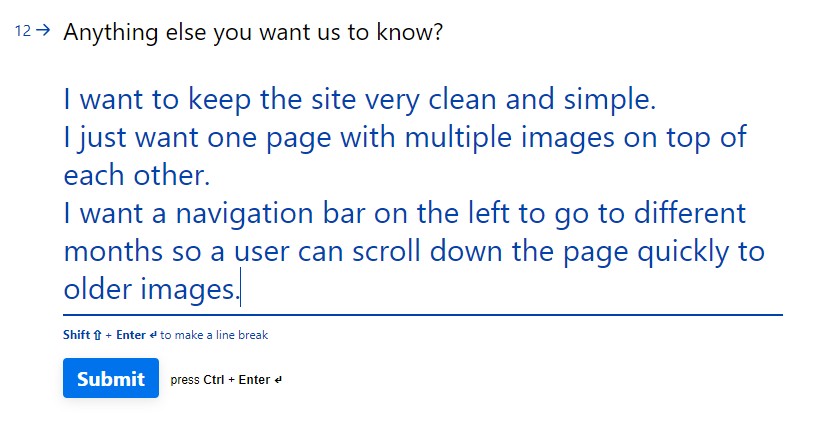
I describe that I want a site that is a vertical list of comic strips.
On the left I want months in a navigation bar so a user can jump further down the list - I don't know how user friendly this will be but I don't care at this point, as this website will be scrapped by the end of the day.
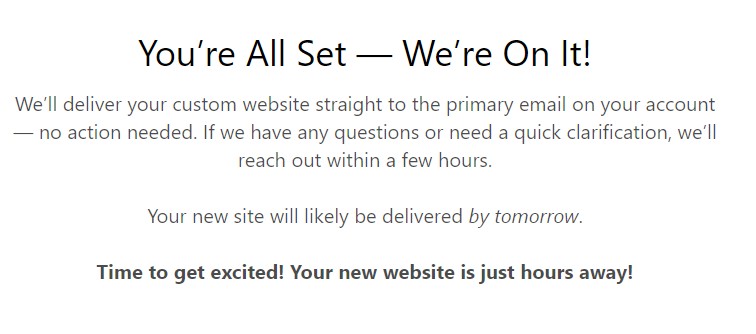
Oops. I didn't read with enough attention, and skimmed past the first five minutes and didn't read the "tomorrow" part.
I'm so used to website builders being no more than templates or a generic AI creation that I just assumed this would take moments, not an entire day - which, to be fair to DreamHost is still decent if there is actually a human making a site for me.
I don't have a day to wait, I have minutes - so I decided to scrap this and use another method to get my site made. It's a pity I do want to see what this site would have turned out like - but time for that another day.
While answering questions about my site I was told to acknowledge that this would overwrite any existing site I had on my server. That makes sense - if I have a one-site plan then of course an existing site will need to get the chop.
The thing that made me question this was the phrase "We'll deliver the website to your email address" - to me, this reads like the website files will be given to me via email. If this is correct, why should my site need to be deleted?
Even though the site will likely be deleted tomorrow anyway, sometimes I need to go in and take a few extra screenshots. I didn't want it disappearing unexpectedly. So, I decided to contact support.
06:57
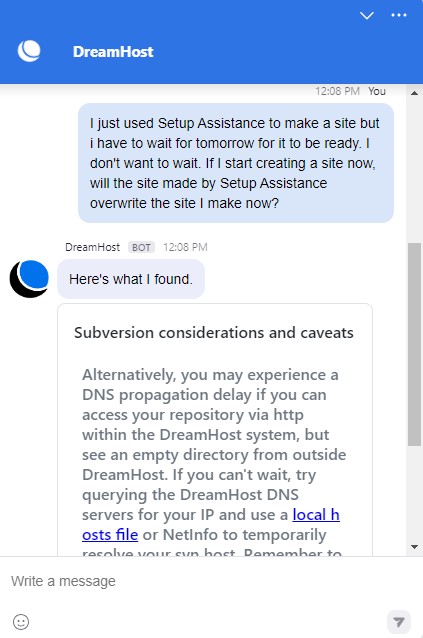
The chatbot didn't understand a word I said. I gave it some feedback on how unhelpful it is, it apologized and gave me a link to click to contact DreamHost.
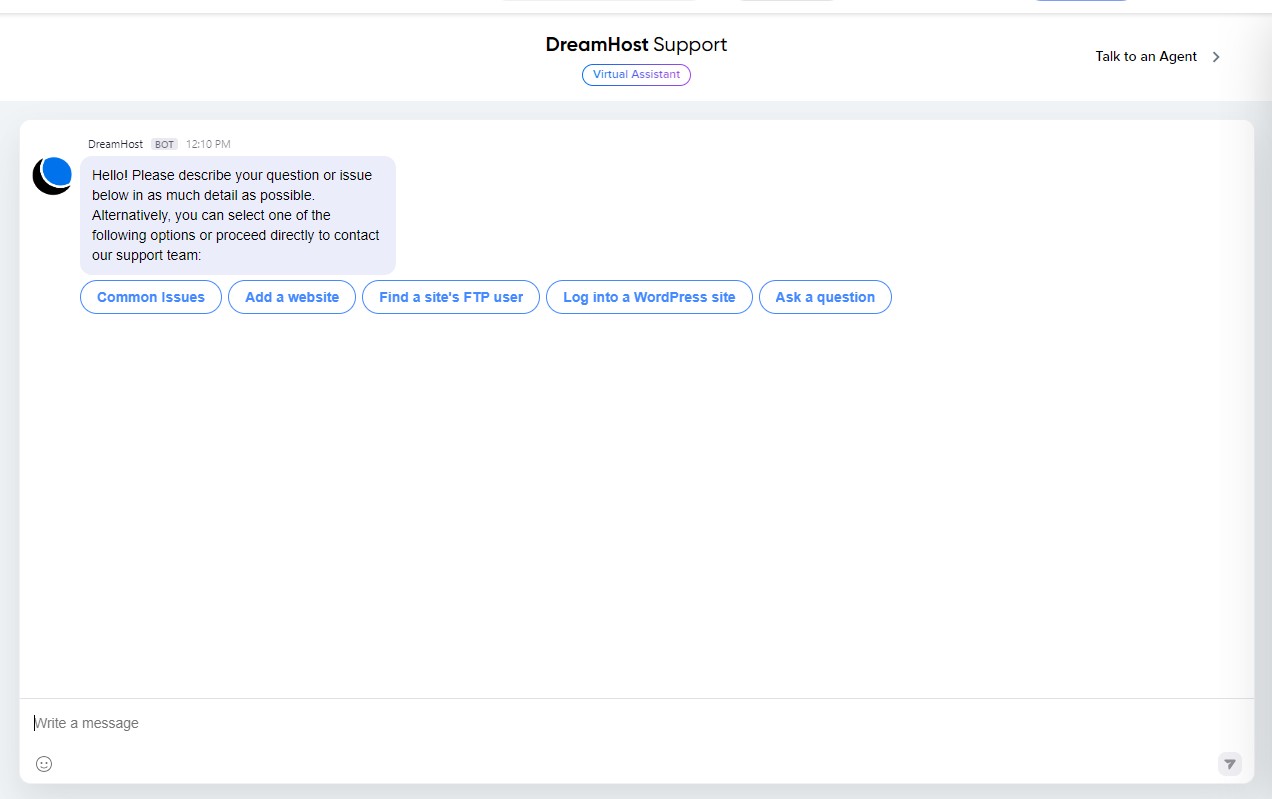
And...back to the same Chatbot. If there is one thing worse than a bad chatbot it's a bad chatbot that loops around to itself.
I took a breath and looked around the page to find 'Talk to an agent'.
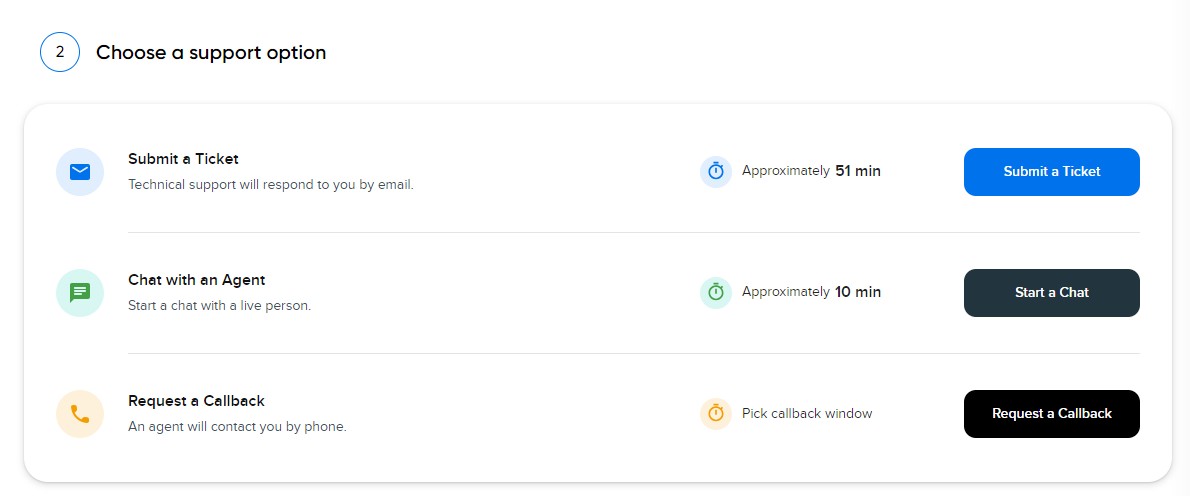
20:11
Support confirmed that if I had started to make a website, it would be deleted when the new one was made, because I have one temporary domain and a placeholder website had been created with this domain.
So, I had to delete my temporary domain which would unlink the new site to my account.
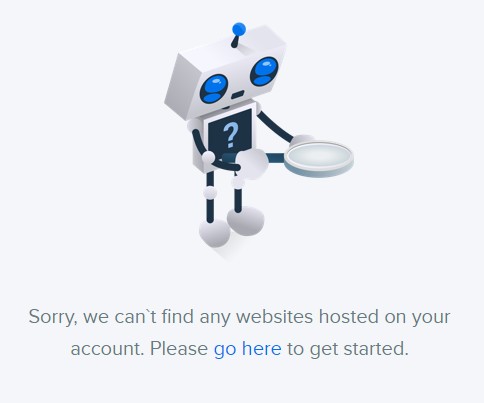
No problem. It was easy and when I went back to the Websites tab I was (for once) happy to see an error message telling me that no websites could be found.
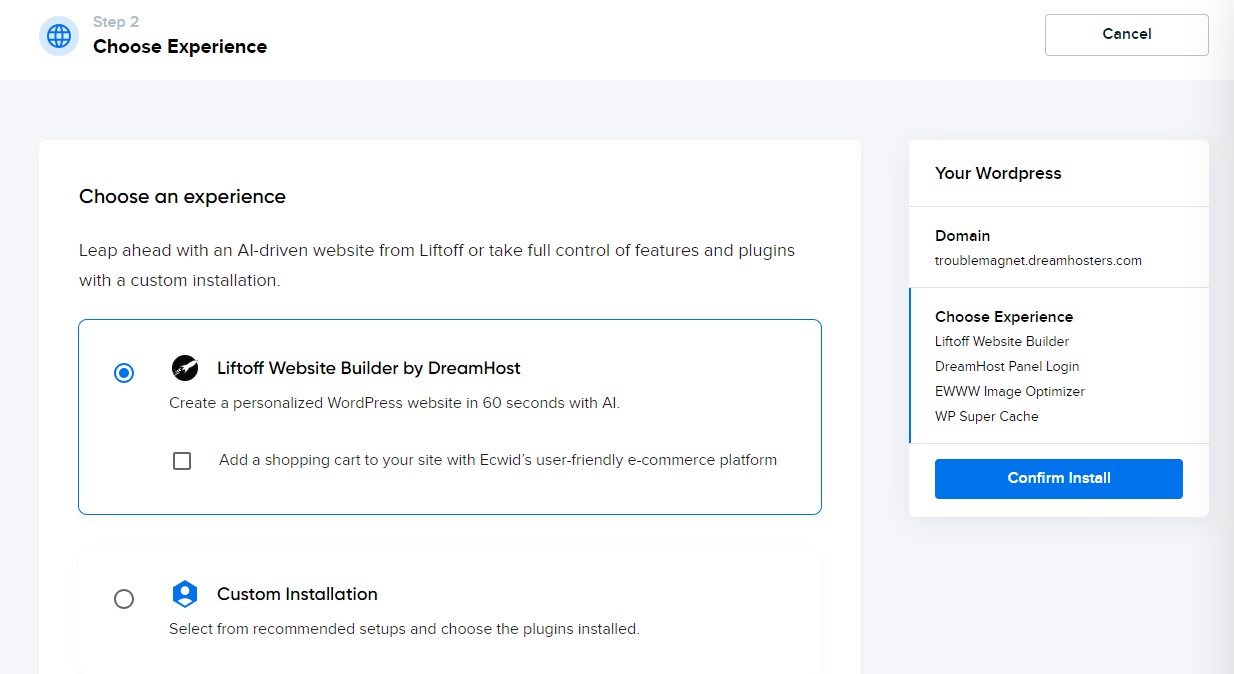
I decided to use Liftoff, a website builder developed by DreamHost, to make my site, as I still didn't want to make it myself.
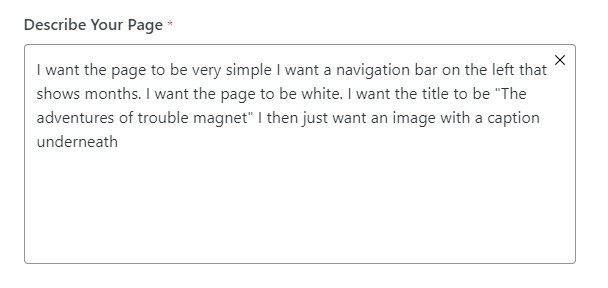
It didn't take too long to go through the standard questions you get on website builders - typical queries such as, 'do you want to create a blog or landing page?'
However, it did take while for WordPress to be installed. How long? I'm not sure because I got bored and started doing something else while I waited (it was less than 10 minutes though).
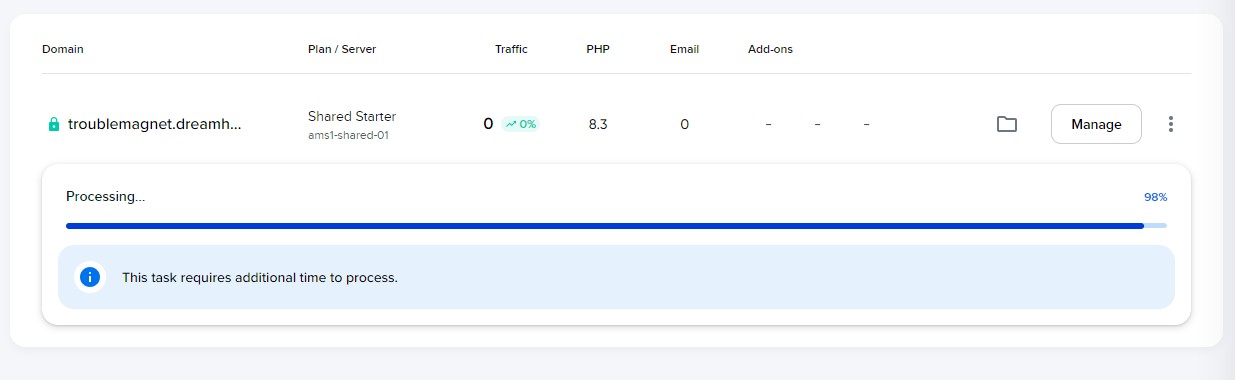
30:11
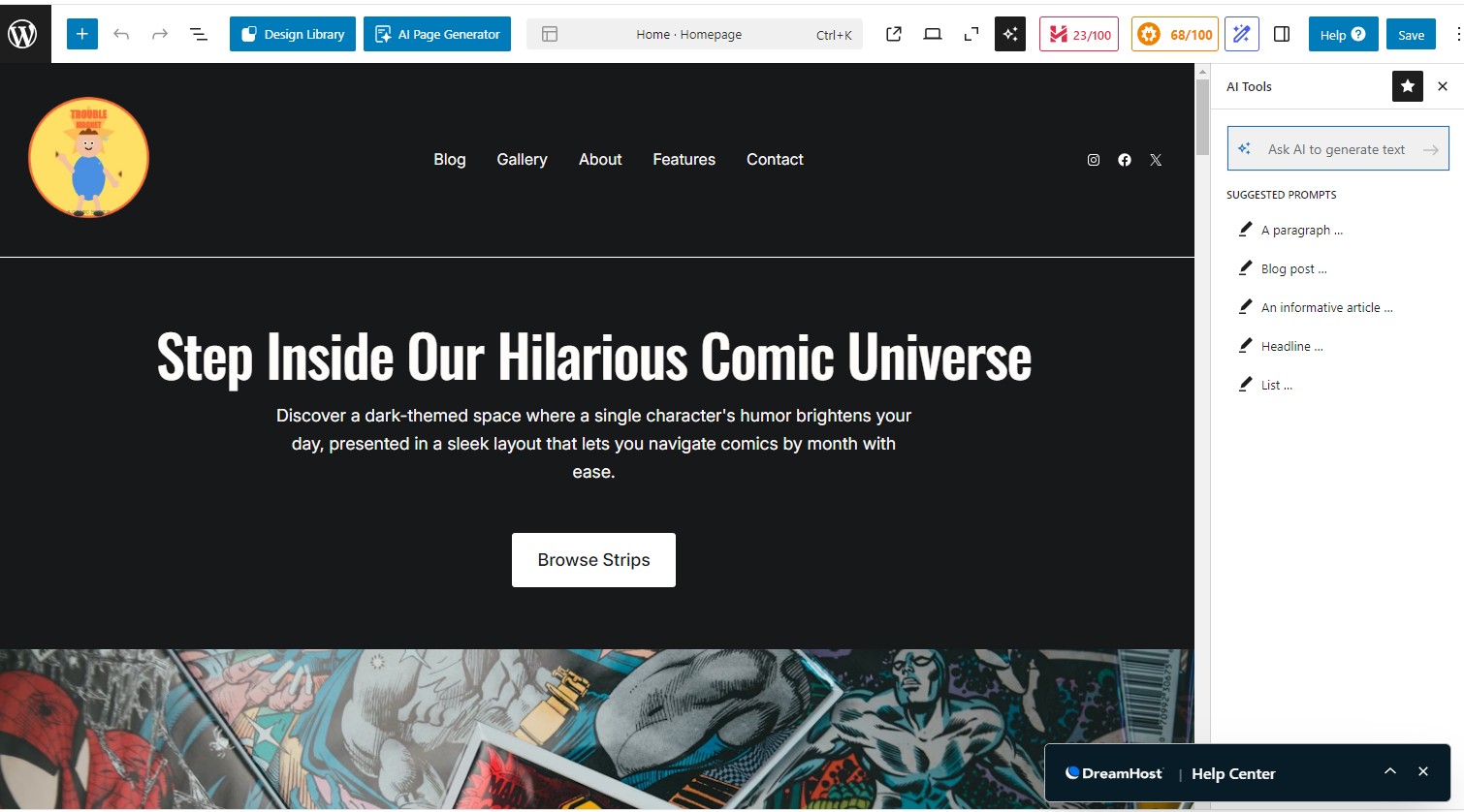
Not great. I asked for a white website. I also didn't get the navigation bar on the left side. At least I did have one single image.
I tried again with a similar prompt but with the addition of pointing out what the AI builder did right and wrong.
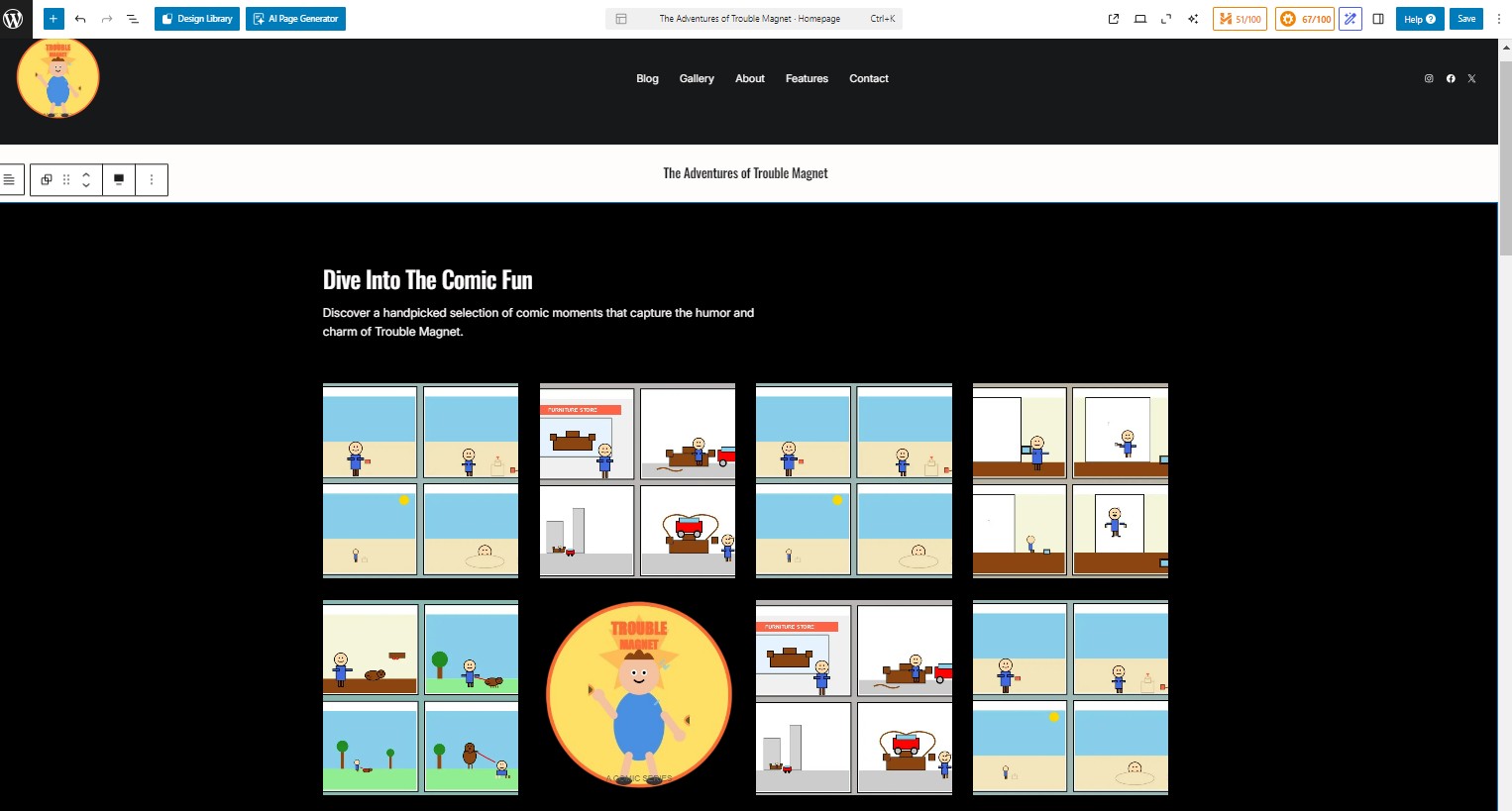
Still black, still no navigation bar, and this time I have multiple images in a container instead of one scrolling linear feed.
I gave up. This isn't a website builder review after all. I replaced some of the images with my cartoon strips and decided that was enough of that.
34:39
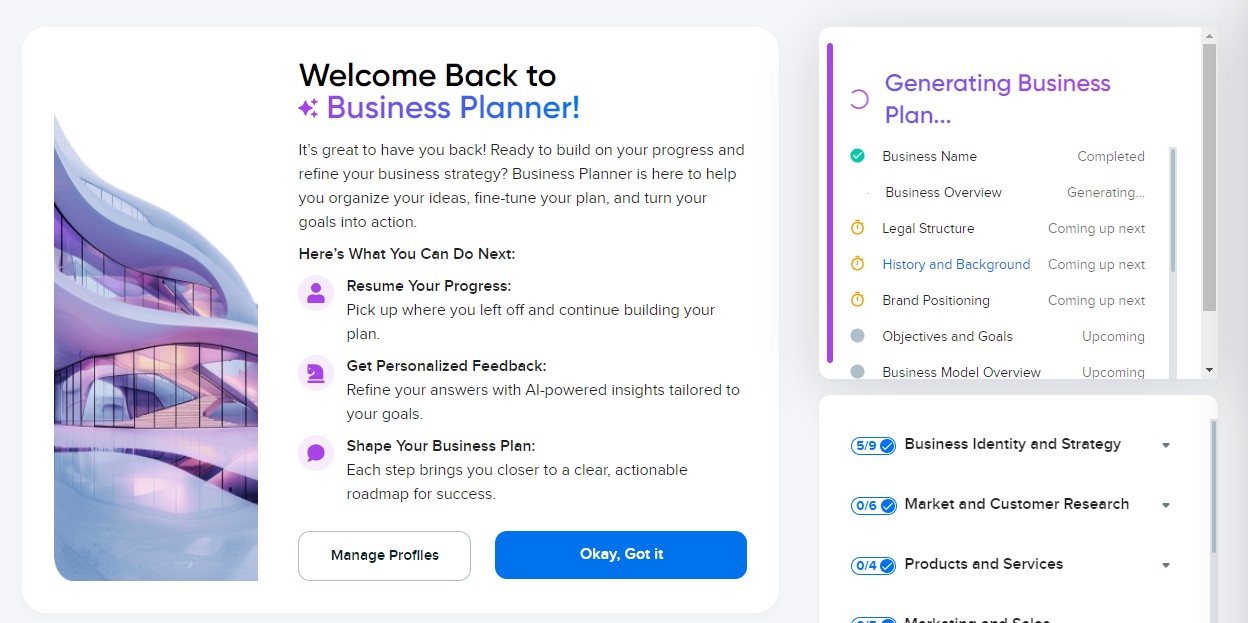
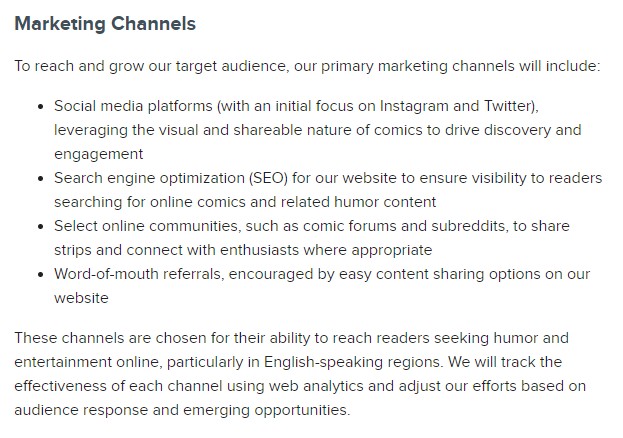
Without a business plan, it can be hard to focus your time and resources where it counts.
DreamHost's AI business tools make creating a business plan easy and it also provides unique and useful suggestions to grow your business. It doesn't take too long to fill out the questions and receive bespoke recommendations.
Many of the suggestions are kind of obvious but it still takes times to write them down and create a final draft of your plan. The AI Business Planner definitely saves time in this respect.
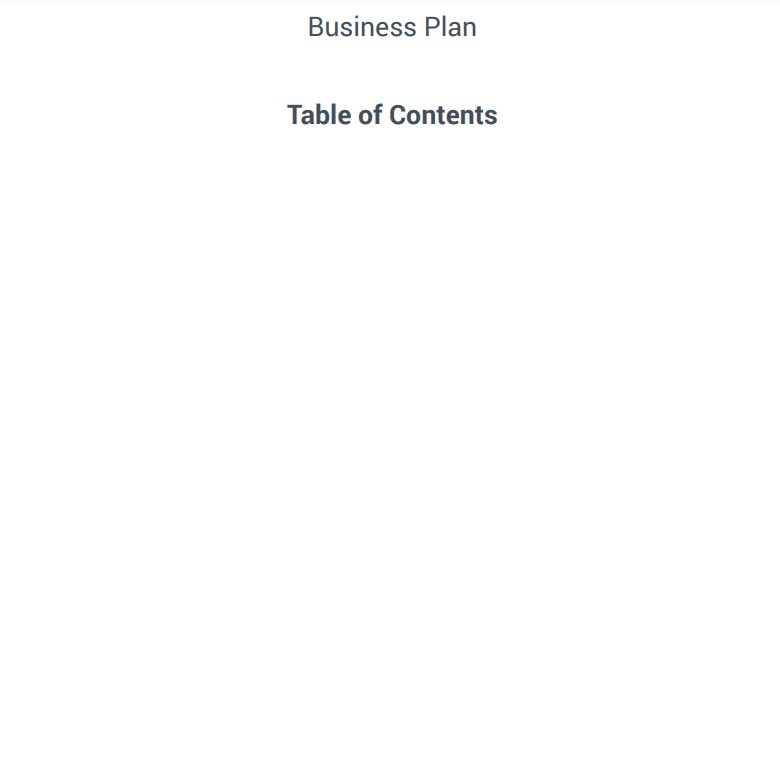
There was one issue - when I tried to download the business plan to a PDF, the PDF was blank. I tried multiple times and waited for a while but I was never able to download the content.
45:55
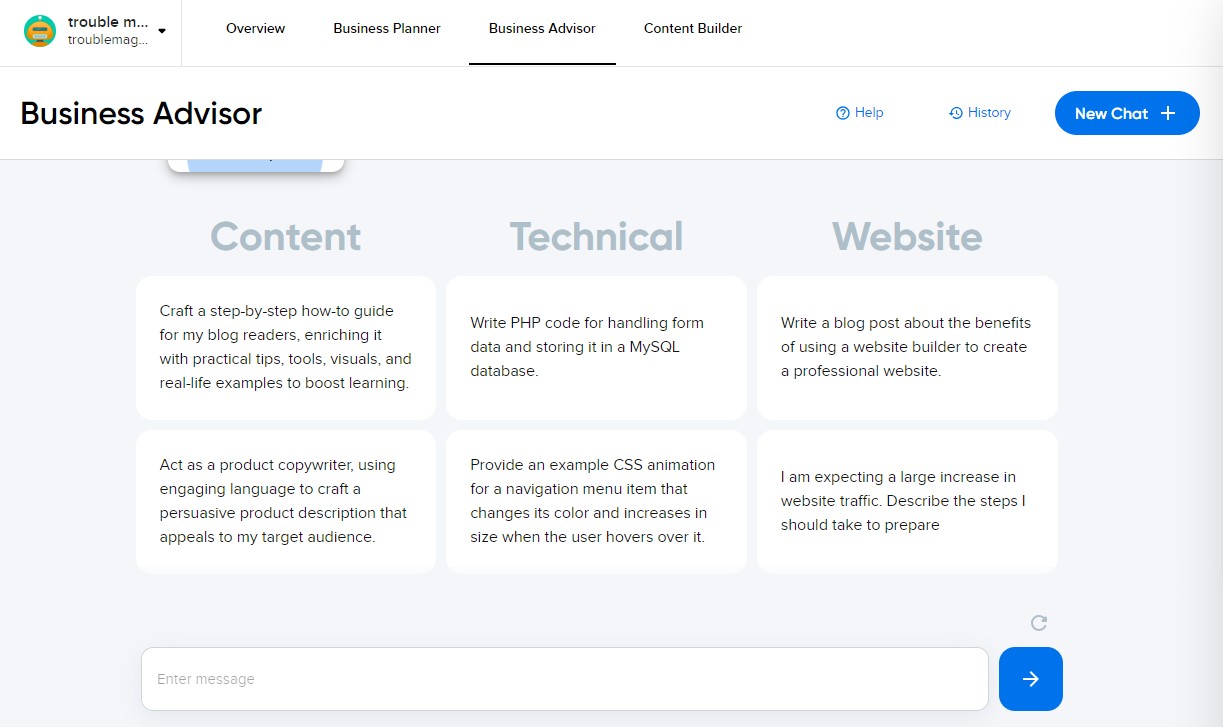
I moved on to the Business Advisor. It's important to note that because I only played with this tools for a few minutes, I'm not getting the most out of them. The more the tools know about my business the better it can advise me.
Instead of me telling you about the tool, you can read about it in DreamHost's Business Advisor overview.
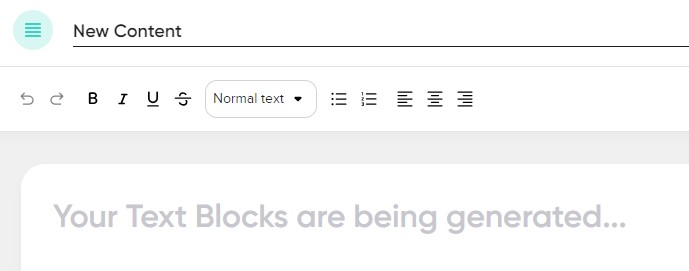
Part of the advisor is a content generation tool. I tried creating some content with it but after going through the motions I was stuck on the text blocks being generated.
60:00
Overall impressions
I felt like I was waiting around a lot for DreamHost, but I was in a rush to get things done. I know that this hour spent with DeamHost might paint it in a bad light, but I still recommend them as best for beginners.
While the servers were slow to install WordPress, in our speed tests the performance of your site is good value for the money (if you don't buy additional features). I didn't get anything spectacular out of the AI business tools but I only gave it really basic information so I shouldn't expect much.
From a beginner's perspective, for the price and the tools you get, I think DreamHost offers good value.
- I've also rounded up the best WordPress hosting providers