Get all your news in one place.
100's of premium titles.
One app.
Start reading
Digital Camera World
Rod Lawton

Cheat sheet: Lightroom Classic's Tone Curve controls explained

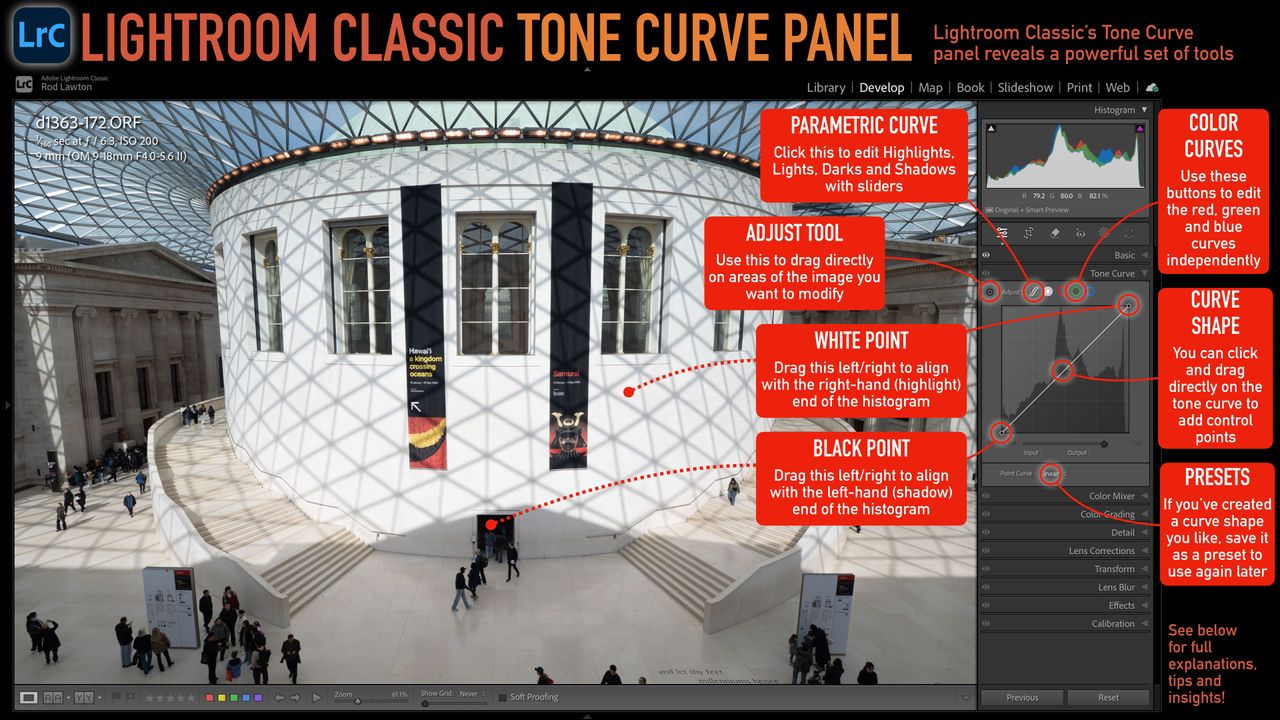
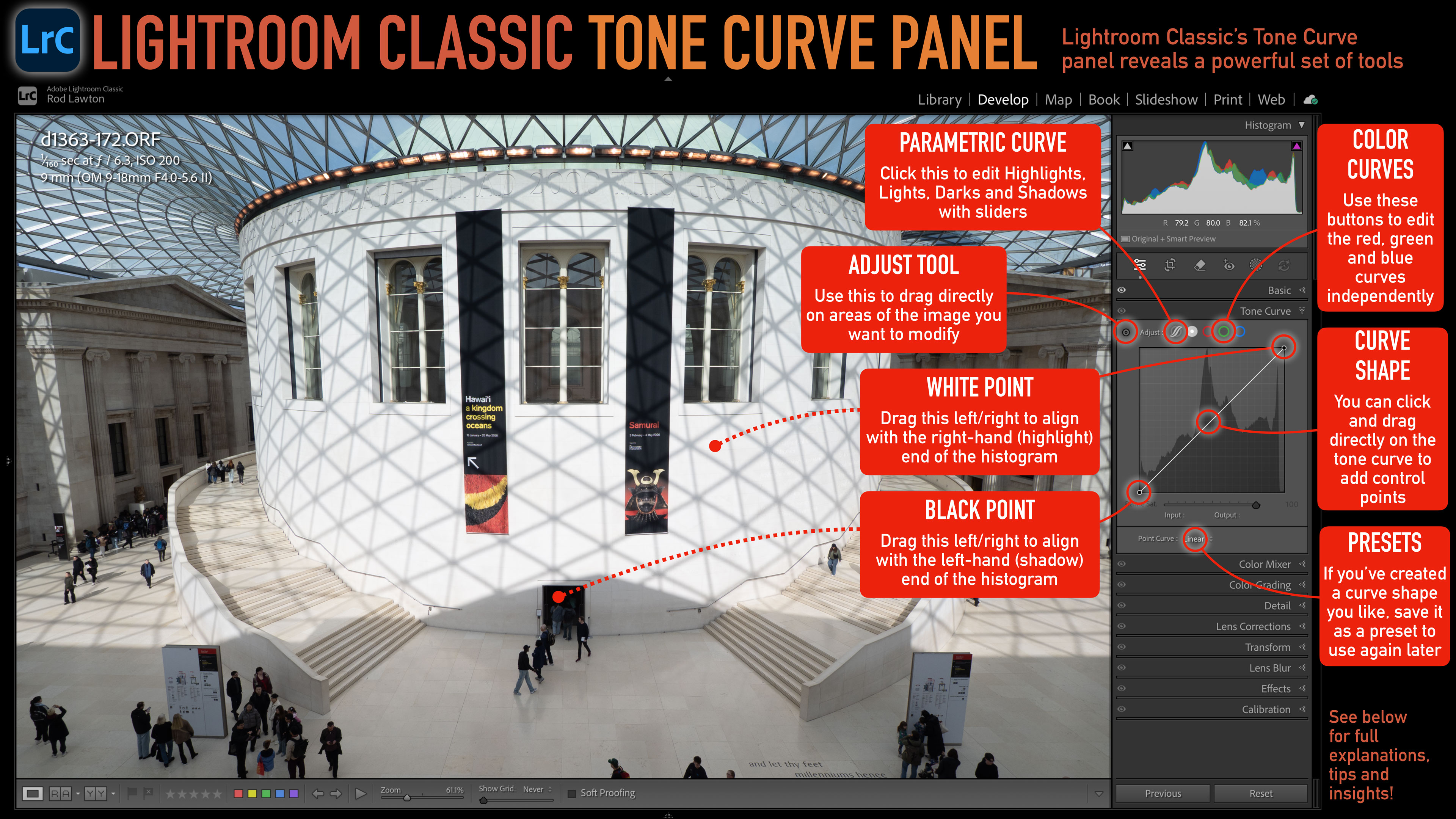
Lightroom Classic Tone Curve cheat sheet.
Click on this image to open it in a new tab and download the high-res version. (Image credit: Rod Lawton)

Tone Curve adjustments are a very powerful way to modify the tonal range and contrast of your photos. The basic principle is simple – you drag on the curve to change its shape to alter the brightness of different tonal regions, from the shadows on the left to the highlights on the right. However, Lightroom Classic’s Tone Curve panel has hidden depths which are easily overlooked but make it a much more powerful and intuitive tool. Here’s a guide to the key features…

Parametric Curve

This is an alternative way to make curves adjustments. Instead of dragging control points directly on the curve, which can sometimes be a bit imprecise, here you get sliders for the Highlights, Lights, Darks and Shadows so that you can adjust these tonal regions individually. Adjustments made with one slider will ‘push’ slightly into the others in order to maintain a smooth tone curve.

  • Try boosting the Lights slider to add brightness and sparkle to flat looking images
  • Try reducing the Shadows slider to add depth and contrast to an image

Adjust tool

Click on this tool to activate it, then click and drag up or down on any area or object in the image to adjust its tone value – you’ll see this reflected in the tone curve. This is a good way to target specific tonal values and objects only.

  • You can use this tool to increase the contrast between two similar tonal values. Click and drag on one area to lighten it then click on the other and drag down to darken it

White point and black point

You can drag the white point to the left if the image histogram doesn’t quite stretch to the right-hand side and you can drag the black point slider to the right to meet the left edge of the histogram. Lightroom Classic does not have a separate levels adjustment, but this does the same job.

  • For a faded analog ‘matte’ look you can drag the black point slider upwards so that the darkest tones in the image don’t quite go to a solid black

RGB color curves

Normally you would work with the combined curves adjustments to adjust all three color channels in the image at the same time. However, you can also edit the red, green and blue color channels individually to create a huge range of color shifts and effects.

  • Using RGB curves to adjust colors can get confusing. Try the Color Grading panel instead!
  • If you want adjust individual colors, you need the Color Mixer panel, especially its Point Color mode

Curve shape

To change the shape of the curve, just drag on the line or click to add a control point which you can then move around to reshape the curve. You can add as many points as you like but things can quickly get messy, so try to keep it simple.

  • A classic ’S-shape’ curve will add midtone contrast to a photo without clipping the shadows or highlights. Use on control point to lower the darker tones and another to raise the lighter tones

Curve presets

This little drop-down menu is easy to miss but very useful if you find yourself making the same curve adjustments again and again.

  • To save a curve preset, make your curve adjustments first and note the menu now shows ‘Custom’. Open the menu, choose the Save option at the bottom and name your new preset.
Sign up to read this article
Read news from 100's of titles, curated specifically for you.
Already a member? Sign in here
Related Stories
Top stories on inkl right now
One subscription that gives you access to news from hundreds of sites
Already a member? Sign in here
Our Picks
Fourteen days free
Download the app
One app. One membership.
100+ trusted global sources.