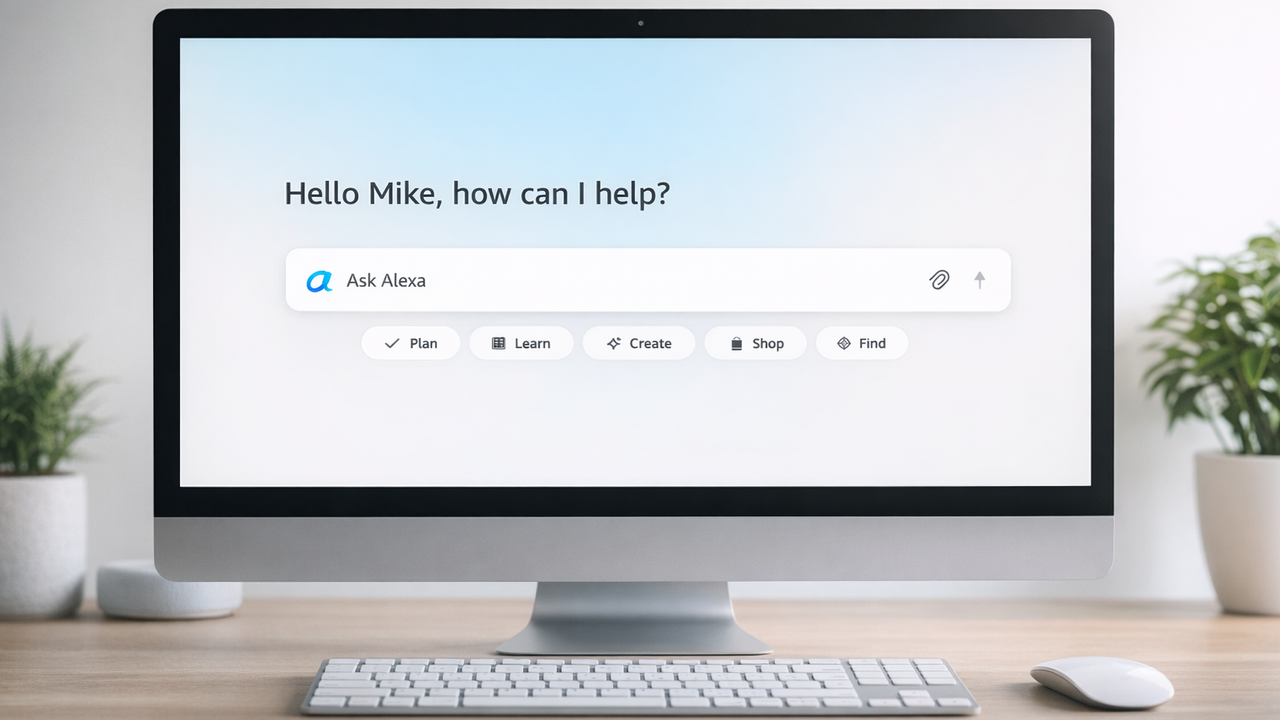
Alexa+ has been available to Early Access members for some time on smart speakers, smart displays and your phone, but now Amazon is rolling it out to yet another platform: your web browser.
Starting today, Early Access members will be able to access Alexa+ at Alexa.com, which will let you do everything you can with the AI assistant through Chrome, Edge — or any other web browser — that you could do through the Echo Show or your phone. And, in some cases, it's actually easier.

Here are five things to try with Alexa+ on your browser.
Ask it pretty much anything

The Alexa.com home screen is pretty uncluttered; use the large search bar in the middle of the page to type any query into Alexa+. At this time, it doesn't look like you can use your computer's microphone to speak your queries, but hopefully that will be changed in the future so that differently abled individuals can also use the browser.
Below the bar are a few tabs to help provide some guidance on what you can ask Alexa+: Plan, Learn, Create, Shop, and Find. Mouse over any one of these, and a bubble with suggestions will appear.
For example, I asked "what should I make for dinner with leftover cauliflower," and was presented with several recipe ideas. You can read the recipe list and instructions right on Alexa.com, but annoyingly, it doesn't provide a link to the site where it got the recipes. That not only feels like a miss, but a disservice to the person who actually created the recipe.
Control your smart home devices

Along the left side of the screen is an array of icons: Home, Recent Chats, Smart Home, Calendar, and lists. Click on the icon that looks like a light bulb, and a panel will open on the right, showing all of your connected smart home devices. From here, you can control them individually, such as turning your lights on and off, or adjusting the temperature on your thermostat.
However, you can't add or remove any devices, nor can you view your smart home routines. For that, you'll have to use the Alexa app. You can, however, use Alexa.com to create a new smart home routine.
Review and delete your chat history

The second icon along the left lets you view your entire chat history with Alexa+; each interaction is listed, along with the device used to chat with Alexa+. Clicking on each item expands the chat to see it in its entirety. If you want to delete a particular chat, just click the three dots in the upper right of each entry.
By default, Alexa.com will only show conversations you've personally had with Alexa+. However, if you toggle the "Show All" slider in the upper right corner, you will see every interaction individuals on your account have had with Alexa.
While you can delete individual chats, you can't mass-delete them from Alexa.com.
Manage your calendar

If you use Alexa's calendar, you can also view it on Alexa.com, as well as add, modify, and delete events. In addition, you can also type in a query to ask Alexa+ what your schedule looks like for the week.
Select the Calendar icon on the left, and a calendar view will appear on the right side of the screen. Any day with an event will be denoted with a small dot underneath the day. If you select an event, the window will show additional details, such as start and end times, location, and any notes. It will also display the calendar in which it's listed in a drop-down menu; if you select this, you can then add it to additional shared calendars.
View all your saved files

If you click the three dots in the left-hand menu, you'll be shown two options: one for Reminders and Tasks, and the other for Files. The latter will let you view every file you've uploaded to Alexa+, and let you either download or delete it. Being able to see everything on a larger screen such as your web browser makes it a lot easier to manage.
Alexa+ can also analyze all of the files that you've uploaded. For example, I uploaded my school district's calendar and asked how many vacation days there were in January. Alexa+ said that there were two vacation days, January 1 and MLK Day, but those were District Closure days, rather than vacation days.

Follow Tom's Guide on Google News and add us as a preferred source to get our up-to-date news, analysis, and reviews in your feeds.