Get all your news in one place.
100’s of premium titles.
One app.
Start reading
Tom’s Guide
Tom’s Guide
Technology
Mike Prospero

7 settings to change first on your Ray Ban Meta glasses

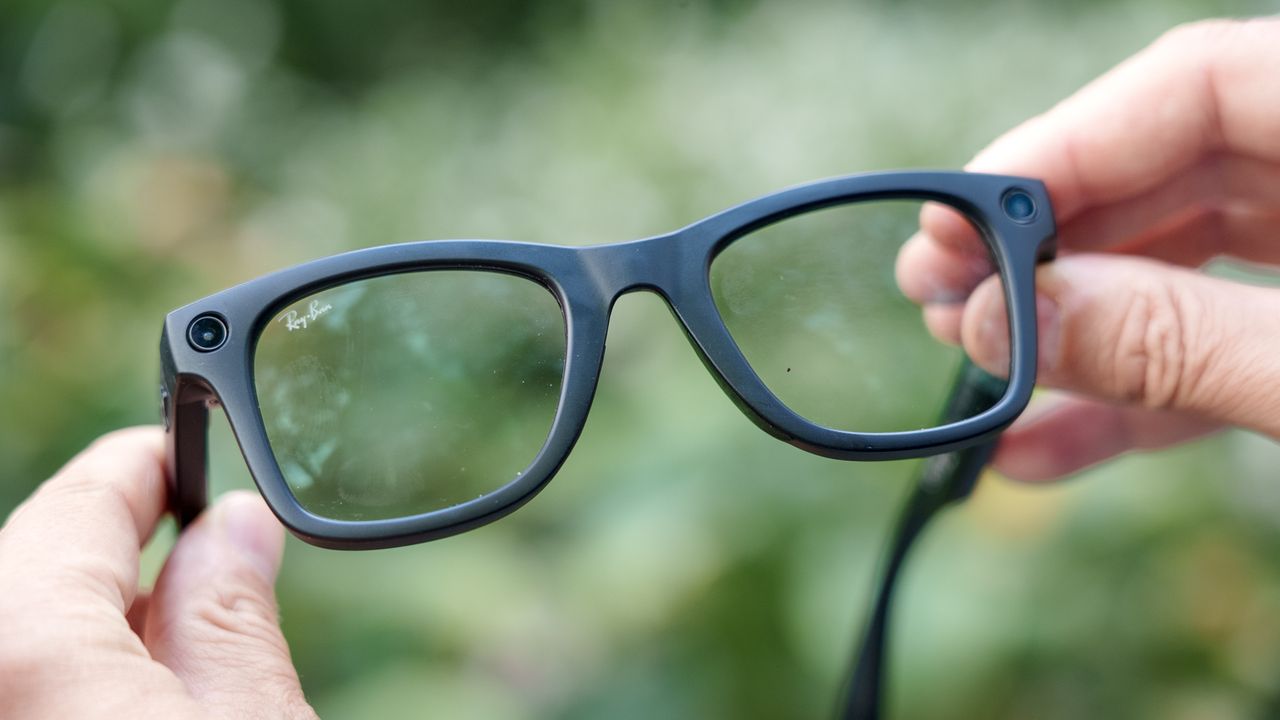
A front view of Meta Ray-Ban (gen 2) smart glasses.

If you received the Ray-Ban Meta as a gift this holiday season — or if you just gifted them to yourself — then congrats on getting a pair of some of the best smart glasses. We've been using them for months, and they're really handy for taking impromptu photos and videos, listening to music, and finding out what's going on in the world around us.

However, in order to get the most out of the specs, there are a few things you'll want to adjust first. Most of these are pretty easy to find, but it's handy to have everything spelled out in one place. Here are seven settings you should change, or at least take a look at, when setting up a pair of Ray-Ban Meta smart glasses

Change Meta AI's voice

(Image credit: Future)

While Meta AI doesn't have as many voice options as Alexa+ or Gemini, you still get a few choices.

In the app, select Meta AI, then Language and Voice. From here, you can choose the language it will speak to you in (English, German, Spanish, French, Hindi, Italian, and Portuguese), the voice you want to use (Sage, Aspen or Indigo), and the rate at which it talks to you.

Set up communication apps

(Image credit: Future)

You can connect your glasses so that you can take and receive both calls and messages through the Ray-Bans, as well as post to Meta-owned social media apps. In the app, select Communication, and you'll be presented with a list: Phone, WhatsApp, Messenger, Instagram, and Facebook. Select each to connect to the service.

Once linked, you can then specify what you want the glasses to do if a message or call comes in. For example, with WhatsApp, you can have the glasses let you know who's calling or texting, have them automatically read messages, and show on the app when you post using the glasses.

Connected apps

(Image credit: Future)

You can also link other apps to the Ray-Bans so that you can control them and get info from them using your voice, though at the moment it's limited to music and health apps. Select App Connections, and then pick the app you want to use.

For example, you can link the glasses to Amazon Music, Apple Music, Audible, iHeart, Shazam, and Spotify, so that you can play music hands-free, and use the Ray-Ban's touch controls to activate the app.

You can also connect Apple Health, Garmin, and Strava. With Garmin, if you have a compatible Garmin watch, the Ray-Ban's status light will change color during a workout to let you know if you're on target, can speak out status updates during a workout, and can tell you your stats from previous workouts.

Set video resolution and duration

(Image credit: Future)

One of the best things that the Ray-Ban glasses can do is capture video, so you don't have to pull your smartphone out of your pocket all the time. Plus, you can adjust both the video resolution and the maximum length of the videos.

The second-gen Ray Bans give you a few more options than the first-gen models. In the Meta app, select Media. At the top or the next screen, choose Video Settings. From there, you can pick either 1080p at 30 fps (the default setting) or 3K at 30 fps.

If you choose the former, you can set the recording length to 1, 3 or 5 minutes. If you choose 3K video, you can choose either 1 or 3 minutes.

If you have the Oakley Vanguard glasses, you have even more options, as you can adjust the level of motion stabilization.

Adjust your privacy settings

(Image credit: Future)

Don't want Meta to know everything you're doing with the Ray-Bans? I don't blame you. In the app, select Glasses Privacy, where you can review how much data you share.

Select Voice activity log to review all of the times you talked to Meta using the glasses. Here, you can delete individual recordings, or delete all of them at one go.

Uncheck Share Additional Data if you don't want any extra information to be sent Meta's way. This can include things such as how often you use the glasses and how well they work.

Last, you can uncheck Cloud Media if you don't want your photos and videos sent to the cloud for processing.

Customize the touchpad

(Image credit: Future)

Along the right temple of the Ray-Ban glasses is a small touch-sensitive strip with which you can change the volume and activate other features. In the app, select Customize Controls, then Touchpad.

From here, you can specify what you want a tap-and-hold action to do. By default, it will activate Meta AI, but you can also have it set to start a playlist or quickly connect you with a contact.

Use accessibility features

(Image credit: Future)

Buried at the bottom of the settings menu are two features for those with disabilities, but are able to be used by anyone. Be My Eyes allows you to connect the Ray-Ban's camera and microphone to volunteers, who can then assist the wearer with everyday tasks.

Detailed Responses gives more in-depth descriptions of what's around you, such as what a door sign might say, or where the door is located in a room. However, Meta cautions that this feature may deliver inaccurate information, so it should not be fully trusted as a navigation aid.

Follow Tom's Guide on Google News and add us as a preferred source to get our up-to-date news, analysis, and reviews in your feeds.

More from Tom's Guide

Sign up to read this article
Read news from 100’s of titles, curated specifically for you.
Already a member? Sign in here
Related Stories
Top stories on inkl right now
One subscription that gives you access to news from hundreds of sites
Already a member? Sign in here
Our Picks
Fourteen days free
Download the app
One app. One membership.
100+ trusted global sources.