
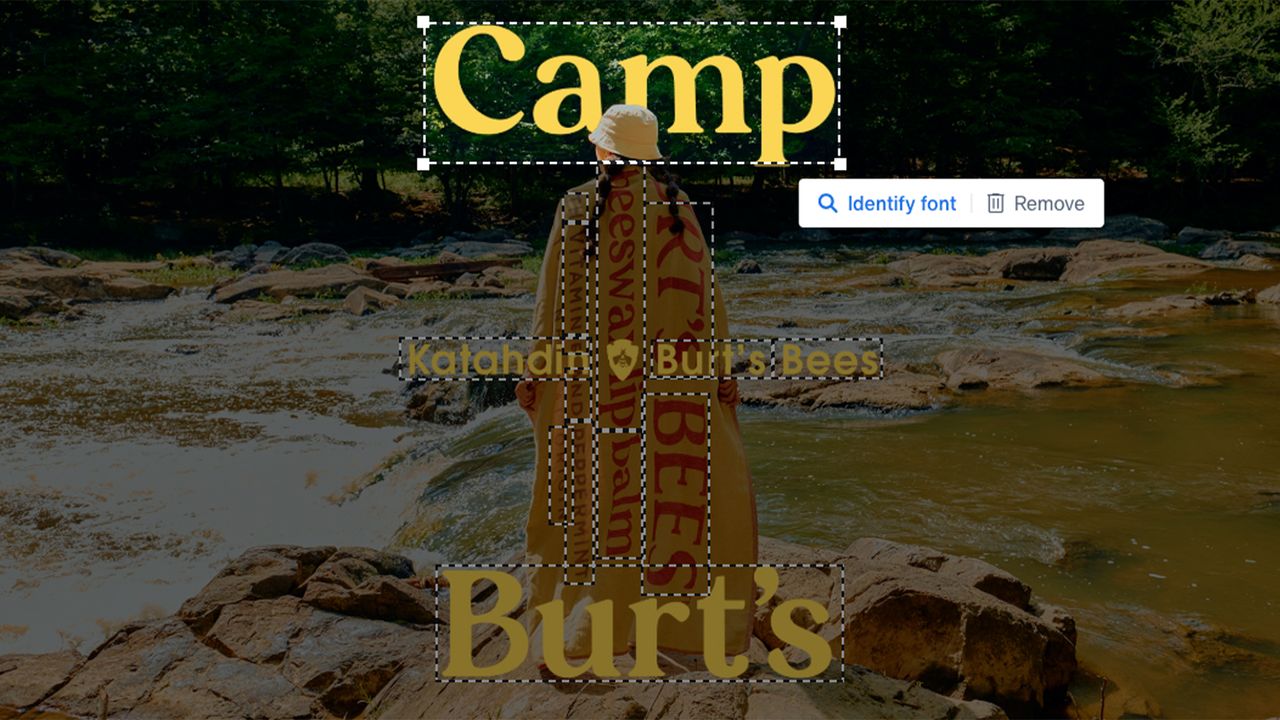
The best font identifiers are an essential tool for creatives, saving you precious time when it comes to creative projects. Whether you're looking for a specific typeface or a similar font to spice up your design, online font identifier tools and browser extensions offer a quick and convenient way to find the perfect font to suit your creative needs.
With typographical inspiration all around us, from billboard advertising to print samples, finding the perfect font is typically no problem for graphic designers (and with so many free fonts available, we're practically spoilt for choice). While identifying fonts from images used to be a tiresome task, handy font identifier tools take the struggle out of the search, but which one to choose? Tried, tested and recommended by the experts, these are the best font identifiers available now.

The best font identifiers available now
01. WhatTheFont

All the designers we’ve spoken to about font identifiers point to WhatTheFont by MyFonts. It’s an optical font recognition tool. You drag an image containing the font you want to identify, crop to the words or characters you want analysed, press the button, and the results are listed.
This is the best font identifier we tested, but even here, the results were rather hit and miss. For example, it recognised Adobe Caslon but couldn’t identify Roboto. Success can depend on the quality of the image – with a little coaxing, it was able to identify some of the wonky type we threw at it such as Hombre, Satchmo and ITC Blackadder.
02. What Font Is?

Created by Alexander Ciubari, an independent developer in Romania, What Font Is has been around since 2009. Today it contains profiles for over a million fonts. The modus operandi is similar to WhatTheFont, and it’s easy to use, but the process takes a bit longer.
It asks you to enter the characters in the image to help it along, drawing lines between them where they touch, for example. It performed better than WhatTheFont with common typefaces and a little worse on handmade-style type. One of our samples was a whiskey label, and although WhatFontIs? didn’t identify the typeface, it did come close. It was the only one we tested that could handle a curved label.
03. Fonts Ninja

Here’s where things get a little more complicated. Fonts Ninja has two parts to it. First, an application that you install on your Mac. Second, an extension that works with Chrome, Safari or Firefox. When you’re browsing the web and you see a font you like, you activate the extension with an icon up by the address bar in your browser, then point the crosshair at the text you want to analyse. It also now works on iPhone.
Fonts Ninja will identify the typeface and offer you the option to install it on your computer. There are 3,000 fonts in its library and if it doesn’t have an exact match it will offer something comparable – such as Kontur for Graphik. It’s free for 15 days with 20 free font installs. After that, it’s $29 per annum.
04. Identifont

Okay, admittedly, this one's a little old school. There’s no optical character recognition here. No AI that we know of. No scanning of website code either. Instead, Identifont is a questionnaire that asks you what the characters and glyphs of the font you want to identify are like and continually narrows down the options from a database of around 11,000 typefaces.
It starts off simple – serif or sans serif. As you get down to things like whether the '3' is rounded or angular, the lowercase 'g' and 'a', and so on, the number of possibilities diminishes. If you can look past the dated UI, Identifont performed well on our sample containing a lot of characters, but if you only have a handful of letters to base your responses on, it will struggle.
05. WhatFont

WhatFont is another tool for identifying typefaces used on websites. It comes in two forms – a browser extension for Chrome and Safari, or a bookmarklet that you install by dragging a little icon into your Bookmarks panel.
If you’re using the extension, it works just like Fonts Ninja – you activate it by clicking a little icon next to the address bar in the browser then aim the crosshair at the typeface you’re interested in. It will tell you what it is, along with the size, weight and colour. WhatFont was created by iOS application engineer Chengyin Liu.
06. Fount

Fount is a bookmarklet that you drag onto your Bookmarks sidebar and works in the same way as WhatFont. Once you’ve installed it, you click the bookmarklet, point the crosshair at the font that interests you, and a popup appears at the top right naming the font and its size, weight and style.
It will also offer you a link to a foundry or distributor selling the font. Although you can find out what font a site uses by looking at its HTML or CSS code, tools like Fount, Fonts Ninja and WhatFont make it quicker and easier each time.
For more on fonts, see the best fonts for posters, best sports fonts or best handwriting fonts.