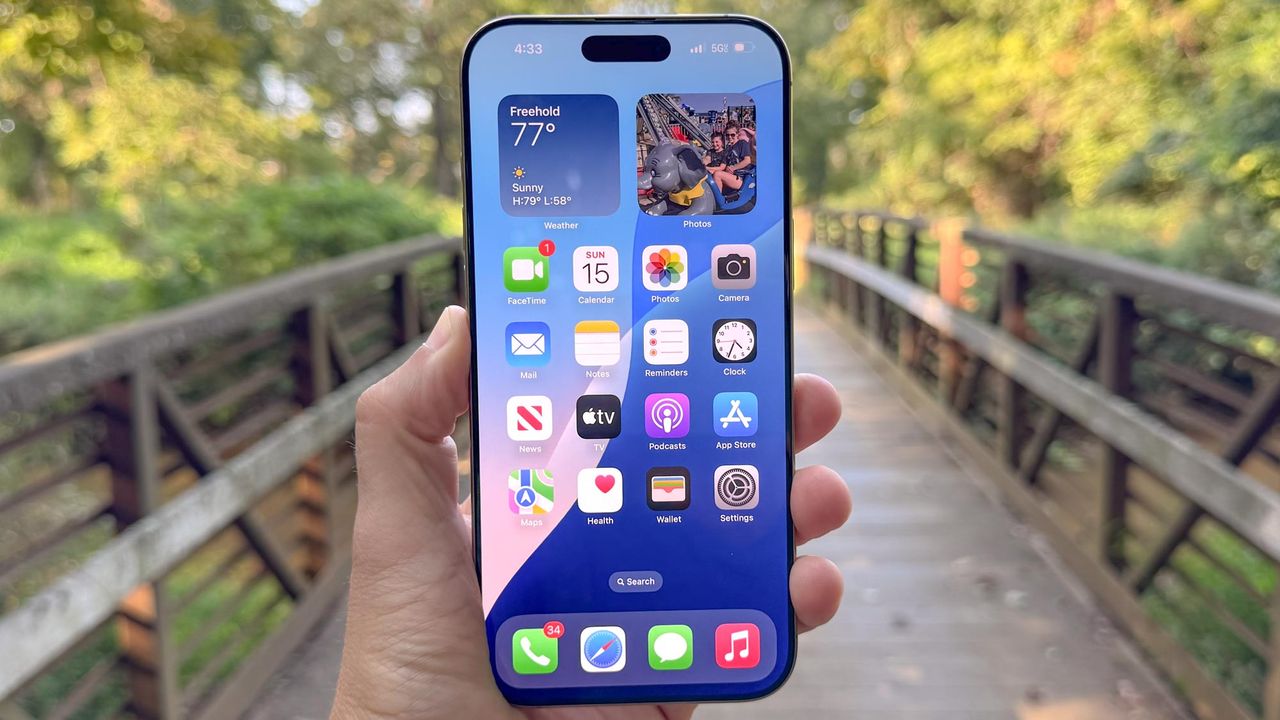
Your iPhone battery shouldn't die by mid-afternoon. If you're constantly searching for chargers or carrying battery packs everywhere, the problem isn't necessarily your battery's health, it's likely your settings.
Most people never adjust these settings and just accept poor battery life as normal. But changing these seven specific settings can give your iPhone battery life a significant boost.
After changing these settings my battery now lasts twice as long as it did before. Here's what drains your battery most and how to fix it.
1. Lower screen brightness and enable auto-brightness
Your screen is the single biggest power drain on your iPhone. The display consumes more battery than any other component, so reducing brightness makes a noticeable difference in how long your phone lasts.
Open the Control Center and drag the brightness slider down until the screen is comfortably visible but not at maximum. You don't need full brightness indoors or in most lighting conditions.
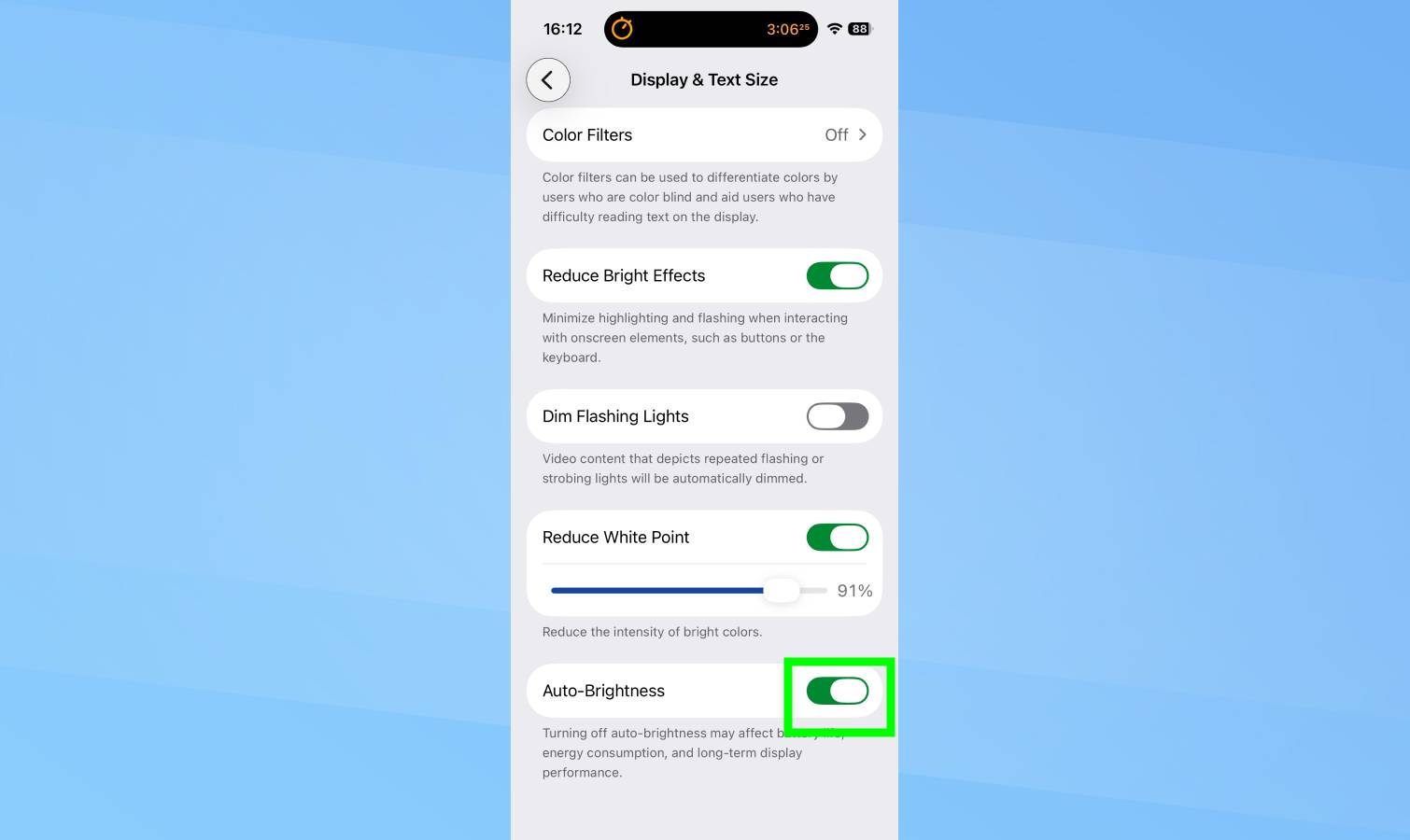
Go to Settings, Accessibility, Display & Text Size and toggle on Auto-Brightness. This adjusts screen brightness automatically based on ambient light, keeping it lower in dim environments and brighter in sunlight. It optimizes battery use while maintaining visibility.
2. Turn off always-on display
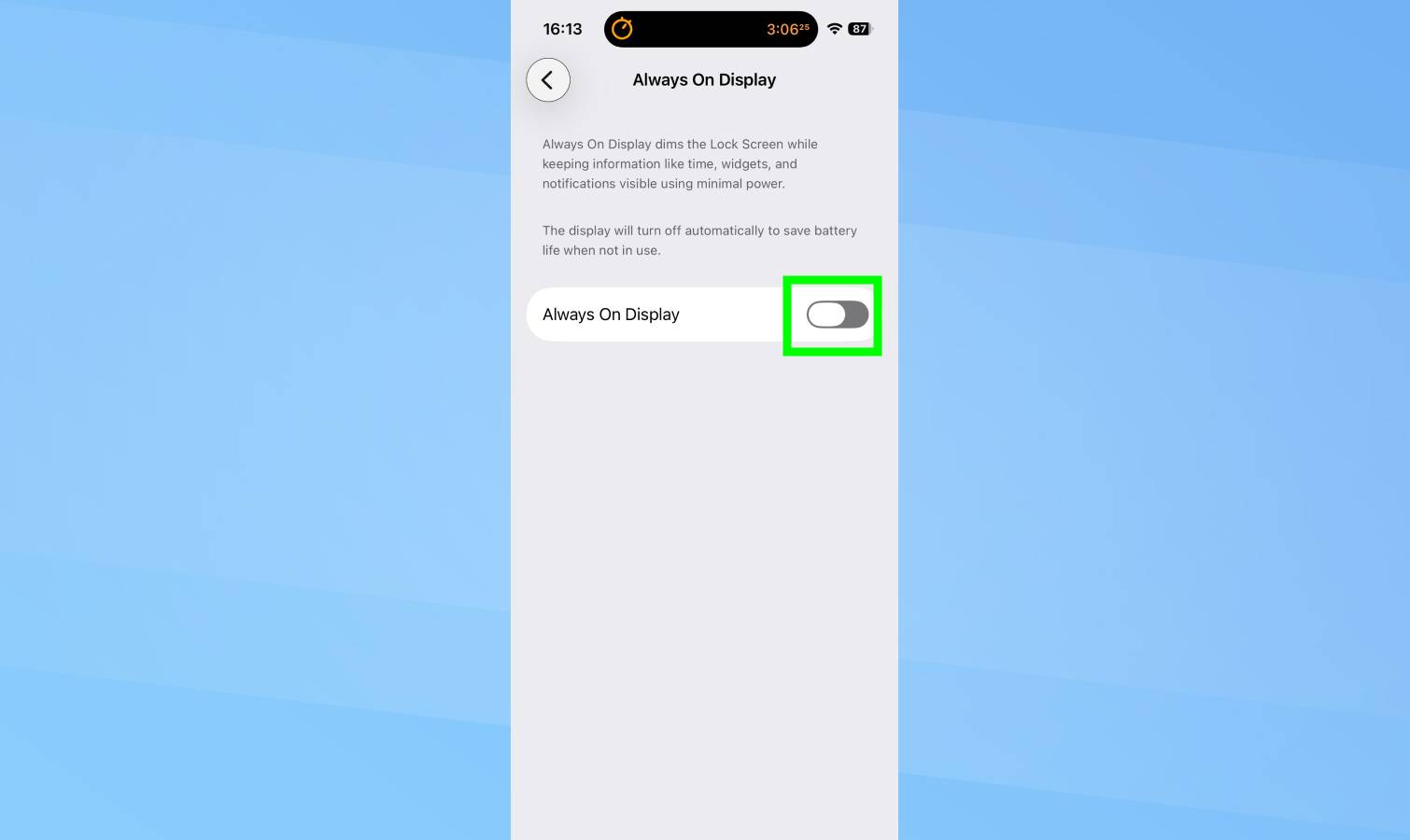
iPhones with always-on displays (iPhone 14 Pro and later) keep a dimmed version of your lock screen visible even when the phone is locked. The always-on display is convenient for checking time and notifications without touching your phone, but that convenience costs significant battery life.
Go to Settings, Display & Brightness and toggle off "Always On Display." Your lock screen will now go completely black when the phone is locked, waking only when you tap the screen or raise your wrist.
For phones without always-on displays (iPhone 14 and earlier standard models), this setting doesn't exist and isn't a concern.
3. Enable Low Power Mode when battery drops below 20%
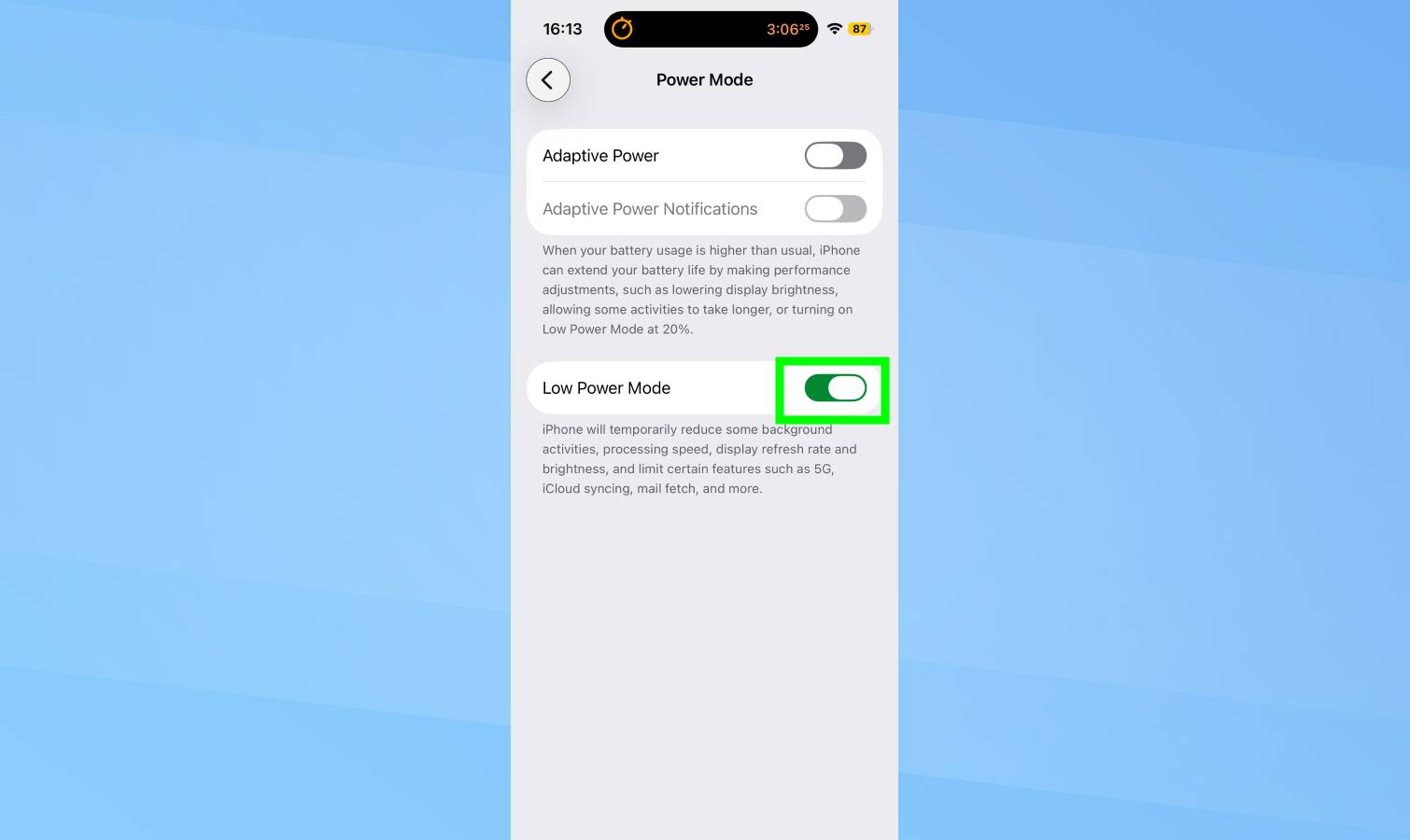
Low Power Mode reduces or disables several features to extend battery life significantly. It lowers screen brightness, limits background app refresh, disables automatic downloads, throttles the CPU slightly, and reduces animation effects.
Go to Settings, Battery and toggle on Low Power Mode. Your battery icon turns yellow to indicate it's active. The phone prompts you to enable it automatically when battery hits 20%, but you can turn it on manually anytime.
You can also add Low Power Mode to Control Center for faster access. Go to Settings, Control Center, tap the plus icon next to Low Power Mode, then access it by swiping down from the top-right corner.
4. Disable Background App Refresh
Apps refresh content in the background even when you're not using them. Email apps check for new messages, social media apps update feeds, news apps download articles — all while your phone sits idle in your pocket.
Go to Settings, General, Background App Refresh. Tap "Background App Refresh" at the top and select "Off" to disable it entirely.
Turning off Background App Refresh means apps update only when you open them. You'll see slightly older content when launching apps, but you'll gain significant battery life by preventing dozens of apps from constantly running in the background.
5. Reduce unnecessary notifications
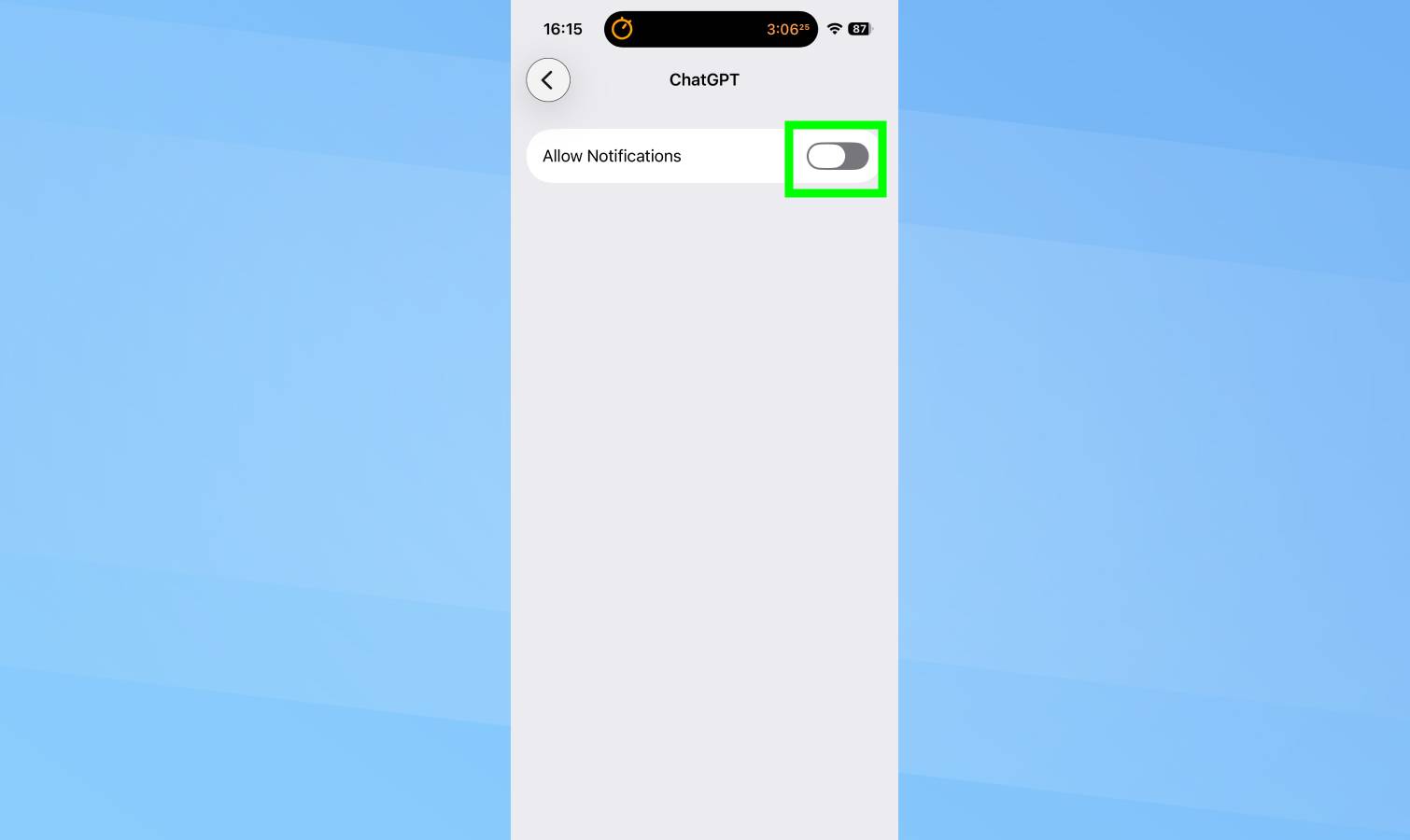
Every notification wakes your screen, plays a sound, vibrates, and potentially triggers the haptic engine. Multiply that by dozens or hundreds of notifications daily from social media, news, games, and promotional apps, and you're talking about significant battery drain.
Go to Settings and Notifications. Next, scroll through your app list and tap each app individually. Toggle off "Allow Notifications" entirely for apps you don't need alerts from.
6. Turn off "Talk to Siri" if you don't use it often
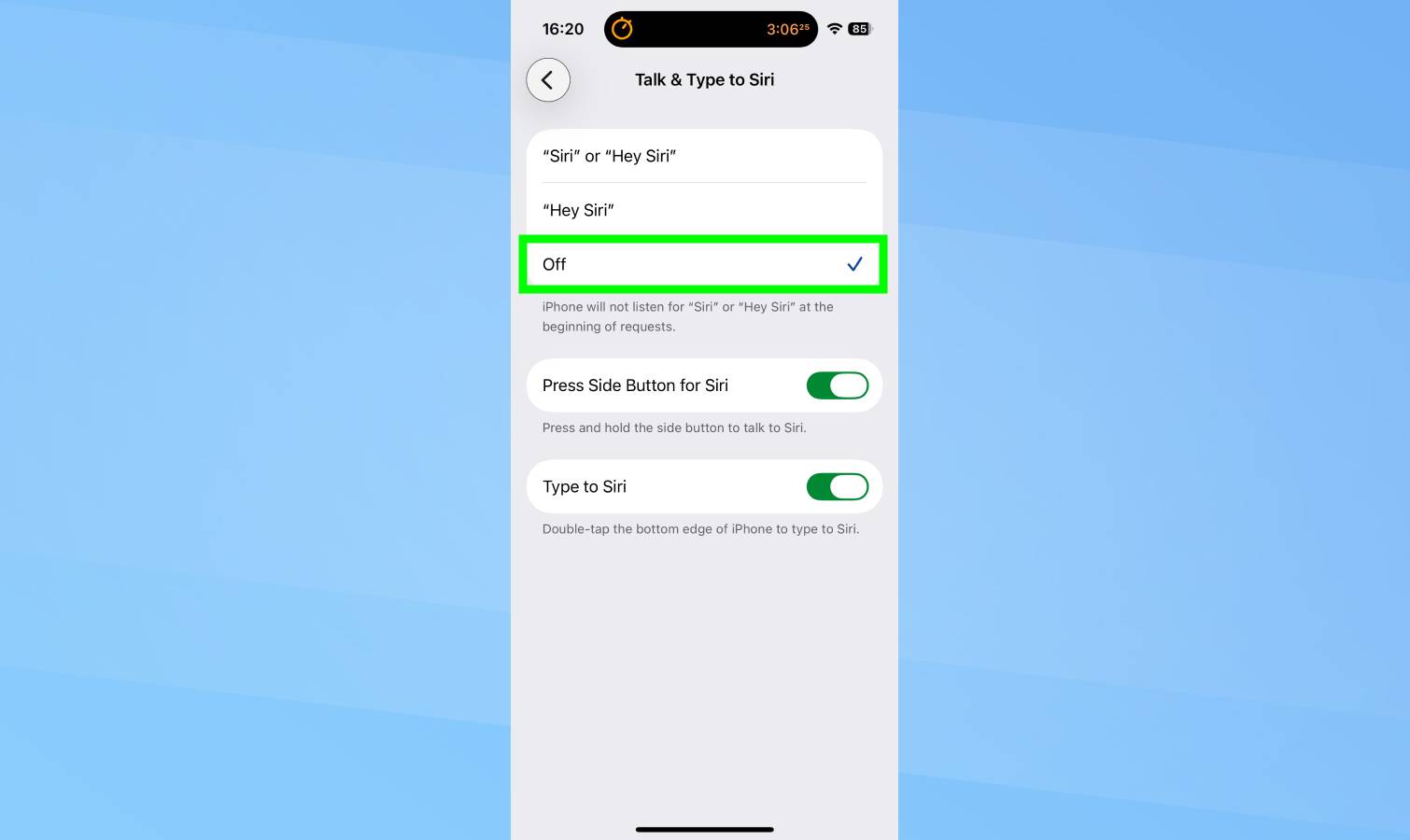
Apple's "Hey Siri" feature constantly listens for the wake command, using both the microphone and Neural Engine to detect when you say the phrase. This continuous monitoring consumes power even when you're not actively using Siri.
If you rarely use voice activation and typically invoke Siri by holding the side button anyway, turning off "Hey Siri" saves battery without losing functionality.
Go to Settings, Apple Intelligence & Siri, Talk & Type to Siri, and toggle off. You can still access Siri anytime by pressing and holding the side button.
For people who frequently use hands-free Siri, keep "Hey Siri" enabled. But if you can't remember the last time you actually said "Hey Siri" out loud, disabling it eliminates unnecessary background battery drain.
7. Use Dark Mode (OLED iPhones only)
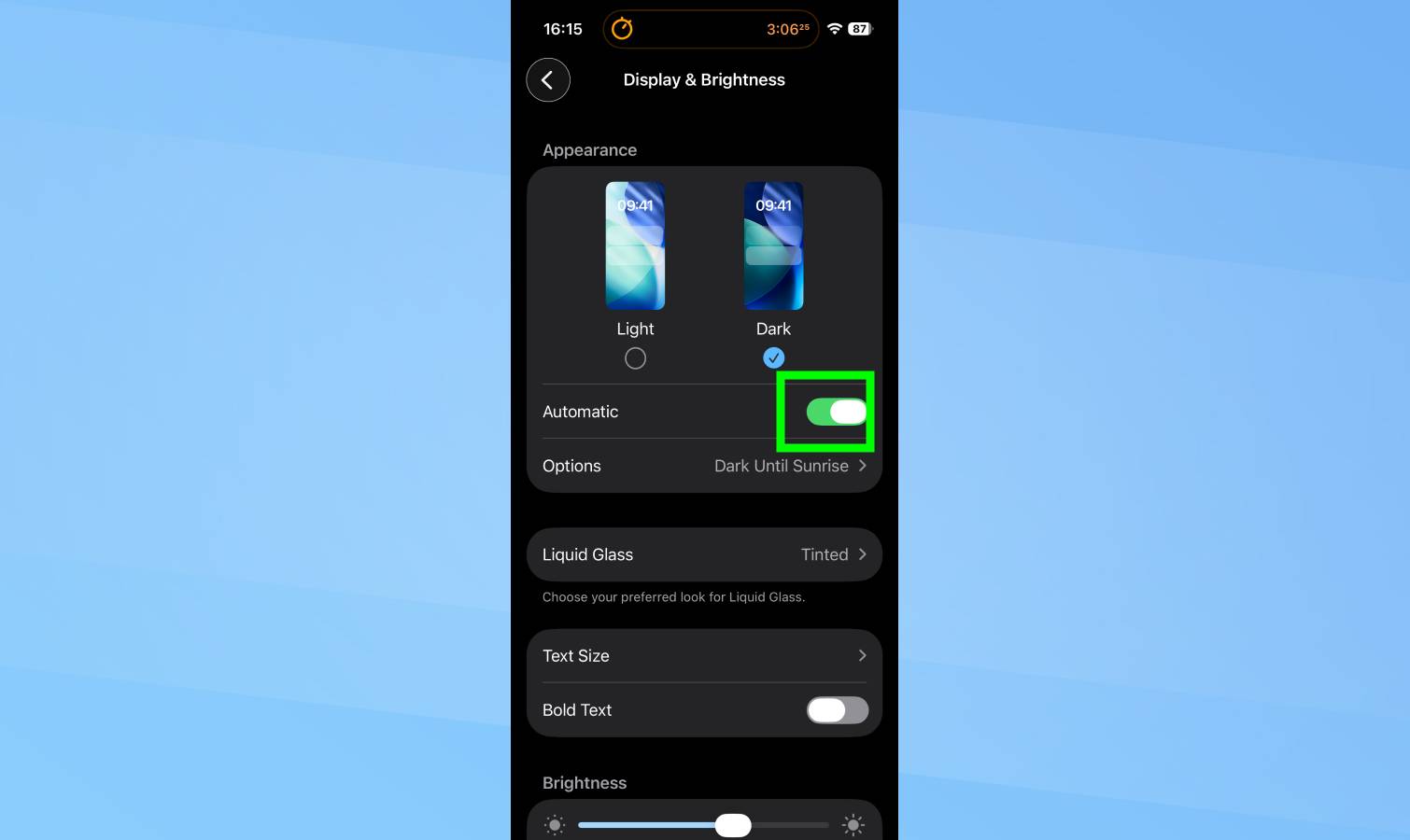
Dark Mode saves battery exclusively on iPhones with OLED displays like the iPhone X and newer models. OLED screens light individual pixels, so black areas use no power. The more black pixels on screen, the less battery consumed.
Go to Settings and Display & Brightness. Under "Appearance," tap "Dark." Your interface switches to dark backgrounds with light text.
For maximum benefit, enable "Automatic" and schedule Dark Mode for sunset to sunrise. This keeps bright mode during the day when you need visibility and switches to Dark Mode at night when battery conservation matters more.