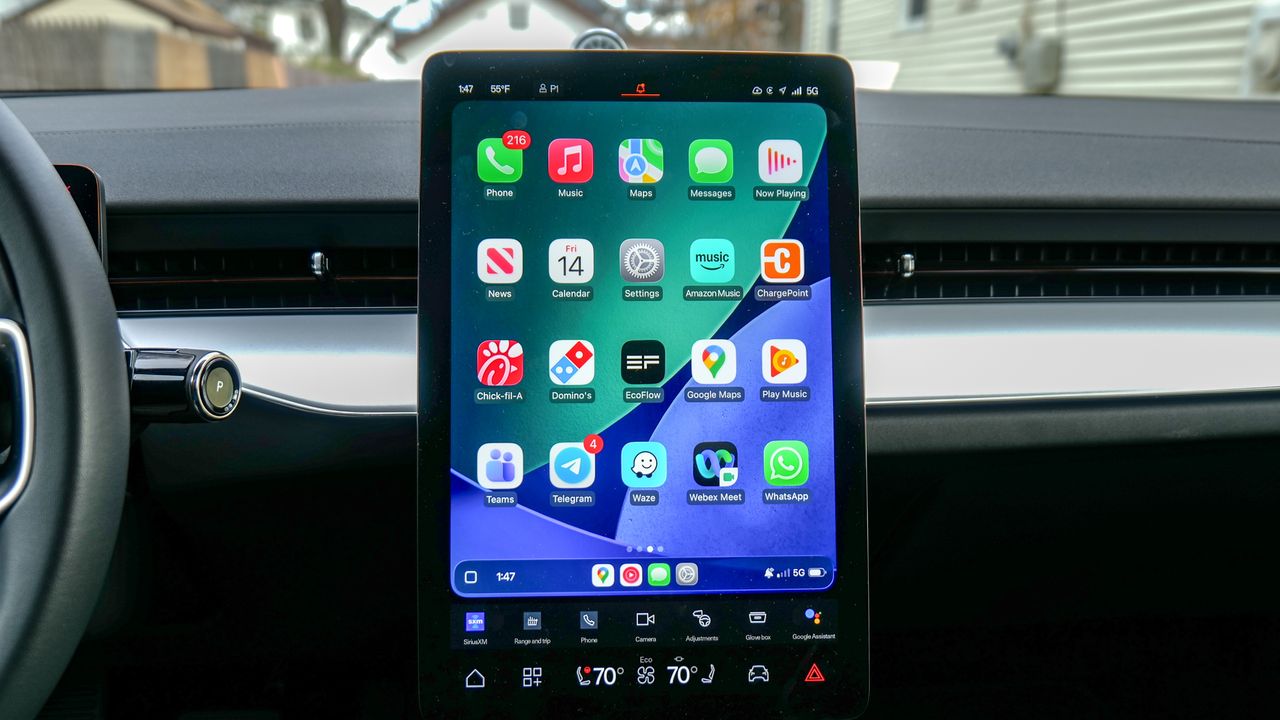
So far this year, I've driven 47 different vehicles to find out the best electric cars out there. They all have their own infotainment software, but the transition between each new one is easier thanks in part to Apple’s CarPlay software.
There are new features that Apple include with iOS 26, like subtle redesign to the interface thanks to Liquid Glass material design, but there there are other features that go unnoticed by the average driver. That’s why I’m sharing with you all of the CarPlay settings and features I’ve come to rely on to my driving to and from work safer.
I’m also going to share some useful tips with a couple of the apps I lean on the most and learned through testing them, like when I tested Apple Maps vs Google Maps — as well as other helpful ideas like whether you should use wired or wireless CarPlay.
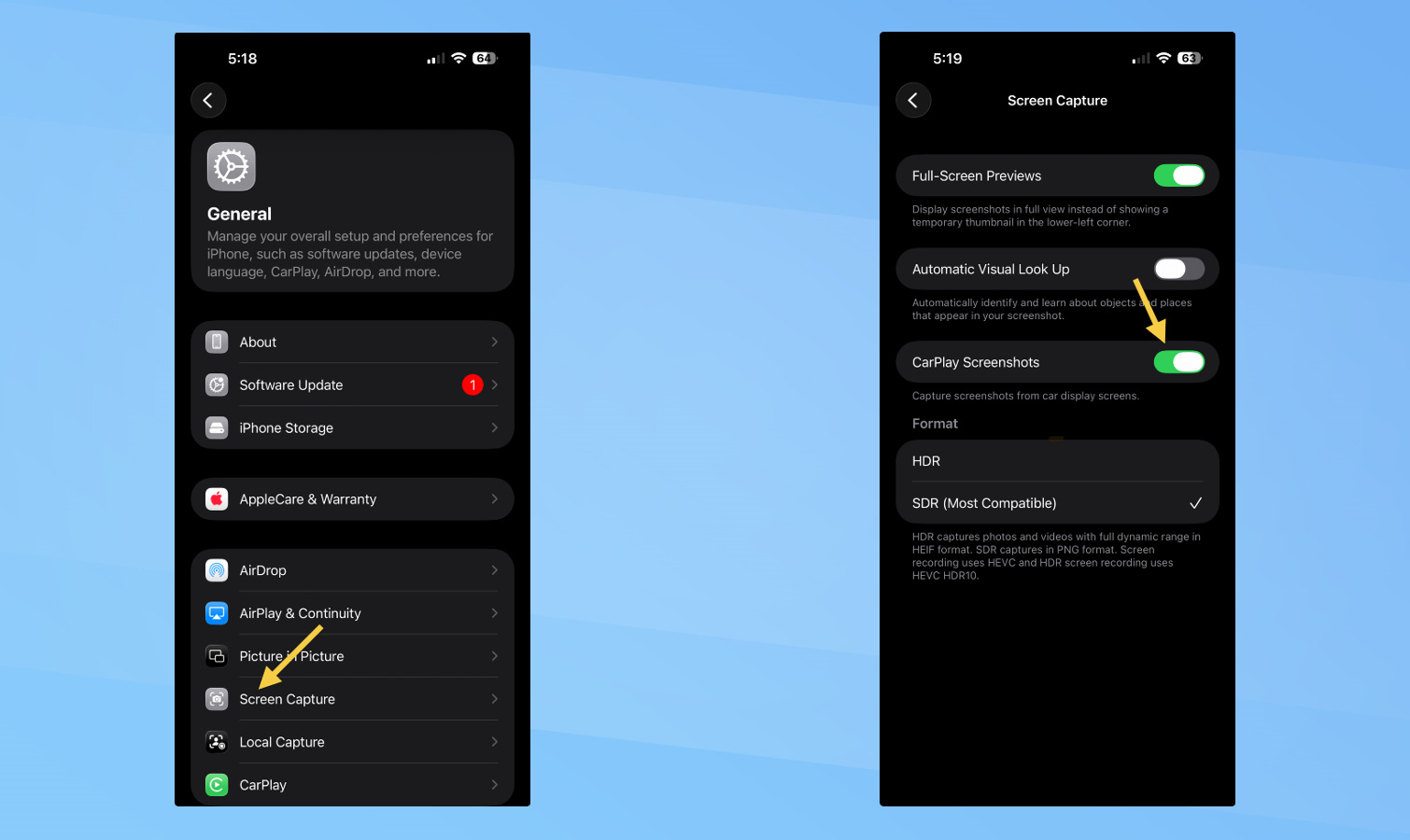
This first one is more of a hidden feature than anything else because it’s not in plain sight. You can actually perform a screenshot in CarPlay, much like how you do it on your iPhone — but it requires you to enable the setting.
Under the Settings menu, click on Screen Capture to pull up a new menu with many other options to enable. There’s one for CarPlay Screenshots that you’ll need to toggle. Once that’s done, you just perform the usual screenshot action by simultaneously pressing the power and volume up keys to take it. Whatever CarPlay’s showing in your vehicle, the screenshot of it is saved to the camera roll on your iPhone.
Tapbacks in Messages give instant feedback

As much as I rely on Siri to accurately transcribe my replies to incoming messages, there’s another CarPlay feature I’ve come to lean on — and something I think you should consider as well. With iOS 26, Apple introduces Tapbacks in Messages to provide instant feedback that only requires you to press the corresponding reaction.
Whenever a message is received in CarPlay, you can instead select a Tapback instead of an actual response. I just love the instant feedback it gives to your sender with the quick acknowledgement. You just need to make sure the option is enabled in your CarPlay settings menu.
Rearranging the widget screen
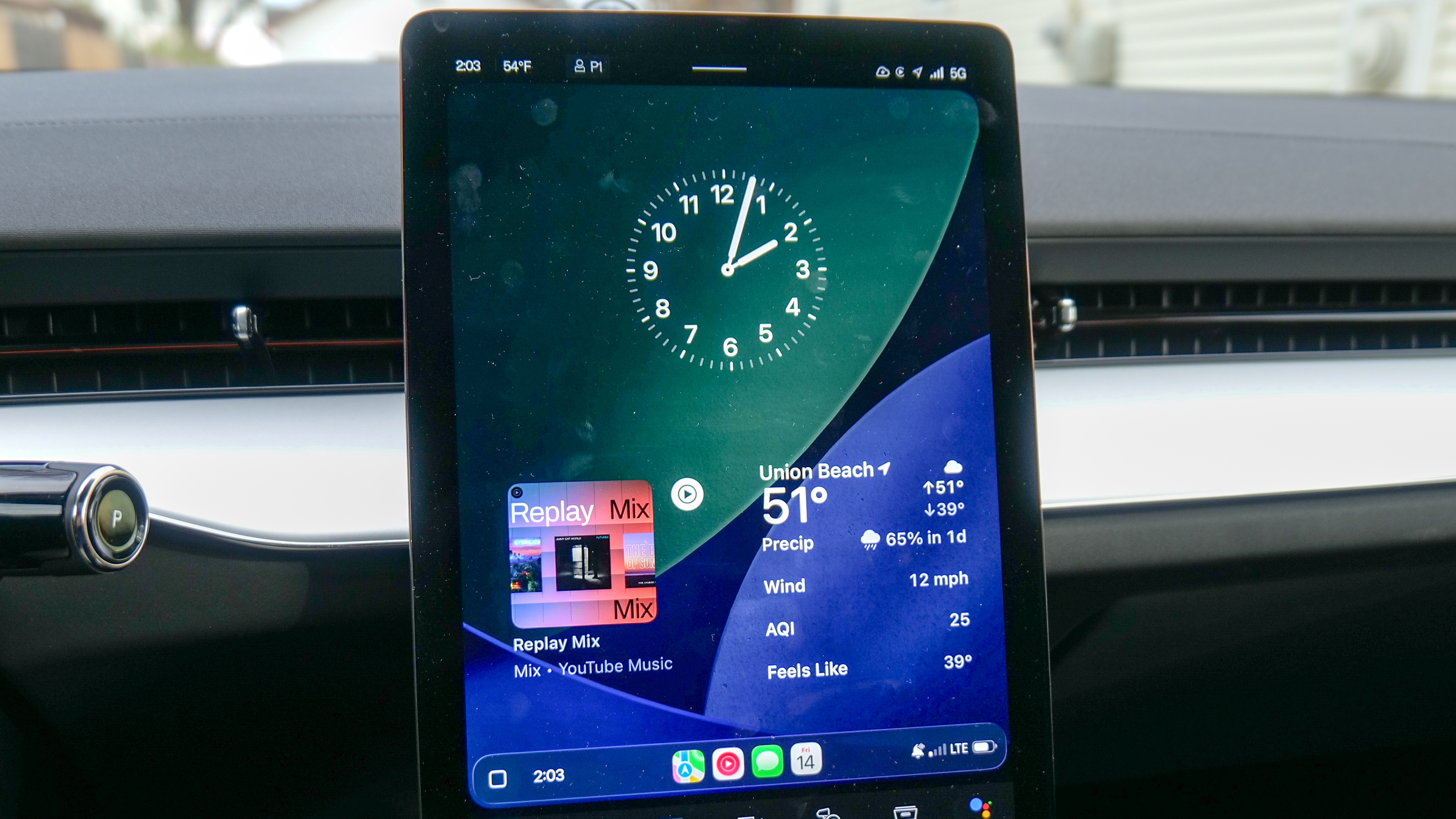
I’m always annoyed by how car makers don’t make it easy to tell the time while driving because the clock is always minuscule in size somewhere in the software. With CarPlay in iOS 26, there are widgets on the home screen that can be arranged to better suit your taste.
I personally love rearranging the widgets there so that the clock is in full view, while other options like a mini player for YouTube Music and the weather widget complete my layout. You can change the widgets to whatever you like, but it’s just satisfying to know that you can finally do this.
Using my iPhone to take CarPlay screenshots
Enabling Driving Focus for fewer distractions
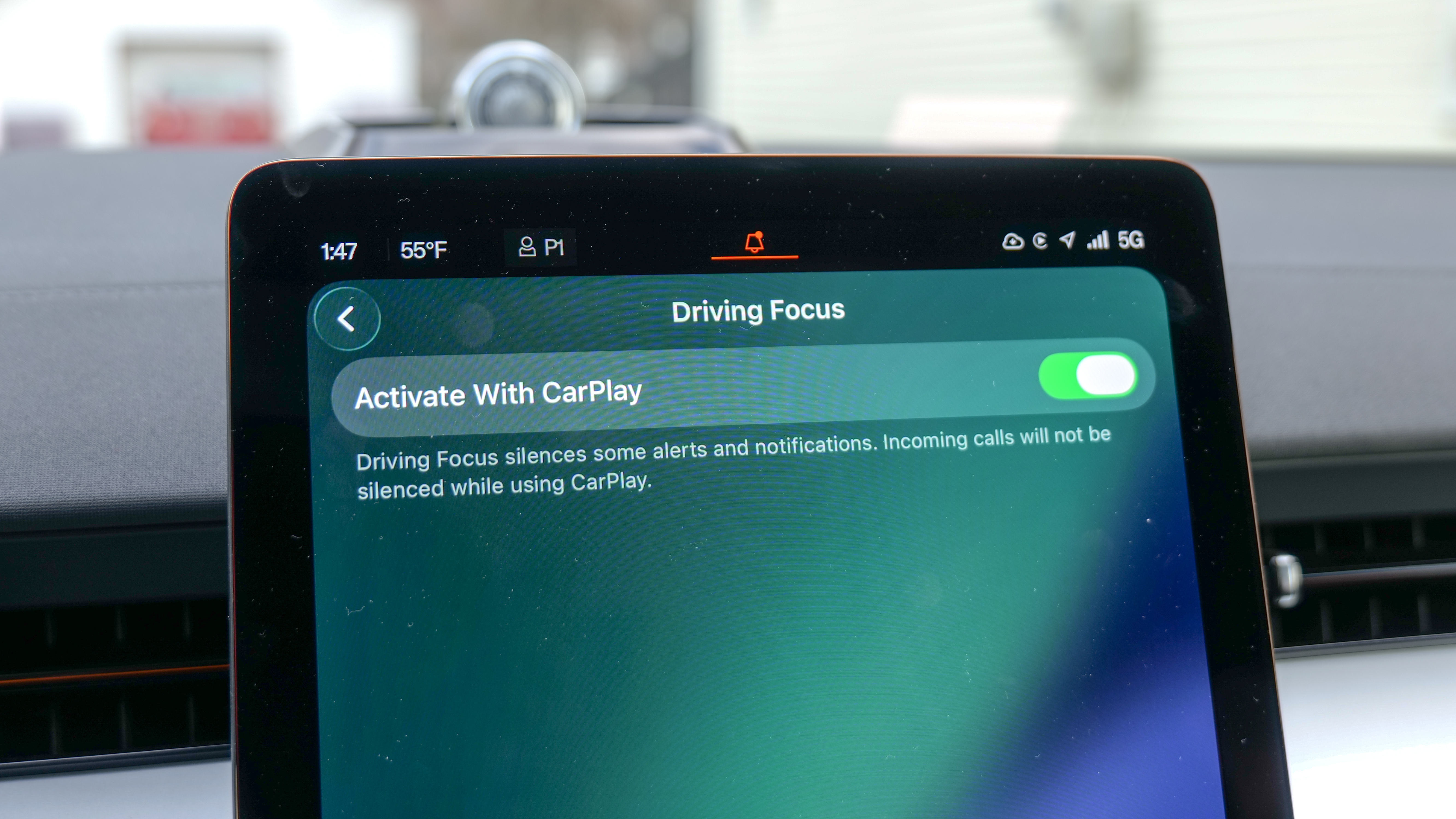
This one may or may not be something you want to enable, but nonetheless a feature I want to mention. Driving Focus basically silences many alerts and notifications you get on your phone, like incoming text messages, so that you’re not distracted while driving. Or at the very least, less likely to be distracted by the constant sounds and alerts that normally come up.
Google Maps prefer fuel efficient routes
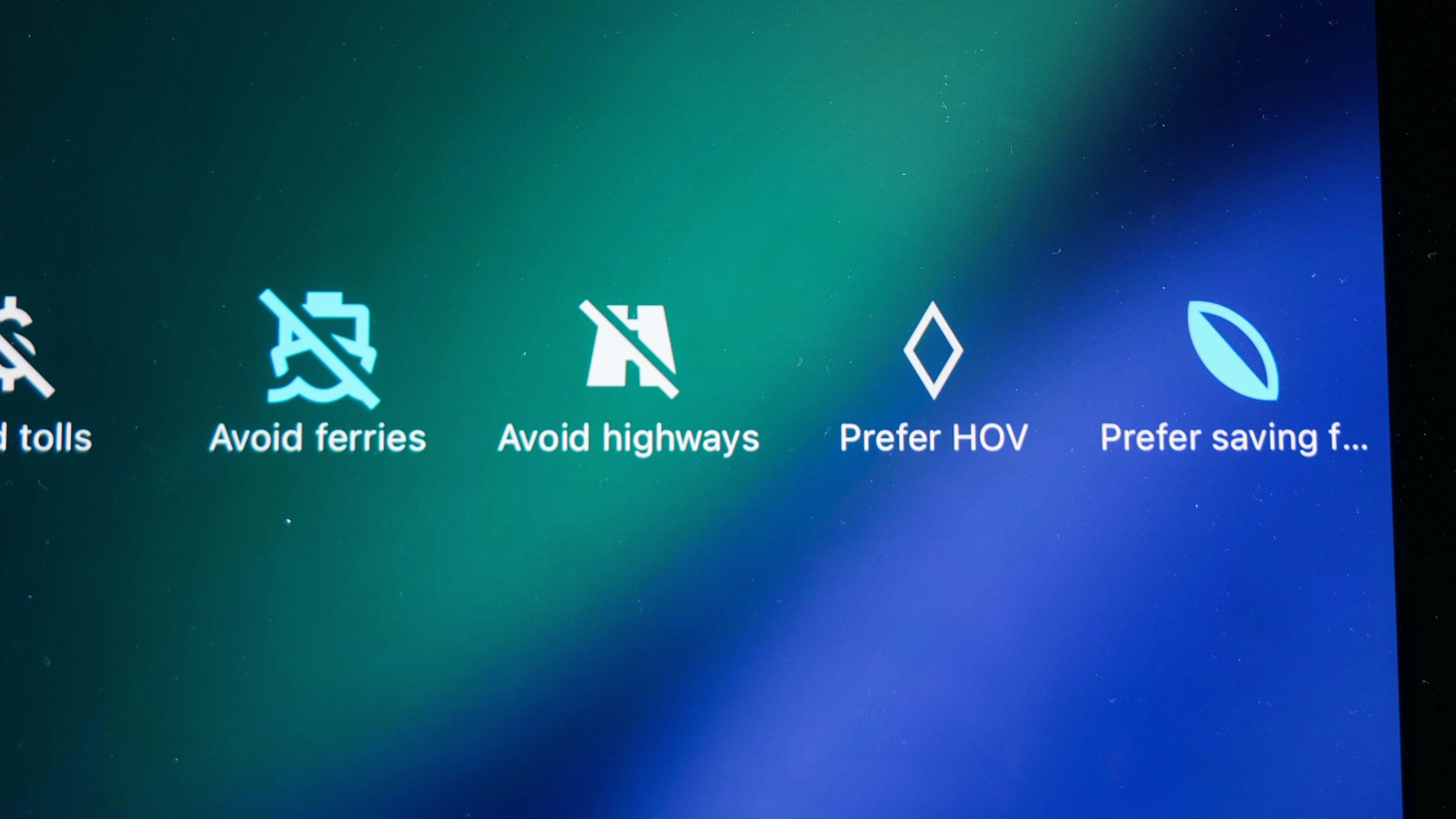
Since I use Google Maps more than any other navigation app, I’ve come to understand some of the features that tailor to my driving. One of them is enabling the option for the app to give me the most fuel-efficient routes when getting directions.
When you click the settings icon when Google Maps is running, you can choose to enable the option for Prefer Saving Fuel. That way, instead of prioritizing the fastest or shortest routes to your destination, Google Maps will find eco-friendly ones. If you’re concerned about saving as much gas or electricity, this is the option for you.
Share your ETA with Apple Maps
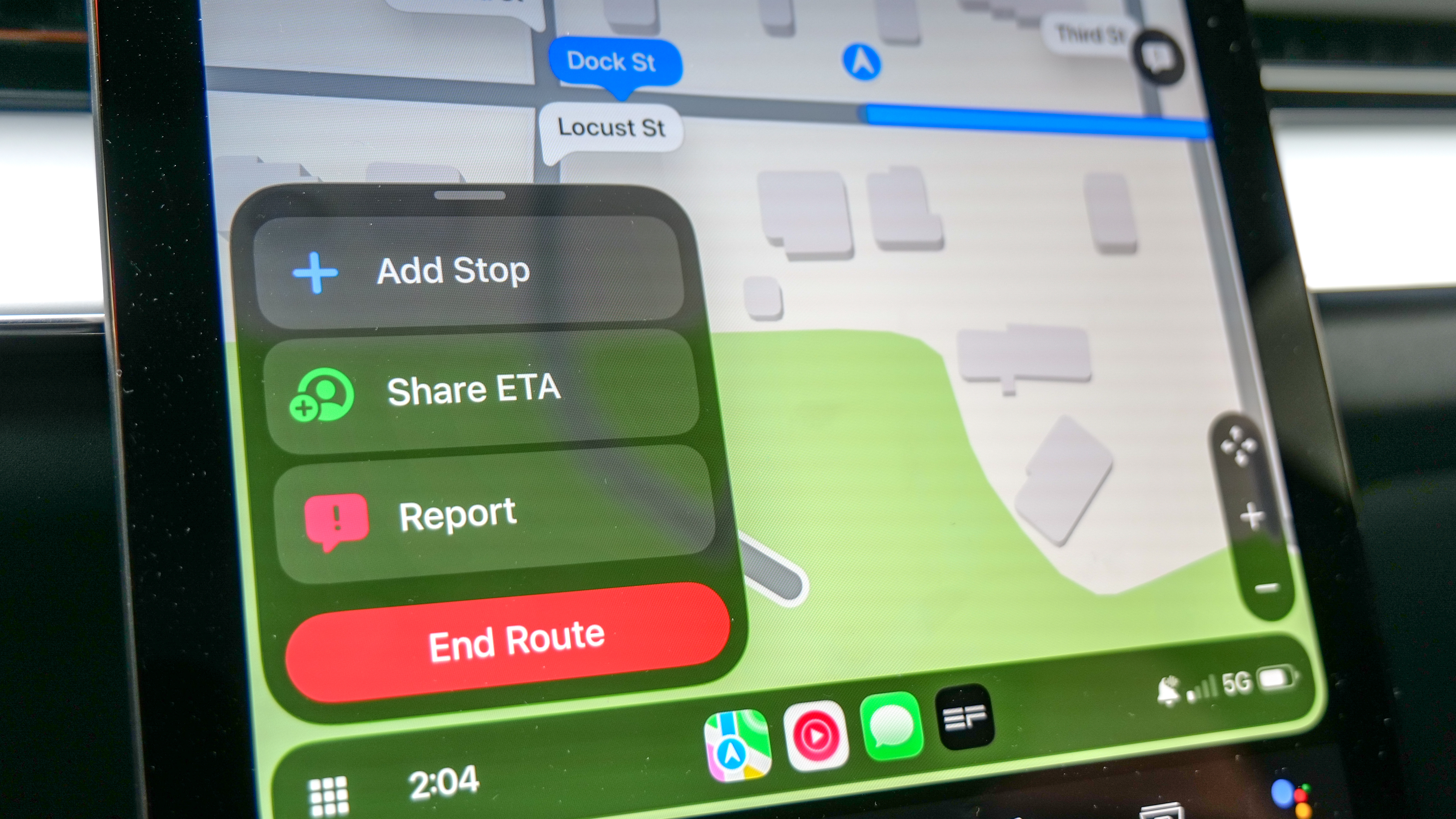
On the flip side, there’s one feature in Apple Maps I’ve come to appreciate — sharing my ETA. I know how frustrating it can be trying to send this to someone, especially while I’m driving, which is why this feature comes in handy.
When you tap the button in Apple Maps, you’ll then be greeted with your contact list with the people you commonly communicate with the most at the top. One quick tap and your ETA will be sent to them.
Disable App Lock to use apps
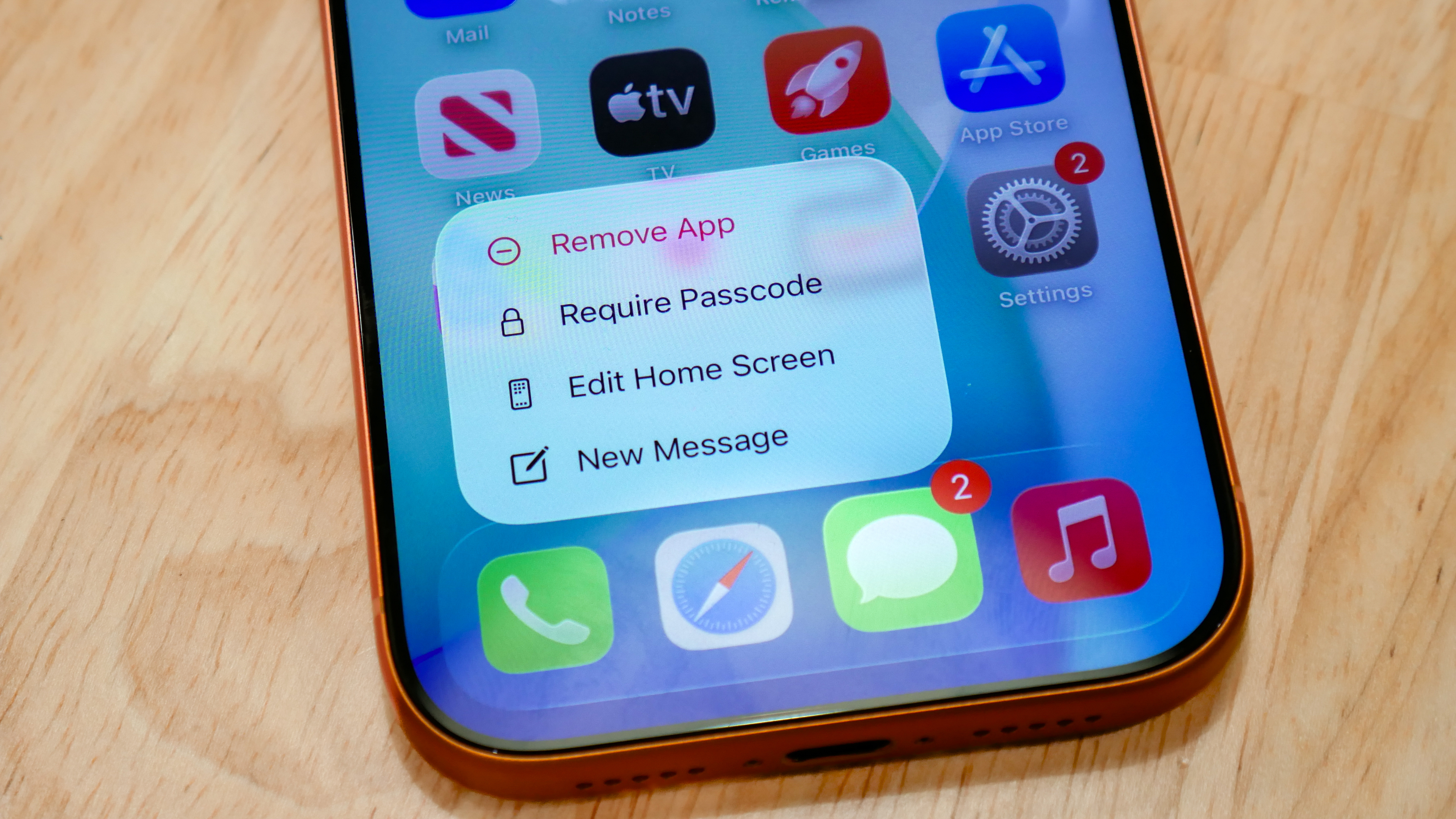
Finally, this tip is something I've come across when I unexpectedly stopped getting notifications with Messages in CarPlay. Apparently, if you use the app lock function with your iPhone to require Face ID or Passcode to unlock the Messages app, you won’t get any notifications at all. That’s why, in order to continue getting them in CarPlay, you’ll need to disable it altogether — and that’s true for any CarPlay-compatible apps you want to use.
Follow Tom's Guide on Google News and add us as a preferred source to get our up-to-date news, analysis, and reviews in your feeds.