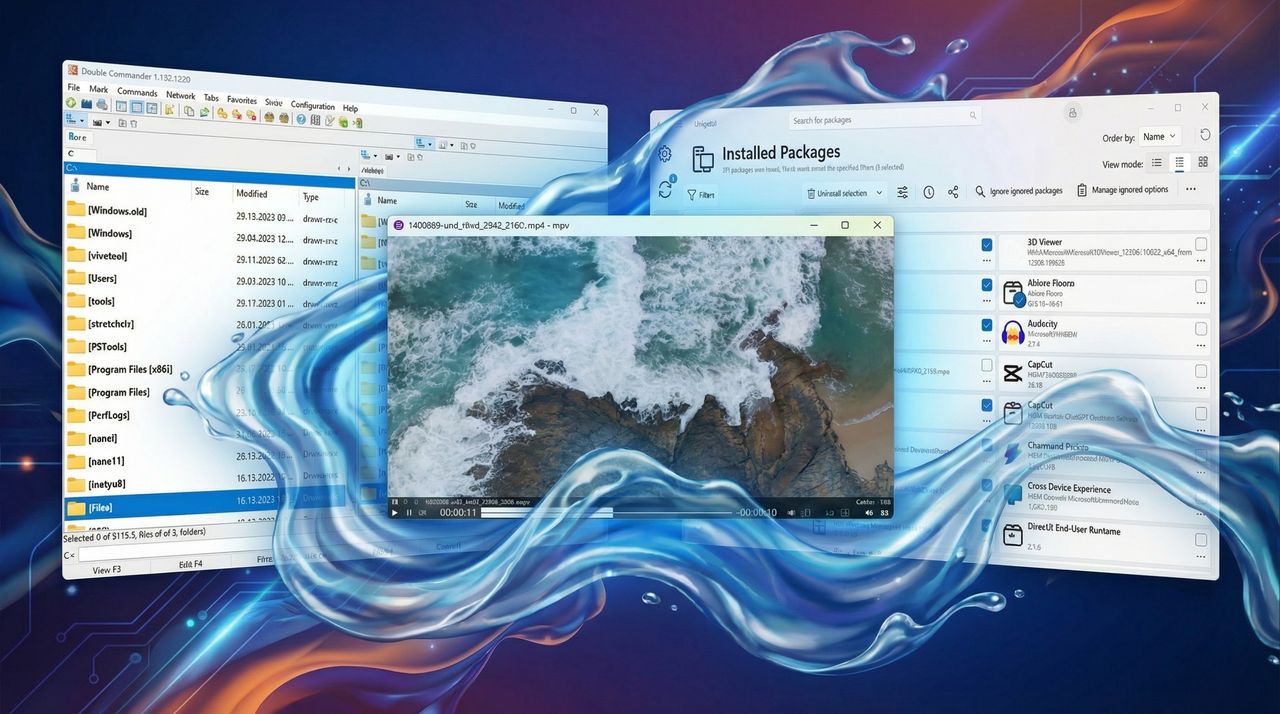
On Windows 11, the system ships with many built-in tools, but some of the best upgrades don't come from Microsoft at all. They come from small and open-source projects that quietly solve problems better than the defaults ever have.
This list isn't about the usual recommendations. You won't find VLC, Files, or other apps that everyone (usually) already knows. Instead, these are lesser-known open-source tools (to regular Windows users) that genuinely improve your Windows 11 experience.

If you like software that stays out of your way, respects your system, and gives you more control instead of more noise, these apps deserve a spot on your Windows 11 setup. In this guide, I'll highlight five open-source applications that you can install and use for free on Windows 11.
5 great open-source apps for Windows 11
This list focuses on open-source applications that can improve everyday experiences on Windows 11.
1. Ditto
An advanced clipboard manager that stores history, supports images, text, HTML, and custom formatting, is searchable, and is hotkey-accessible.

This tiny tool is far better than the basic clipboard on Windows 11 because it doesn't work like the classic clipboard. However, it has part of the Clipboard History feature, plus more.
Once you install Ditto on your computer, you can access it using the icon in the System Tray or through the default "Ctrl + ~" keyboard shortcut.
In the interface, you can access the "Options" page, which offers a slew of settings to customize this tool in many ways. For example, you can:
- Customize the appearance and choose the number of copies in the history.
- Select the type of content that can be stored in the clipboard, including PNG, Rich Text Format, plain text, and more.
- Choose more than one shortcut to access the Ditto clipboard interface.
- Set up multiple independent clipboards that operate alongside your standard Windows clipboard, and they have their own copy and paste shortcuts.
- Configure the "Friends" feature that allows you send and receive copies from other computers in the network.

Finally, Ditto offers stats for your copies and pastes. Furthermore, there's a search functionality to find your clips, and you can back up and restore the database with all your clips.

Ditto is free and open-source, and you can download it from this GitHub page.
2. Double Commander
Another open-source application that should be part of anyone's Windows 11 installation is Double Commander, a two-panel file manager inspired by Total Commander, with tabs, FTP support, advanced search, syncing, and plugins.

The main draw of Double Commander is the side-by-side view. Instead of opening two separate File Explorer windows and dragging files between them, you have two panels active at all times. This makes moving, comparing, and organizing files significantly faster.
Since this tool is similar to Total Commander, you can use the WCX and other plugins. It also includes a text editor, so you don't need to launch a separate app to tweak a config file.

One of its most powerful features. You can rename thousands of files at once using masks, counters, and regular expressions.
It handles ZIP, TAR, GZ, BZ2, RAR, and RPM files like they are just regular folders.
Finally, you can search for files not just by name, but by content (including full-text searches inside documents).
Although Double Commander isn't exactly pretty, one could argue that this tool can also replace File Explorer. However, in my opinion, it's a tool that complements the default file manager.
Double Commander is free and open-source, and you can download it from this GitHub page.
3. UniGetUI
UniGetUI (formerly known as WingetUI) is an open-source graphical interface designed to simplify software management on Windows 11.

It offers a graphical frontend for the Windows Package Manager (winget), Scoop, Chocolatey, Pip, NPM, and more package managers. It lets you browse, install, update, and uninstall apps from multiple sources in one place.

This solution is perfect for managing applications with different command-line tools without the hassle of the CLI.
Once you install UniGetUI, the tool will scan your entire system (even apps you didn't install via UniGetUI) and let you update them all with a single click. In the same way, you can use this interface to uninstall applications.
On the "Package managers" page, you'll find the options to configure the different package managers to use with this tool. The Windows Package Manager (winget) should be available by default, but in the case that one or more package managers are not available, you can access their settings to install them manually.

By any means, this is an easy tool for anyone to use. This tool is aimed at more advanced users, as it requires some knowledge of setting up and using the app.
If you want to install new applications, from the "Discover Packages" tab, perform a search using the box at the top of the page, select the item, and click the "Install selection" button.
UniGetUI is free and open-source, and you can download it from this GitHub page.
4. LocalSend
LocalSend is an open-source, cross-platform file-sharing tool that works over your local wireless network between computers and phones.

It's simple, secure, and provides a quick solution for transferring content without an internet connection or traversing the cloud through third-party networks.
In a sense, this tool acts like an AirDrop for everyone, but it focuses on privacy because it lets you send files, folders, and text between devices instantly, and it works across Windows 11, macOS, Linux, Android, and iOS.
Some of the key features include that files stay on your local network. No data is sent to a server, and there is no tracking or advertising.
It uses a secure communication protocol with HTTPS and on-the-fly TLS encryption. You don't need to create an account, log in, or link an email. You can send entire folders or multiple files at once. You can even send text snippets (great for long URLs or Wi-Fi passwords).

LocalSend uses your local network to find other devices. As long as both devices are on the same network and the app is open on both, they will "see" each other.
One thing you'll notice is that each device is assigned a funny alias (for example, "Powerful Lemon" or "Patient Lemon") so you don't have to deal with IP addresses.
You then pick the files or text you want to send. You tap the name of the destination device. The receiver gets a prompt to "Accept," and the transfer happens at the maximum speed your router allows.
You can download the LocalSend app free from this GitHub page.
5. MPV
If you are looking for a minimalist and highly customizable media player, MPV is worth serious consideration.
MPV is a free and open-source media player built with a strong focus on high-quality playback and performance. It is lighter and significantly more customizable than VLC, which is why many enthusiasts prefer it.

The player itself does not include a traditional graphical interface. The controls usually appear when hovering over with the mouse while playing a video, and in the settings, you can find a range of features. That said, using MPV directly does not require any configuration out of the box.
Advanced users can create an mpv.conf file to define custom settings, but this is entirely optional. Writing your own configuration can feel intimidating at first, but once you understand how MPV handles options and profiles, the level of control is virtually unlimited.
Using the configuration file, you can create multiple profiles for different types of content, remap any keyboard shortcut to any function, and extend the player with scripts to add new capabilities.
MPV originated as a fork of MPlayer and has been heavily rewritten over the years. It relies on FFmpeg for decoding, which contributes to its efficiency and performance advantages over VLC. In practice, MPV handles high-resolution and high-bitrate content more smoothly.
Hardware acceleration support in MPV is better. It offers excellent support for technologies such as VAAPI on Linux, VDPAU, and D3D11 on Windows. This results in better playback performance and lower system resources compared to VLC.

Another key advantage is resource usage. MPV consumes significantly less memory than many other media players, especially VLC.
MPV also stands out in video quality. It offers superior scaling algorithms that deliver sharper, more detailed images. Features such as motion interpolation enable smoother playback by generating intermediate frames, and its color management is more precise overall. Also, HDR support is more mature and reliable than what VLC currently offers.
The minimalist design is not a limitation but a defining feature. By stripping away unnecessary elements, MPV focuses entirely on playback quality, performance, and customization.
VLC is still an excellent media player and remains the better choice for users who value simplicity and immediate ease of use. However, if you care deeply about image quality, performance, and fine-grained control over how your media is played, MPV consistently delivers better results.
MPV remains an underrated but powerful tool for advanced video and audio playback without unnecessary bloat. For enthusiasts and professionals alike, it is often the superior choice.
If you want to install the MPV player, you can download it for free from this GitHub page. (You want to download the "mpv-vX.X.X-x86_64-pc-windows-msvc.zip" package.)
At the end
None of these tools is flashy, and that's exactly the point. They focus on doing one thing extremely well, without ads, tracking, subscriptions, or unnecessary features layered on top.
Ditto fixes the clipboard. Double Commander improves file management. UniGetUI finally makes package managers more usable. LocalSend removes friction from file sharing. MPV pushes media playback quality far beyond many other players.
Open-source software often flies under the radar on Windows 11, but these apps prove they can offer something better than those default installs. If you're willing to look past the obvious choices, you can end up with a faster, cleaner, and more capable system, and that's the real upgrade.
More resources
For more helpful articles, coverage, and answers to common questions about Windows 10 and Windows 11, visit the following resources:
- Windows 11 on Windows Central — All you need to know
- Windows 10 on Windows Central — All you need to know

Follow Windows Central on Google News to keep our latest news, insights, and features at the top of your feeds!