Get all your news in one place.
100’s of premium titles.
One app.
Start reading
Tom’s Guide
Tom’s Guide
Technology
Kaycee Hill

3 Android speed killers hiding in plain sight — here's how to fix them

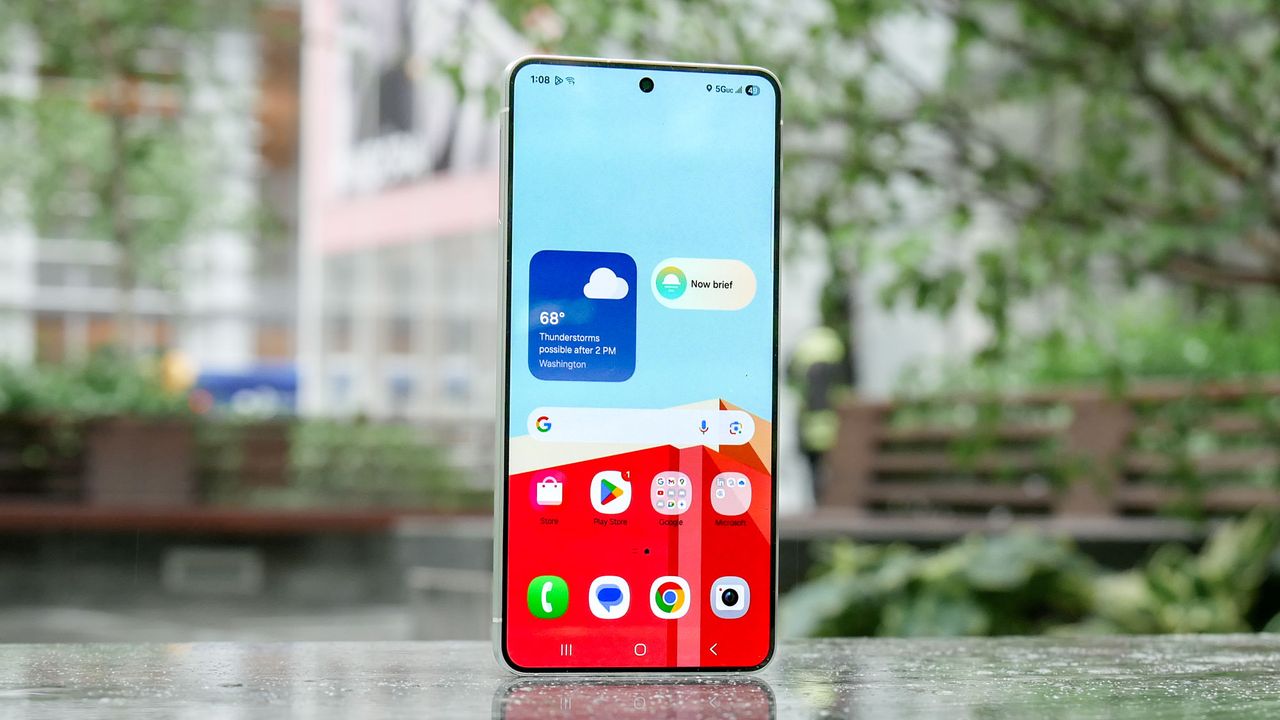
Samsung Galaxy S25 Edge review.

A sluggish Android phone doesn’t always mean it’s time to upgrade. While performance naturally degrades over time, most slowdowns come from fixable issues: accumulated junk files, forgotten apps running in the background, and settings that haven’t been touched since you unboxed the device.

A few minutes of basic maintenance can bring back much of your phone’s original responsiveness. These fixes won’t make a three-year-old phone feel brand new, but they’ll noticeably improve how quickly apps launch and how long your phone stays responsive between charges. Here’s how to speed up your Android.

1. Delete apps you never use anymore

Scroll through your app drawer and home screen, then uninstall anything you haven’t opened in months. Forgotten apps don’t just waste storage, they run background processes that drain battery and slow performance even when you’re not actively using them.

Start with obvious targets: games you played once and abandoned, shopping apps for stores you never visit, duplicate apps that serve the same purpose. Check your apps list for things you downloaded temporarily.

You can uninstall directly from your home screen by long-pressing an app icon and selecting Uninstall, or go to Settings, Apps and remove multiple apps at once.

2. Clear out old files and free up storage

Open your phone’s file manager app and head straight to the Downloads folder. This is where digital debris piles up. Delete anything you don’t actively need. For important files worth keeping, move them to cloud storage like Google Drive or Google Photos instead of leaving them on your phone.

Most file manager apps include a section showing your largest files — use this to find old videos, duplicate photos, or oversized documents you can either delete or upload to the cloud. Even clearing just a few hundred megabytes makes a difference, especially if you were running low on storage.

When storage fills up, Android slows down because the system struggles to manage limited space. Freeing up room gives your phone breathing room to operate smoothly.

3. Optimize your device settings

Enable dark mode to reduce battery drain and improve responsiveness. Dark mode uses less power on phones with OLED screens, which means better battery life and smoother performance. Go to Settings, Display, and Dark theme to turn it on.

Disable notifications for apps that don't need them. Constant alerts trigger background processes that drain resources. Go to Settings, Notifications and turn off alerts for social media, games, and services you don't need immediate updates from.

Turn off automatic app updates over mobile data. When multiple apps update simultaneously over cellular, performance suffers and data usage spikes. Go to Play Store, Settings, Network preferences, Auto-update apps and select Over Wi-Fi only.


Follow Tom's Guide on Google News and add us as a preferred source to get our up-to-date news, analysis, and reviews in your feeds. Make sure to click the Follow button!


More from Tom's Guide

Sign up to read this article
Read news from 100’s of titles, curated specifically for you.
Already a member? Sign in here
Related Stories
Top stories on inkl right now
One subscription that gives you access to news from hundreds of sites
Already a member? Sign in here
Our Picks
Fourteen days free
Download the app
One app. One membership.
100+ trusted global sources.