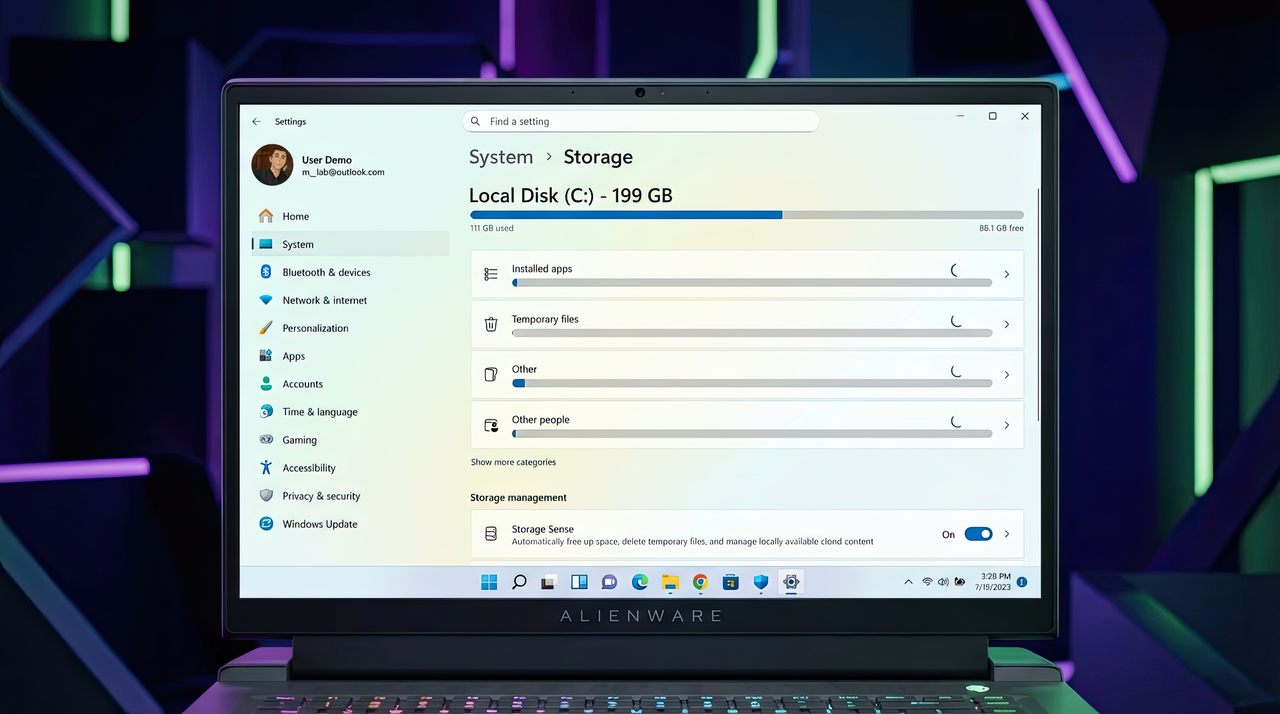
On Windows 11, when a device starts running low on storage, there are several built-in options to reclaim space, improve responsiveness, and make room for more important files.
You can use Storage Sense to automatically remove temporary files, enable OneDrive Files On-Demand to free up local space by keeping rarely used files in the cloud, and apply NTFS compression to reduce file sizes without moving data. For deeper savings, Compact OS can shrink the overall footprint of Windows 11 and its apps.

Beyond system tools, you can uninstall apps and games you no longer use, move large files to another drive or external storage, and review what's consuming space to prevent the problem from recurring.
In this how-to guide, I'll walk you through the most effective methods to free up space on your computer.
Free up space with Cleanup recommendations
On Windows 11, "Cleanup recommendations" is a feature that automatically identifies content you can safely remove to reclaim storage space on your laptop or desktop. It highlights large, unused files, rarely used apps and games, and files that are already synced to OneDrive and no longer need to be stored locally.
To free up space with Cleanup recommendations on Windows 11, use these steps:
- Open Settings.
- Click on System.
- Click the Storage page on the right side.

- Select the "Cleanup recommendations" setting under the "Storage management" section.

- Click on Temporary files.
- Select the files to delete to free up space.
- Click the Clean up button.

- Click on "Large or unused files."
- Select the large and unused files to delete.
- Click the Clean up button.
- Click on "Files synced to the cloud."
- Select the synced files that you can delete locally
- Quick note: If you delete synced files, they will still be available on your OneDrive account.
- Click on Unused apps.
- Check the recommended apps that you can delete to free up space on Windows 11.
- Click the Clean up button.
Once you complete the steps, the content will be deleted from the system freeing up space for more important files.
Free up space with Storage Sense
Storage Sense is a built-in feature that helps you quickly remove junk files, including previous installation files and temporary data from apps, to reclaim storage space on your device.
To enable, configure, and use Storage Sense on Windows 11, use these steps:
- Open Settings.
- Click on System.
- Click the Storage page on the right side.

- Turn on the Storage Sense toggle switch under the "Storage management" section.
- Quick note: When you enable Storage Sense, it will automatically clear files based on your configuration. However, the system will enable the feature if it remains disabled and the operating system needs space to perform specific tasks, such as installing a new feature update.

- Select the Storage Sense setting.

- Under the "Cleanup of temporary files" section, check the "Keep Windows running smoothly by automatically cleaning up temporary system and app files" option to allow the system to delete junk files as needed.
- Turn on the "Automatic User content cleanup" toggle switch.

- Select the best cleanup option for you in the "Run Storage Sense" setting under the "Configure cleanup schedules" section:
- Every day.
- Every week.
- Every month.
- During low free disk space (recommended).
- Use the Recycle Bin drop-down menu to specify how to clear already deleted files.
- Use the Downloads setting to specify how to clean up files you downloaded from the internet into the Downloads folder.
- Quick tip: To delete most files, use the "1-day" option for the settings. The "Downloads" folder may contain important files, which means that it is recommended to back up those files manually before running Storage Sense.
- Choose how long OneDrive content synced to the device becomes online-only under the "Locally available cloud content" section.
- (Optional) Click the "Run Storage Sense now" button.
- Check the "Delete previous versions of Windows" option (if applicable).
After you complete the steps, if you click the run now button, Storage Sense will clear the files immediately. Otherwise, the system will clean up the files as space is needed.
Free up space deleting temporary files
As part of the storage tools available on Windows 11, you can also delete temporary files manually using the Storage settings.
To delete temporary files manually, use these steps:
- Open Settings.
- Click on System.
- Click the Storage page on the right side.

- Click the Temporary files setting.

- Select the junk files to delete from Windows 11.
- Quick note: The available items may differ in your installation. If you want to select the "Downloads" item, consider that this option will erase everything in the "Downloads" folder.
- Downloads.
- Windows Update Cleanup.
- Recycle Bin.
- Delivery Optimization Files.
- Thumbnails.
- Microsoft Defender Antivirus.
- Temporary Internet Files.
- Temporary files.
- Windows error reports and feedback diagnostics.
- DirectX Shader Cache.
- Previous Windows installation(s).
- Temporary Windows installation files.
- Click the Remove files button.

Once you complete the steps, the files will delete permanently, freeing up space on the computer.
Free up space with Disk Cleanup
If you prefer the legacy experience, Windows 11 still includes the Disk Cleanup tool to delete temporary files and recovery points.
Delete temporary files
To clear up space on the hard drive with Disk Cleanup, use these steps:
- Open Start.
- Search for Disk Cleanup and click the top result to open the app.
- Use the "Drives" setting and select the (C:) drive (if applicable).
- Click the OK button.
- Click the "Cleanup system files" button.

- Use the "Drives" setting and select the (C:) drive one more time (if applicable).
- Click the OK button.
- Check all the contents you want to clear:
- Windows Update Cleanup.
- Microsoft Defender Antivirus.
- Downloaded Program Files.
- Temporary Internet Files.
- Windows error reports and feedback diagnostics.
- DirectX Shader Cache.
- Delivery Optimization Files.
- Device driver packages.
- Language Resource Files.
- Previous Windows installation(s).
- Recycle Bin.
- Temporary files.
- Thumbnails.
- Click the OK button.

- Click the Delete Files button.
After you complete the steps, those unnecessary files you selected will be removed from the device.
Delete System Restore and Shadow Copies
You can also delete older files from System Restore and the Shadow Copies features to reclaim additional space.
To delete old system restore points on Windows 11, use these steps:
- Open Start.
- Search for Disk Cleanup and click the top result to open the app.
- Use the "Drives" drop-down menu and select the (C:) drive (if applicable).
- Click the OK button.
- Click the "Cleanup system files" button.

- Click the More Options tab.
- Click the Clean up button under the "System Restore and Shadow Copies" section.

- Click the Delete button.
Once you complete the steps, you will reclaim some additional space to store more important files.
Free up space with OneDrive file on-demand
If you need to free up space quickly, you can use the OneDrive on-demand feature to manually make files available online.
Enable OneDrive files on-demand
To enable files on-demand on Windows 11, use these steps:
- Click the OneDrive icon in the bottom-right corner of the taskbar.
- Click the Help & Settings option.
- Click the Settings option.

- Click the Sync and backup tab.
- Check the "Advanced settings" option.
- Click the "Free up disk space" button in the "File On-Demand" setting.

Once you complete the steps, you can move files to the OneDrive folder and make them available only online to free up space.
Convert local files available online-only
To make files online only with OneDrive, use these steps:
- Open File Explorer.
- Select the OneDrive folder from the left pane.
- Select the files and folders taking up space.
- Right-click the selection and choose the "Free up space" option.

If you need to free up additional space, move other files to the OneDrive folder and repeat the above steps to make them available on-demand.
After you complete the steps, you will be able to access all your content in File Explorer, but you can only open it with an internet connection.
Free up space removing unused apps and games
On Windows 11, you can reclaim a lot of storage by uninstalling apps you rarely use. Games can also take up a lot of space, so keeping the list short or removing them will free up space for more important files. Also, reducing space usage will help improve overall gaming performance.
To uninstall apps and games on Windows 11, use these steps:
- Open Settings.
- Click on Apps.
- Click the Installed apps page on the right side.

- Use the "Sort by" filter and select the "Size (Large to small)" view to find the apps and games using the most space quickly.

- Select the item to remove from your computer.
- Click the Uninstall button.

- Click the Uninstall button again.
- Continue with the on-screen directions (if applicable).
Once you complete the steps, repeat the same instructions to uninstall other apps and games.
If you use the Windows Subsystem for Linux (WSL), you may also have one or multiple distros installed on the device. You can always uninstall them to free up space on Windows 11.
Delete unused languages
If every byte counts, secondary languages can use some space, and removing them can free up additional storage.
To uninstall languages on Windows 11, use these steps:
- Open Settings.
- Click on Time & Language.
- Click the Language & region page on the right side.

- Select the language no longer needed.
- Click the menu (three-dotted) button and click the Remove button.

After you complete the steps, you may need to repeat the instructions to delete additional languages.
Uninstall optional features
Windows 11 has many optional features (for example, Windows Media Player, Windows Hello Face, Math Recognizer, Windows Fax and Scan, Step Recorder, WordPad, Windows PowerShell ISE, and others) that you can remove to regain a little bit more space.
To remove Windows 11's optional features, use these steps:
- Open Settings.
- Click on System.
- Click the Optional features page on the right side.

- Click the View features button.

- Select the feature to remove from your computer.
- Click the Remove button.

- Restart the computer (as necessary).
After you complete the steps, you may need to repeat the instructions to remove additional features.
Free up space moving files to external storage
If you have tried every option and still do not have enough storage, connecting an external drive allows you to move files off the main drive and free up space. If the external storage stays connected, you can also configure Windows 11 to save new files directly to the secondary drive.
Move files to external storage
To offload files to a different location, connect an external drive with enough space and use these steps:
- Open File Explorer.
- Open the folder with the content that takes up the most space on the drive.
- Select the items.
- Click the Cut button from the command bar.

- Browse to the destination drive.
- Quick tip: To keep files organized, create a new folder with a descriptive name and paste the files into it. Also, if you have a lot of data, transferring the files in chunks rather than all at once is recommended.
- Click the Paste button.

Once you complete the steps, repeat the instructions to move additional files and folders to a new location to reduce storage usage and prevent the location from running out of space.
Configure another storage as new default location
To configure Windows 11 to save files and install new apps on an external drive automatically, use these steps:
- Open Settings.
- Click on System.
- Click the Storage page on the right side.

- Click on Advanced storage settings under the "Storage management" section.
- Click the Where new content is saved setting.

- Select the new location to automatically save files for each content type.

- Click the Apply button.
- (Optional) Use the "New apps will be saved to" setting to select the drive where future apps are installed by default.
- Click the Apply button.
After you complete the steps, files and apps from the Microsoft Store will be saved and installed in the new location.
Move apps and games to external storage
Like previous versions, Windows 11 also lets you move apps from the Microsoft Store and games to an external drive without reinstalling anything. You could use this feature to move apps and games to another drive to free up space on the primary storage.
To move existing games and apps to another driver on Windows 11, use these steps:
- Open Settings.
- Click on Apps.
- Click the Installed apps page on the right side.

- Use the "Sort by" filter and select the "Size (Large to small)" view to see the apps and games taking up the most space quickly.
- Click the menu (three-dotted) button on the right side of the item and select the Move option.
- Select the new storage location.

- Click the Move button.
- Quick note: If the option is not available, the feature is not available for that particular app.
- Select the drive to move the app or game.
- Click the Move button again.
The external drive must be connected to the device at all times when using this feature. Otherwise, you won't be able to launch the apps or play those games in the new storage.
After you complete the steps, repeat the above instructions to move additional apps or games to the new location.
Free up space with NTFS compression
Windows 11 includes a lightweight compression feature built into the NT File System (NTFS) that reduces file sizes while preserving normal access, without requiring you to zip files manually. You can apply NTFS compression to individual files, folders, or an entire drive.
However, data compression can affect system performance because files must be compressed and decompressed on demand. You should only use this option when other space-saving methods are not available, and the device has capable hardware to handle the extra processing.
Set up folder compression
To enable NTFS compression for a folder, use these steps:
- Open File Explorer.
- Browse to the folder to compress.
- Right-click the folder and select the Properties option.

- Click the Advanced button.

- Check the "Compress contents to save disk space" option under the "Compress or Encrypt attributes" section.

- Click the OK button.
- Click the Apply button.
- Select the "Apply changes to this folder, subfolders, and files" option.
- Quick note: If the folder already contains a lot of files, the initial compression can take some time.
- Click the OK button.
- Click the OK button again.
After you complete the steps, the compression feature will be enabled in the folder, reducing the size of existing and future files. You can also use the same instructions to compress files individually.
You can revert the changes using the same instructions, but in step 5, make sure to clear the "Compress contents to save disk space" option.
Set up storage compression
To enable NTFS compression on a drive, use these steps:
- Open File Explorer.
- Click on This PC from the left pane.
- Right-click the drive you want to compress and select the Properties option under the "Devices and drives" section.

- Check the "Compress this drive to save disk space" option.
- Quick tip: Using compression in the installation drive can negatively affect performance. It's only recommended to use this feature on a secondary drive or partition.

- Click the Apply button.
- Select the "Apply changes to drive (drive letter), subfolders, and files" option.
- Click the OK button.
- Click the OK button again.
Once you complete the steps, the compression process will begin, but if the drive already has content, the process could take some time.
If you don't need the feature anymore, you can revert the changes with the same instructions, but in step 4, clear the "Compress this drive to save disk space" option.
Free up space disabling Hibernation
On Windows, Hibernation has been around for many years. It's designed to save the contents of system memory to the internal drive before shutting down, allowing you to resume your previous session the next time you turn on the computer.
While useful, the feature requires several gigabytes of storage to hold memory data in hiberfil.sys file. If your device is running low on space, disabling this feature can quickly reclaim a significant amount of storage.
To disable Hibernation to free up space on Windows 11, use these steps:
- Open Start.
- Search for Command Prompt, right-click the top result, and select the Run as administrator option.
- Type the following command to disable Hibernation and press Enter: powercfg /hibernate off

Once you complete the steps, Hibernation will turn off, and during the process, the system will remove the hiberfil.sys file freeing up several gigabytes of space.
In the future, you can always re-enable the feature on Windows 11 with the same instructions, but on step No. 3, make sure to use the powercfg /hibernate on command.
Free up space with Compact OS
Compact OS is a tool that reduces the installation footprint of Windows 11 and apps. Originally designed for devices with limited storage, it can also be used to quickly reclaim disk space when you need it immediately.
Warning: This is a friendly reminder that modifying system files is risky and can cause irreversible damage to your installation if done incorrectly. Before proceeding, it's recommended that you make a temporary full backup of your PC.
To shrink the size of the Windows 11 installation, use these steps:
- Open Start.
- Search for Command Prompt, right-click the top result, and select the Run as administrator option.
- Type the following command to compress the installation of Windows 11 and apps and press Enter: compact.exe /compactOS:always

After completing the steps, the process will reclaim around 2GB of storage without affecting performance.
You can always revert the changes using the same instructions, but in step 3, use the compact.exe /compactOS:never command.
Free up space rebuilding Windows Search index
On Windows 11, the Windows Search index database can grow unexpectedly large due to issues or an extensive number of files. When this happens, resetting the index and adjusting how the feature operates can significantly reduce disk space usage.
To rebuild the Windows 11 search database, use these steps:
- Open Settings.
- Click on Privacy & security.
- Click the Search page on the right side.

- Click on "Advanced indexing options" under the "Related settings" section.

- Click the Advanced button.

- Click the Index Settings tab.
- Click the Rebuild button under the "Troubleshooting" section.

- Click the OK button.
Once you complete the steps, the system will clear and rebuild the Windows Search feature's index database.
The only caveat is that during the database rebuild, searches might be incomplete until files are indexed one more time.
Change Windows Search settings
You can prevent the database from growing large by specifying only specific locations.
To modify the indexable locations, use these steps:
- Open Settings.
- Click on Privacy & security.
- Click the Search page on the right side.

- Click on "Advanced indexing options" under the "Related settings" section.

- Click the Modify button.

- Click the Show all locations button.
- Clear the options for apps you want to exclude in the index.

- Expand the C drive and clear the folder you do not wish to appear in search to reduce the footprint of the database.
- Click the OK button.
- Click the Close button.
After you complete the steps, Windows Search will update the database, excluding the locations you specified and reducing the database's overall size.
Free up space deleting users and data on shared devices
If you share a computer with other users, removing accounts that are no longer needed can help free up additional storage space.
To delete user accounts and data on Windows 11, use these steps:
- Open Settings.
- Click on Accounts.
- Click the Other users page on the right side.

- Select the account to remove from your computer.
- Click the Remove button.

- Click the "Delete account and data" button.
Once you complete the steps, Windows 11 will delete the account and data for the user you selected, freeing up more space for other files. You may need to repeat the instructions to delete any other accounts.
Free up space removing viruses on Windows 11
Viruses and other types of malware can sometimes cause unusually high storage usage. If your computer is running low on space and you suspect an infection, running Microsoft Defender Antivirus can remove the threat, improve performance, and help reclaim storage.
To perform a full virus scan on Windows 11, use these steps:
- Open Start.
- Search for Windows Security and click the top result to open the app.
- Click on Virus & threat protection.
- Click on Scan options under the "Current threats" section.

- Select the Full scan option.
- Click the Scan now button.

After you complete the steps, the antivirus will detect and remove the virus, freeing up space on Windows 11. (For more assistance, here's everything you need to know to get started with Microsoft Defender Antivirus.)
More resources
For more helpful articles, coverage, and answers to common questions about Windows 10 and Windows 11, visit the following resources:
- Windows 11 on Windows Central — All you need to know
- Windows 10 on Windows Central — All you need to know

Follow Windows Central on Google News to keep our latest news, insights, and features at the top of your feeds!